
Weekly Timetable: See Classes, Shifts and Plans at a Glance
Add classes, shifts and plans to Damda's weekly timetable and see your week at a glance, with weekly repeats, overlap checks, reminders and widgets.
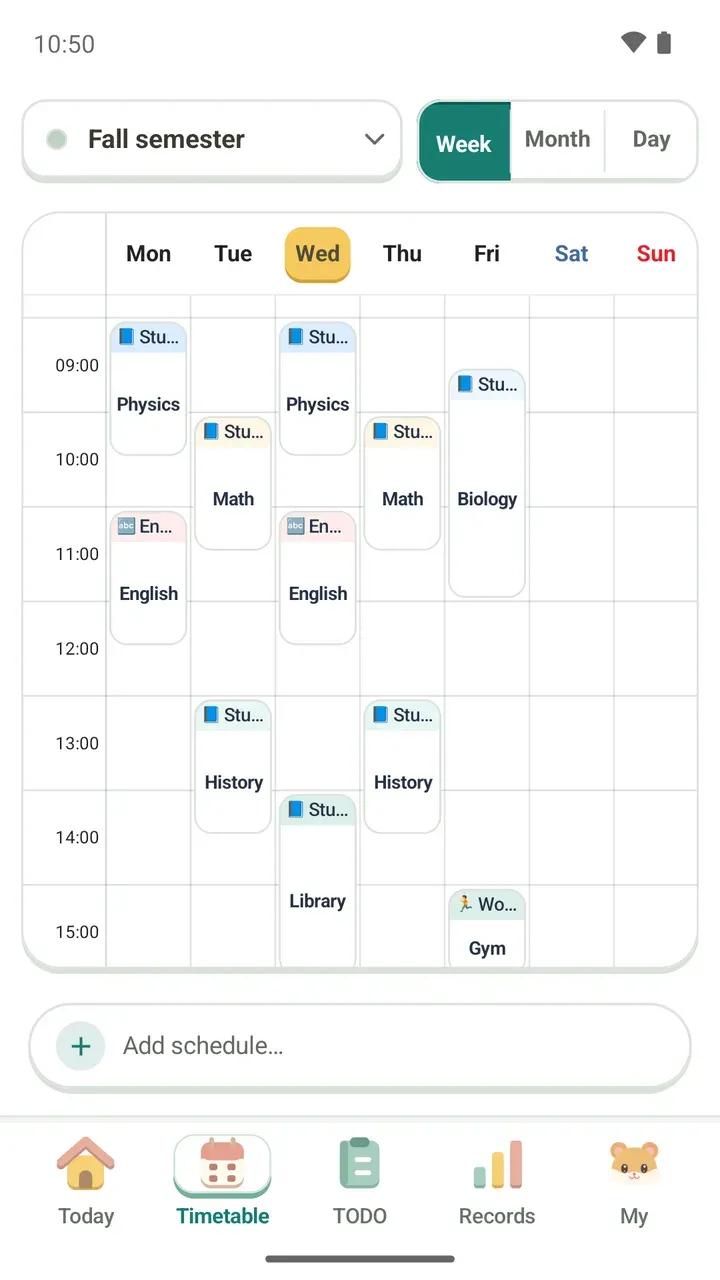
Physics on Monday and Wednesday mornings, History on Tuesday and Thursday afternoons, a shift after class and the gym on Friday. When your class schedule only lives in your head, it's hard to see where the free time is or where two things clash.
Damda's weekly timetable lays the whole week out on one screen. Enter your classes and plans once and they appear as color-coded blocks under each day. Today is highlighted, so you can tell where you are in the week right away.
Add plans to your timetable
Start with the things that can't move, like classes, practice and work shifts. Once the fixed plans are in place, the gaps for studying or working out show up on their own.
- Tap “Add schedule…” at the bottom of the Timetable tab.
- Enter the class or plan, then choose Repeat weekly or One time.
- If you like, add a location such as the classroom, a memo and photos.
- If the time overlaps with another plan, Damda tells you before you save. Check it, then tap Save.
To add a photo, take one with your phone's camera app or pick one from the photo picker. Damda doesn't ask for camera permission.
How to read the screen
- Each plan is a color-coded block, with its category, such as Study or Workout, along the top.
- The day highlighted in yellow is today.
- The name of the timetable you're viewing is at the top. Keeping more timetables and switching between them comes with Damda Plus.
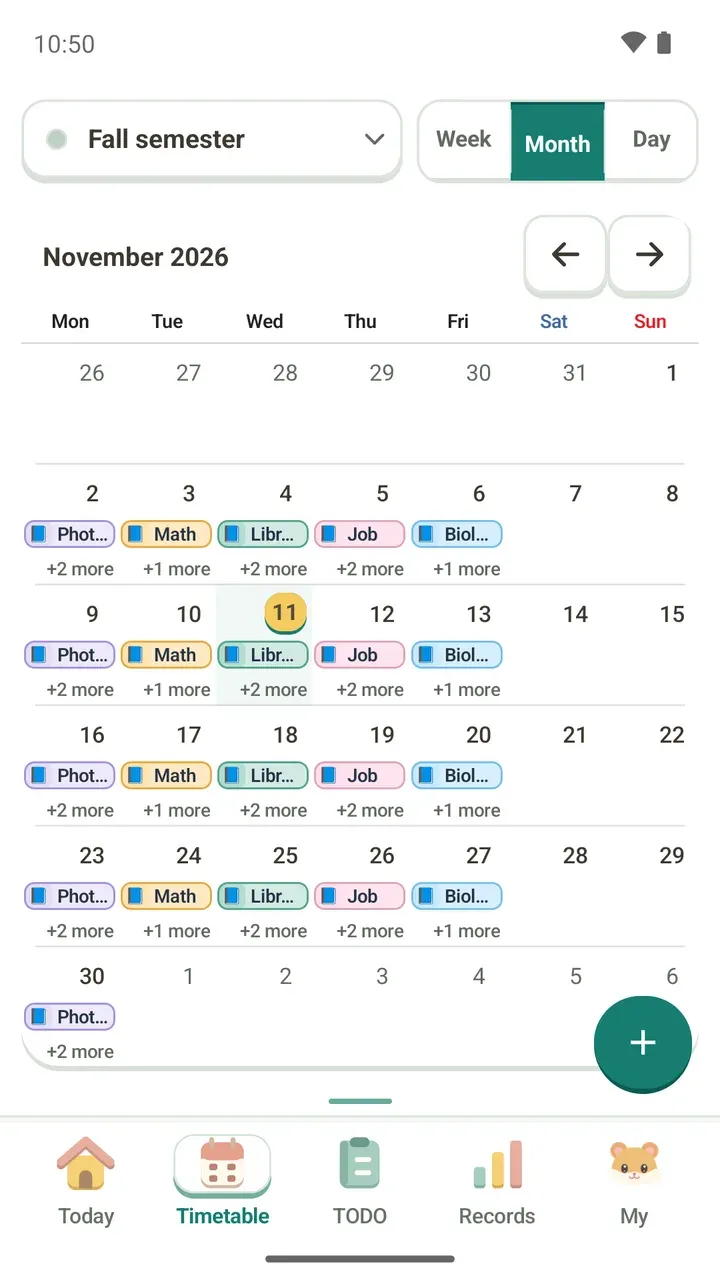
- Use the Week, Month and Day buttons at the top right to change the view.
Reminders and sharing
- Reminders can come on time, 5 minutes before or 10 minutes before.
- You can snooze a reminder right from the notification.
- You can turn a plan into a clean image card and share it to another app.
See your week without opening the app
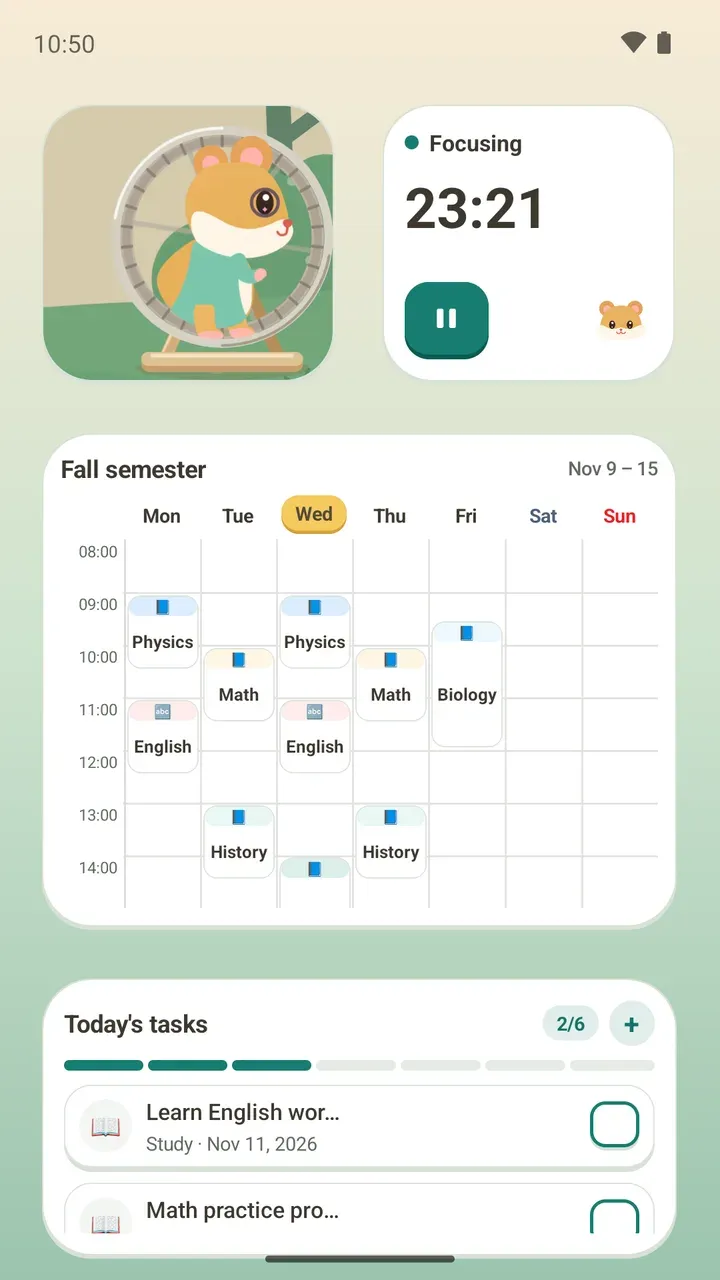
Put the timetable widget on your home screen and you can check your week without opening Damda. It fits its size, showing your next plan, today or the whole week, and there's a separate monthly timetable widget too.
Good to know
- There's no sign-up, so you can start right away. Your timetable is stored only on this device, so make a backup file for when you change phones. New backups need a password you set.
- More timetables, background images and timetable colors, and adjusting opacity and visible hours come with Damda Plus, a monthly subscription.
- Damda shows ads. Damda Plus removes ads on every screen, and you can cancel anytime.
Once your timetable is in, the Today tab shows your next class, and you can start focusing for it right there. Start by adding one class from this week.