
Damda Home

App Manual

A step-by-step guide to the Timetable, Today, TODO, Records and study hall screens.

Quick Start

If you have just installed Damda, start in this order. Enter your timetable first, then add to-dos and start focusing.

1

Install the app

Install Damda from Google Play. There is no sign-up.

2

Enter your timetable

Add classes and plans to see the whole week at a glance.

3

Add to-dos

Add tasks to check off and tasks with a count to fill.

4

Focus from Today

See your next plan, start focusing and build your records.
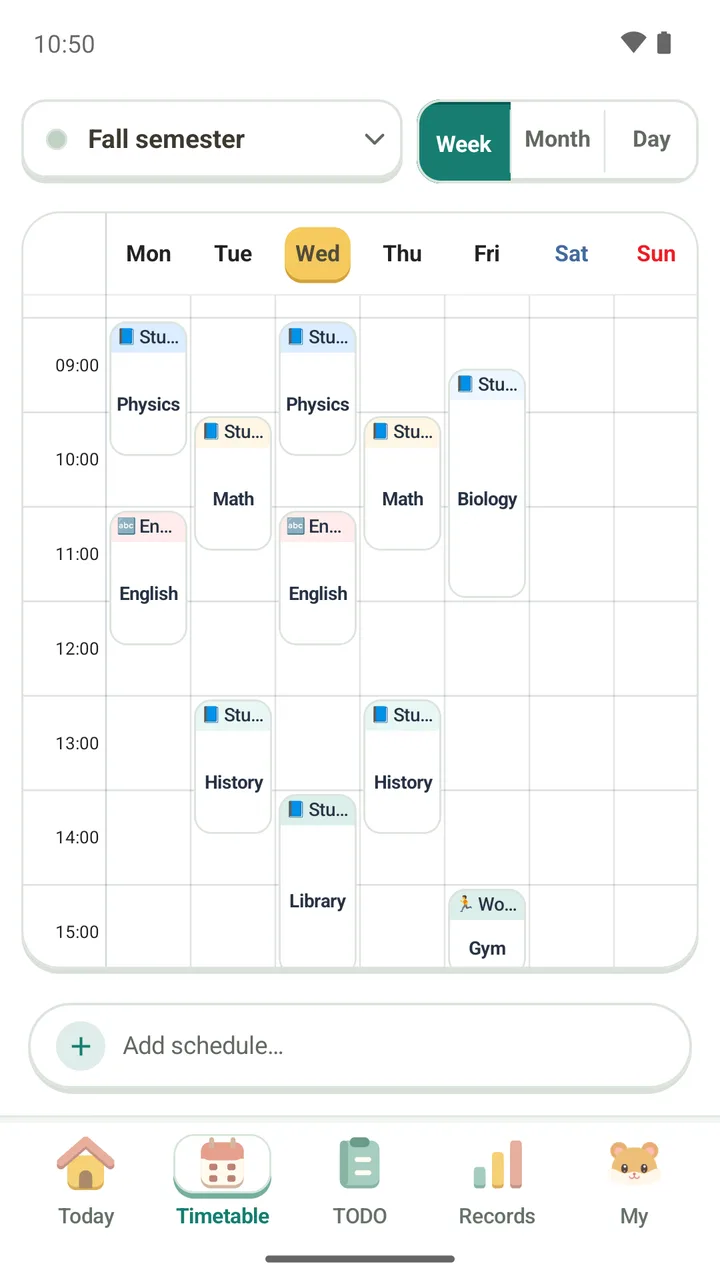
Weekly timetable with classes in colored blocks from Monday to Friday.
1/5 Timetable

Build your weekly timetable

The timetable is the heart of Damda. Enter classes and plans once and color-coded blocks show the whole week at a glance. You can switch between week, month and day views.

  1. Tap “Add schedule…” at the bottom of the Timetable tab to add a class or plan.
  2. Choose to repeat it weekly or add it once, and keep a place, a memo and photos with it.
  3. Overlaps are caught before you save, so check them and then save.
  4. Use the week, month and day buttons at the top to change the view.

Reminders can come on time, 5 or 10 minutes before, with snooze in the notification.

The timetable widget fits its size and shows your next plan, today or the week. There is a monthly timetable widget too.
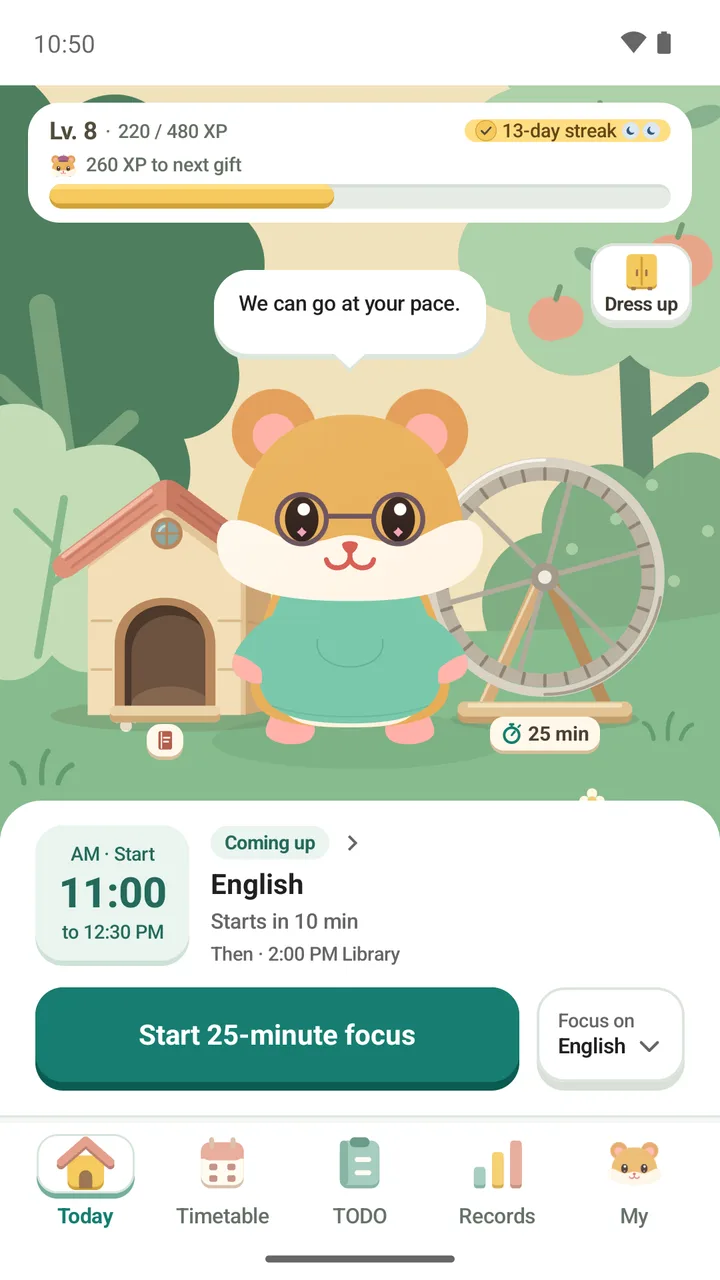
Today tab: a hamster in a garden, level and streak on top, and the next class with a focus button.
2/5 Today

Start focusing from the Today tab

The Today tab puts your next plan, your streak and a focus button on one screen, in a small garden that changes with the time of day. Keeping at it earns XP.

  1. Check your next class or plan under Coming up.
  2. Pick a class or to-do under Focus on and the time is counted there.
  3. Press the start focus button. You can follow your progress on the lock screen too.
  4. Open Dress up to put the outfits you collected on your hamster.

The timer offers Pomodoro 25/5, longer presets up to 60/10, your own length from 1 to 120 minutes, or no limit.

Move through five chapters of missions on the level path to unlock outfits for your hamster.
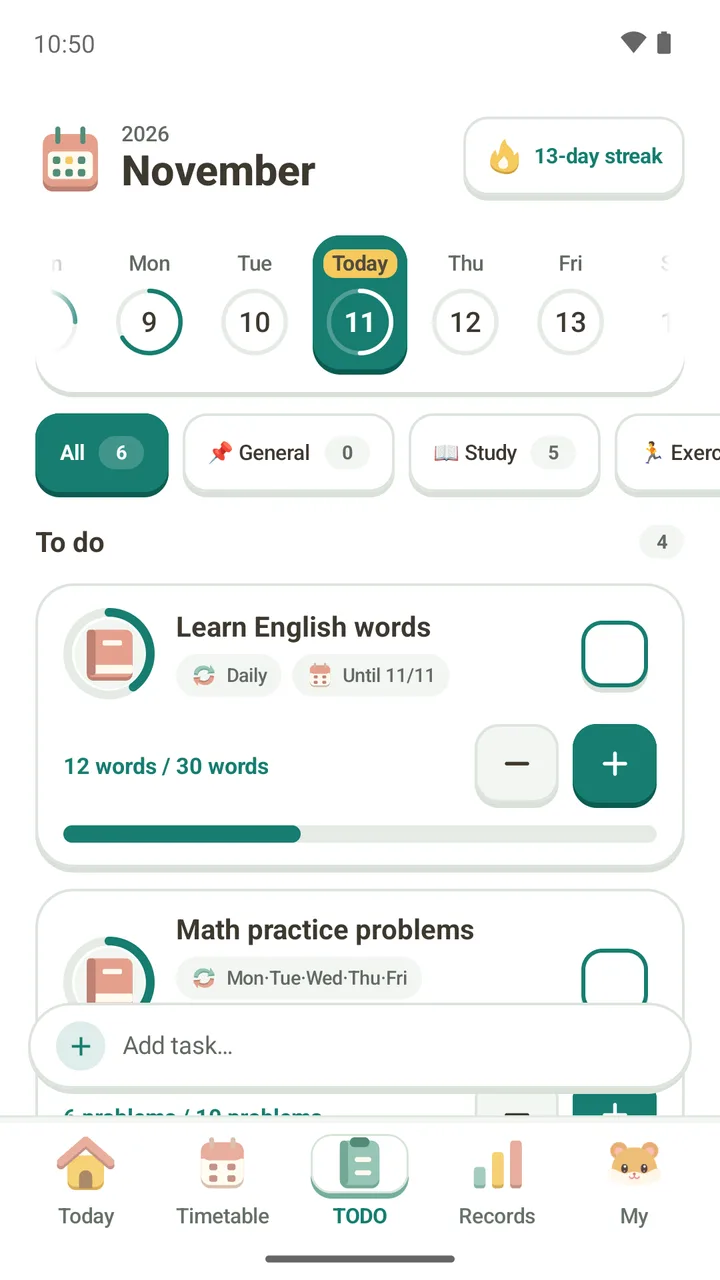
To-do list for today, with a count goal of 12 out of 30 words and a date strip.
3/5 TODO

Check off tasks and fill counts

Check a task off, or fill a count like 30 words a day. The date strip and categories at the top help you sort your to-dos.

  1. Tap “Add task…” at the bottom of the TODO tab to add a task.
  2. Repeat it every day or on chosen weekdays, with an end date if you need one.
  3. Set a due date with D-day and a category, and link it to a plan on your timetable if you like.
  4. Tap the check box on the right when you finish, and use the plus and minus buttons for count goals.

You can mark a task done or add +1 right from the reminder.

You can also share text from another app to add it as a to-do.
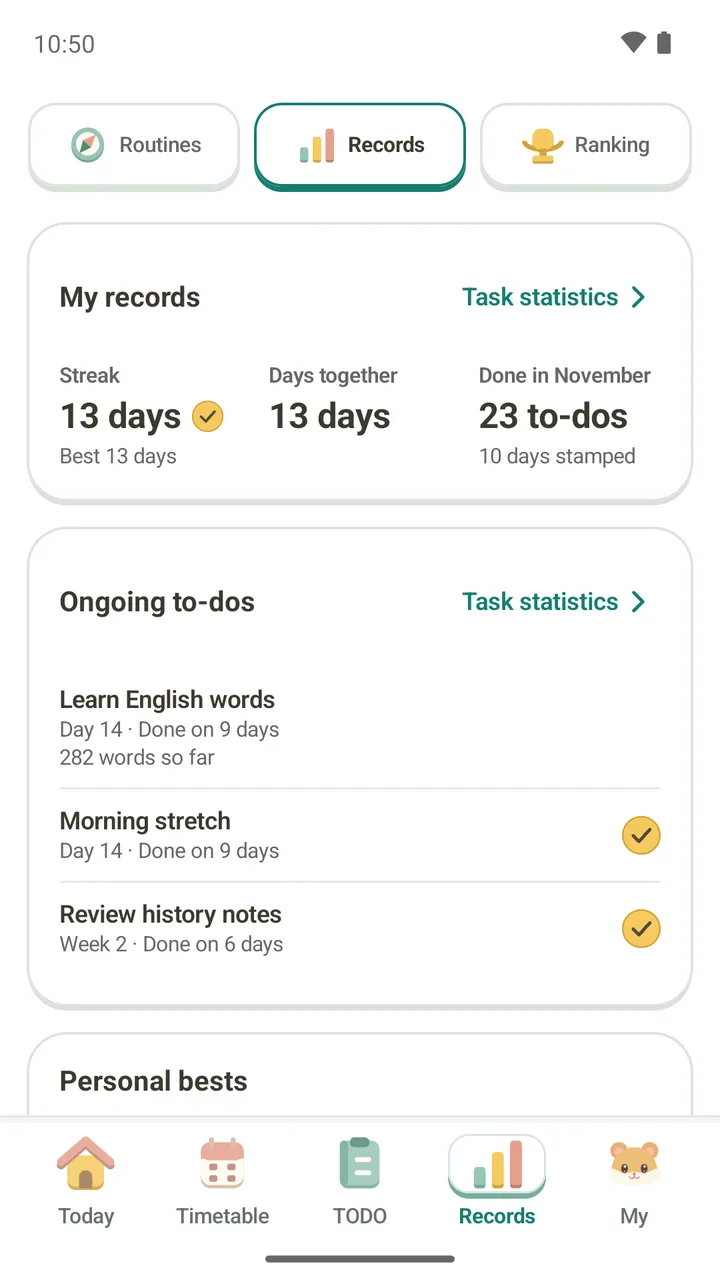
Records tab: 13-day streak, days together, tasks done this month and ongoing to-dos.
4/5 Records

Look back on streaks and focus time

The Records tab shows your streaks, the to-dos you are keeping up, your longest runs, and weekly and monthly focus charts. Routines and Ranking live in this tab too.

  1. Check your streak and this month's finished to-dos under My records.
  2. See how long you have kept going and how many days you finished under Ongoing to-dos.
  3. Use the weekly and monthly focus charts to look back on your focus time.
  4. Under Routines, add one of 26 routine packs to your current timetable and follow it on your routine journey.

Rest days: three active days in a week earn one, and it covers an empty day by itself. You can hold two.

A monthly board shows every day you kept at it, back to your first record.
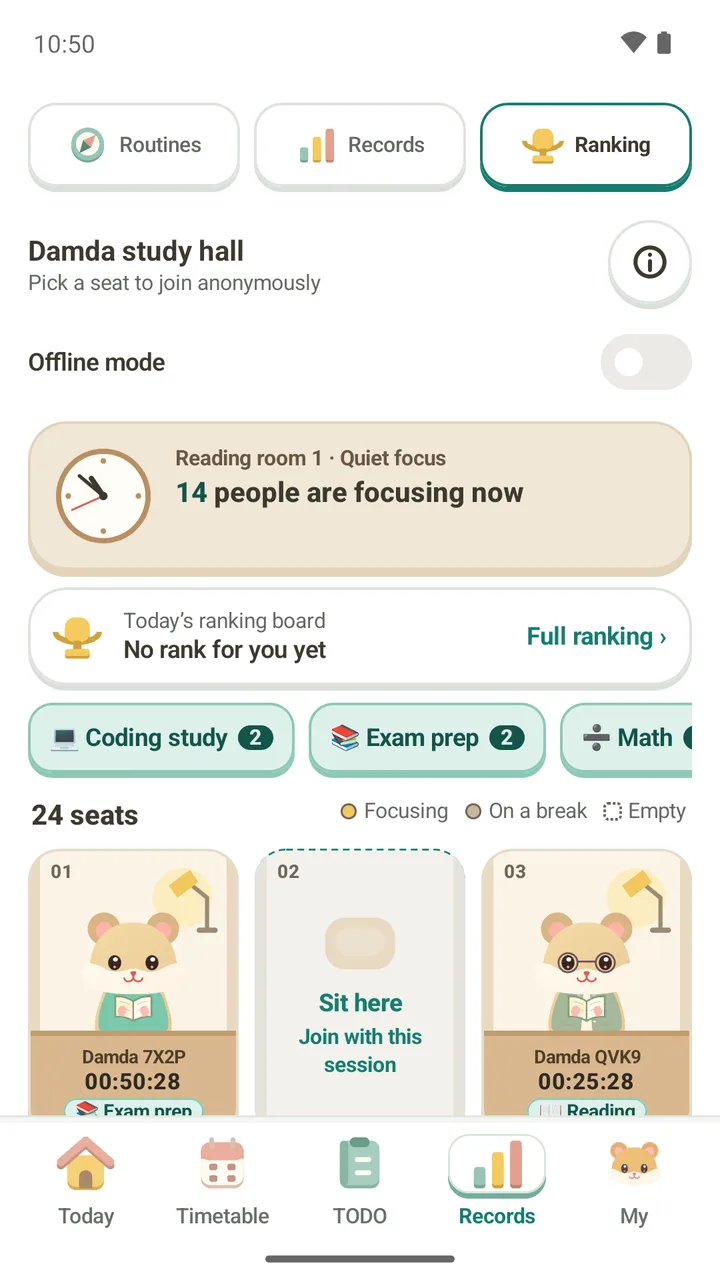
Damda study hall: anonymous hamsters at numbered desks, today's rank and shared statuses.
5/5 Study hall

Focus with others in the study hall

The Damda study hall is a live room of hamsters at their desks. Others only see a name and a hamster that change every day. Your name, timetable and to-do titles are never uploaded.

  1. Open the Damda study hall from Ranking in the Records tab.
  2. Tap “Sit here” on an empty seat to join anonymously and start focusing.
  3. Set a status such as exam prep or reading, and see today's ranking.
  4. Turn on offline mode to stop taking part.

Once you first pick a seat, your focus time today, activity type, status and seat are shared while you use the focus timer.

“Delete my online data” removes your seat, ranking records and anonymous account.

Screen-by-screen checkpoints

These are the main things to check on each screen when you first use Damda.

TimetableWeek, month and day views, plan blocks, Add scheduleCheck that fixed commitments went in first
TodayComing up, level and streak, start focusPick what to focus on before you start
TODODate strip, categories, count goals, completion checkConfirm each item is small enough to finish today
RecordsStreak, ongoing to-dos, focus charts, routinesUse records as routine feedback rather than comparison
Study hallSeats, today's ranking, offline modeCheck what is shared before you join