Monthly Timetable View: See Your Whole Month at a Glance
Switch the Timetable tab to Month and see your whole month on one screen: what the bars and "+2 more" mean, how to change months and add plans.
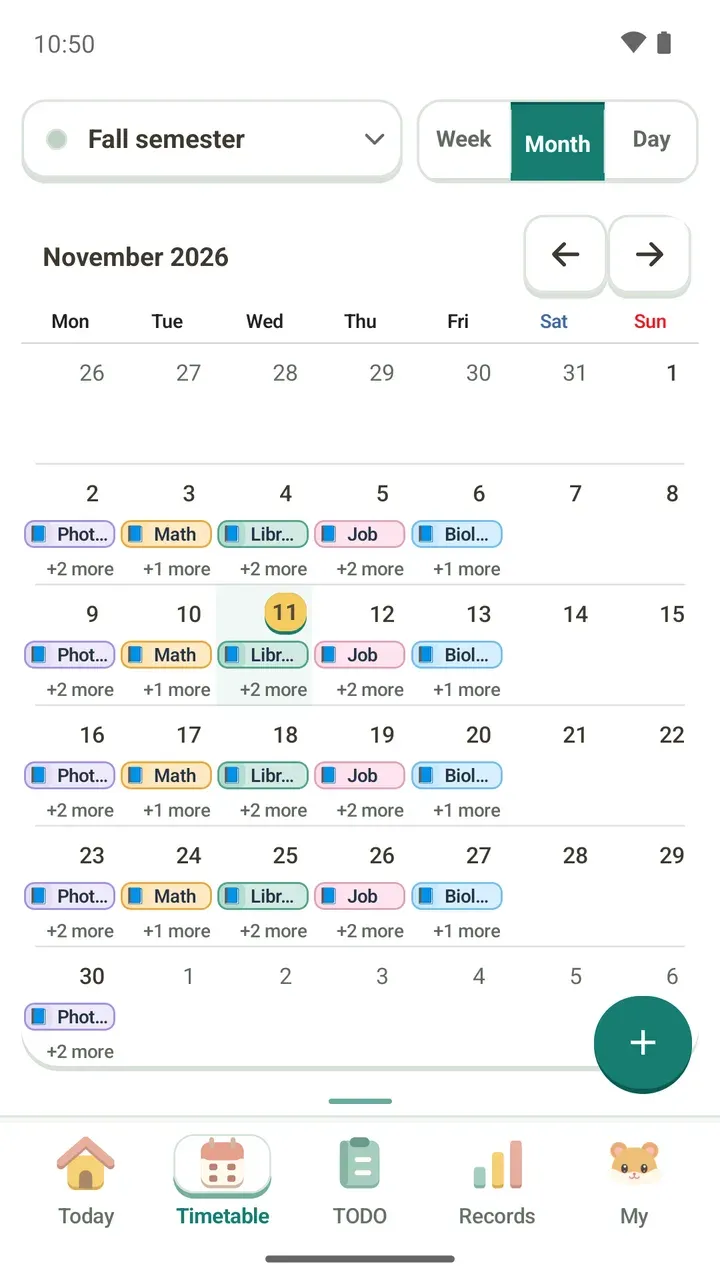
A weekly view of your class schedule is enough for the next week or so, but sometimes you want to see the whole month. Which days have no classes? Which week does that one-off appointment fall in?
Damda's Timetable tab has a month view for that. Every plan you've added shows up as a short bar on its date, so the whole month fits on one screen.
Switch to the month view
- Tap Timetable in the tabs at the bottom.
- Of the Week, Month and Day buttons at the top right, tap Month.
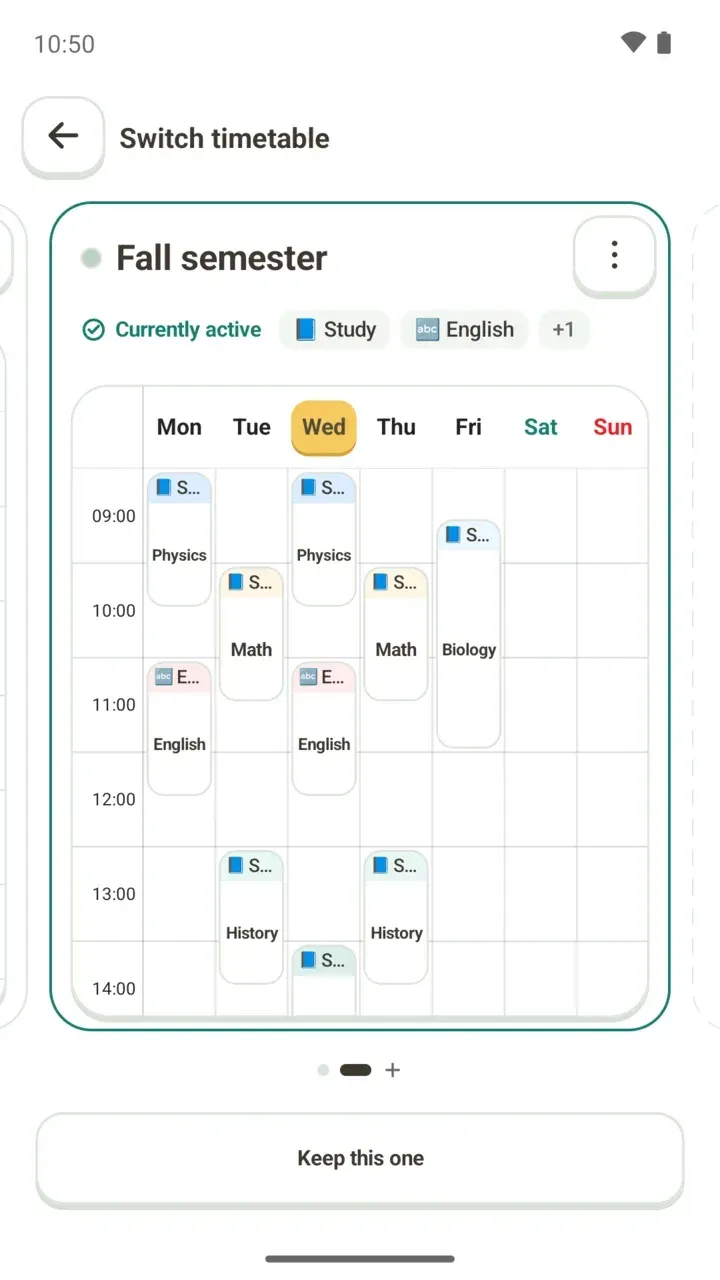
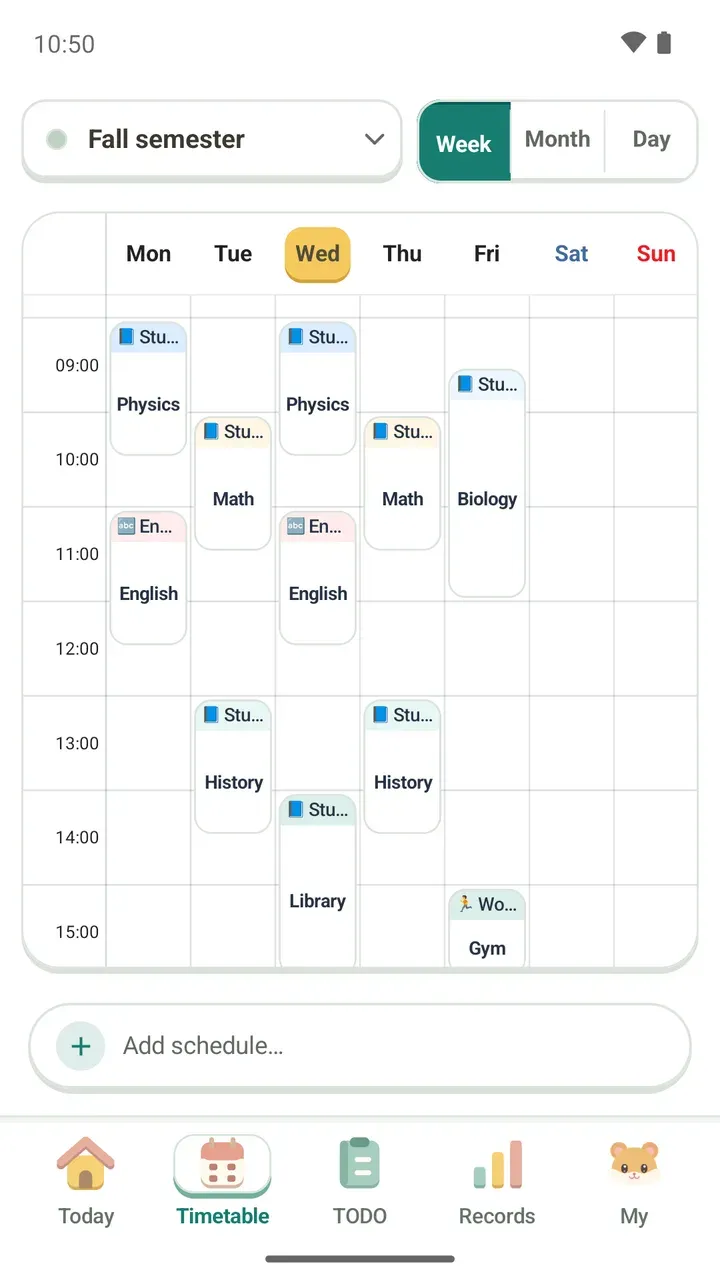
- Check that the timetable name at the top left, such as Fall semester, is the one you want. If you use more than one timetable, tap the name to switch.
Multiple timetables come with Damda Plus. To keep one per semester, job or activity, see using multiple timetables.
How to read the month
- Each date shows its plans as short bars. The bars are color-coded, and since the boxes are narrow, only the start of each title fits.
- When a day has several plans, you see one bar with the rest counted below it, like "+2 more".
- Today's date has a yellow circle, and its box is lightly highlighted.
- Days from last month and next month fill the edges of the calendar in lighter text.
- The week runs Monday to Sunday, with Saturday and Sunday in their own colors.
Scan the rows of bars and the empty boxes, and you'll spot right away which weekdays are packed and which weekends are free. For a day you want to see in detail, with titles and times, switch to the day view and see that day in order.
Change months and add plans
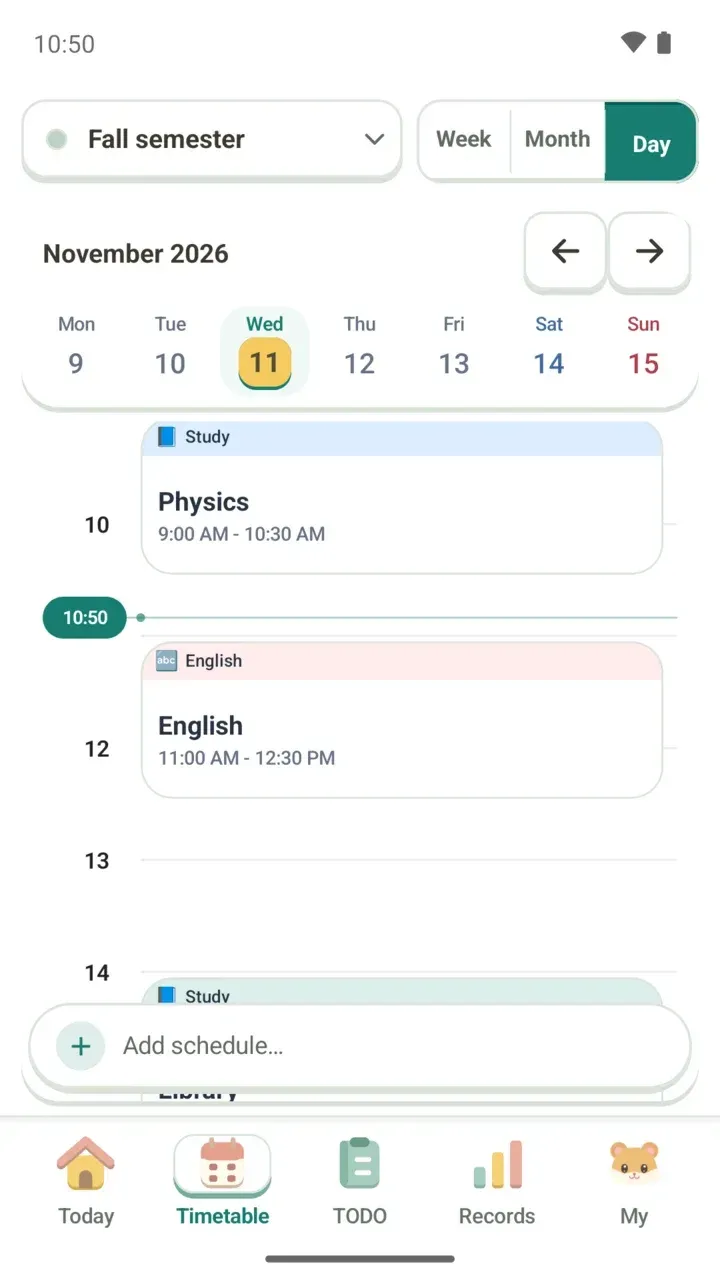
- Use the left and right arrows next to the month name, such as November 2026, to go to the previous or next month.
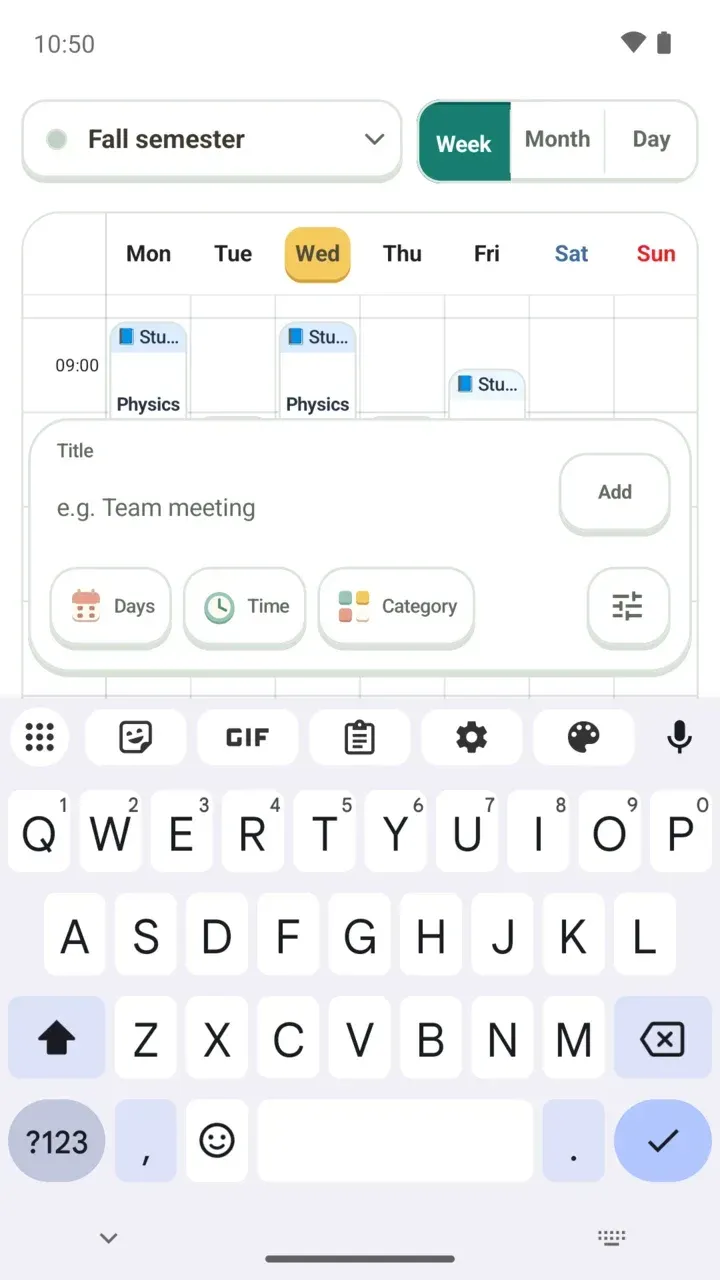
- Tap the + button at the bottom right to add a schedule.
Everything you can set for a plan is covered in how to add a schedule.
Weekly classes and one-time plans
When you add a plan in Damda, you choose Repeat weekly or One time. The month view shows both together.
- A class set to Repeat weekly appears on that weekday every week, so the same bar lines up down the column.
- A plan set to One time appears only on its date. Look for the box whose count differs from the rest of its column.
Add your semester classes once with Repeat weekly, and add things like a guest lecture or a dentist appointment as One time. When you look at the month, the days that break the usual pattern stand out.
To see a week hour by hour
The month view is best for scanning what's on each date. When you want to see what happens at what time across a week, the weekly timetable works better.
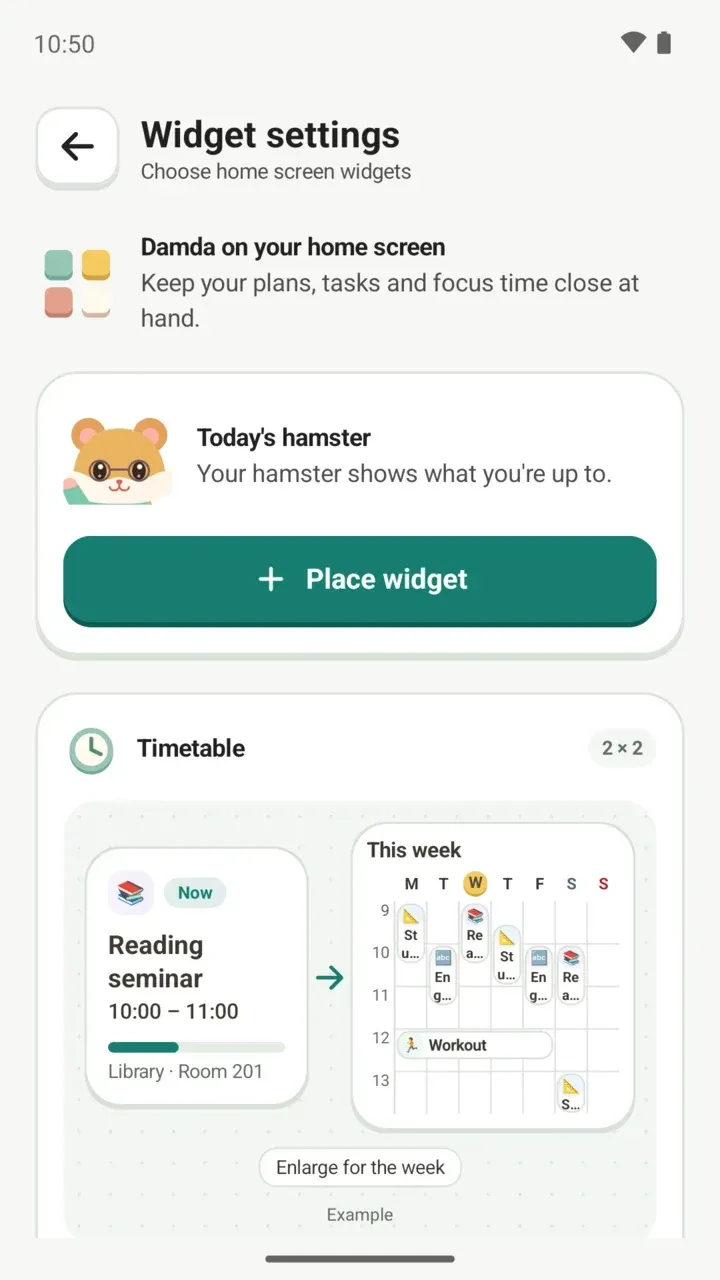
Version 3.1.0 made switching timetables easier and the month view clearer. To check this month without opening the app, there's also a monthly timetable widget for your home screen. See the timetable widget for how to add it.