Daily Timetable View: See Your Day Hour by Hour
Use Day view in Damda's timetable to see one day's classes and plans in time order. Learn to pick a date, read the current-time line and each card.
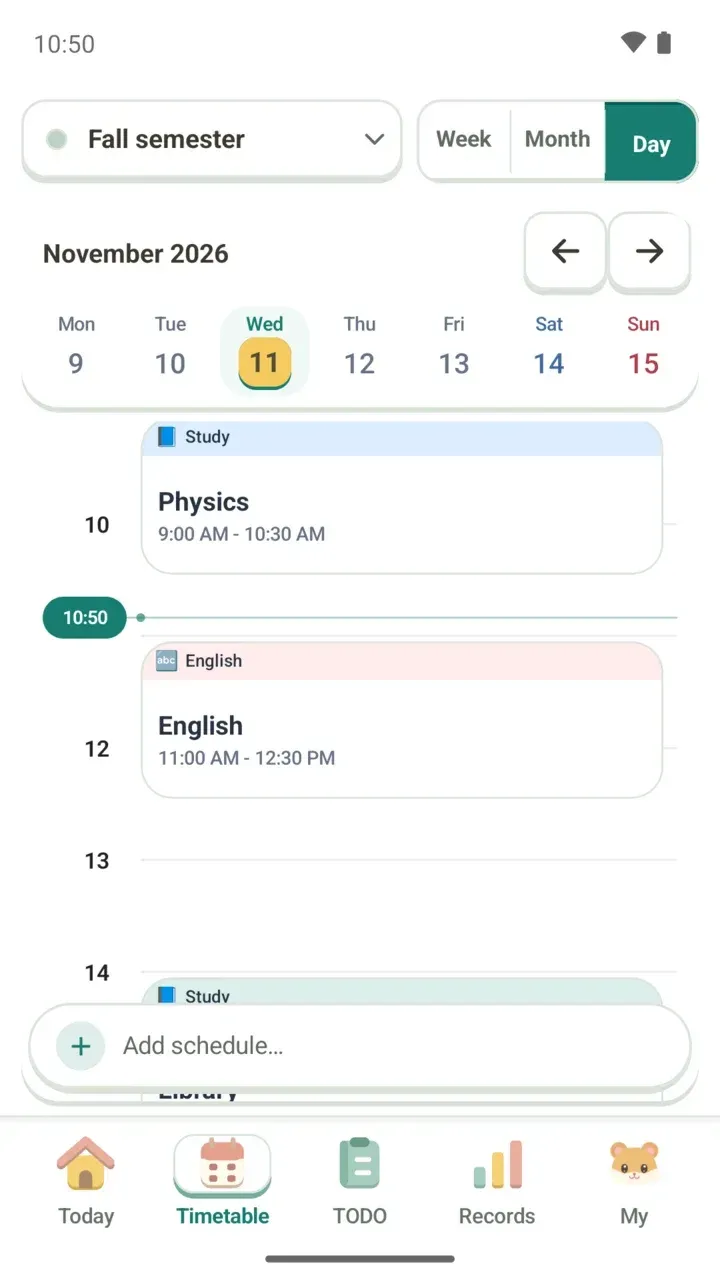
Two morning classes, a shift after lunch, then a study group at the library in the evening. On a day that packed, you want to see just today, big and clear, not the whole week.
Day view in Damda's timetable lays out one day's schedule as cards in time order. What starts when, when it ends, and where you are right now all fit on one screen.
Switch to Day view
- Open the Timetable tab at the bottom of the screen.
- Of the Week, Month and Day buttons at the top right, tap Day.
- In the row of dates just below, tap the day you want to see.
- To see another week, tap the left or right arrow above the dates to move to last week or next week.
How to read the screen
- Date strip: one week from Monday to Sunday sits in a single row, with the month and year above it. Saturday is blue and Sunday is red, so the weekend stands out.
- Current-time line: a horizontal line runs across with a label showing the time now. Plans above the line are already over, and plans below it are still ahead.
- Category: the band at the top of each card shows the plan's category, like Study or English, with an icon and a color.
- Time range: each card shows when it starts and ends, like 11:00 AM - 12:30 PM.
- Open time: hours with nothing planned stay empty along the time scale on the left, so your breaks are easy to spot.
A day with a shift between classes
Picture a day where morning classes end, a work shift fills the afternoon and a study group meets in the evening. In the week view the blocks are small, and the end times can be hard to read.
In Day view every card shows its end time, so you can tell right away how many minutes you have between class and your shift, and whether there's time to grab lunch. Look below the current-time line and you see everything left today.
How is it different from Coming up on the Today tab?
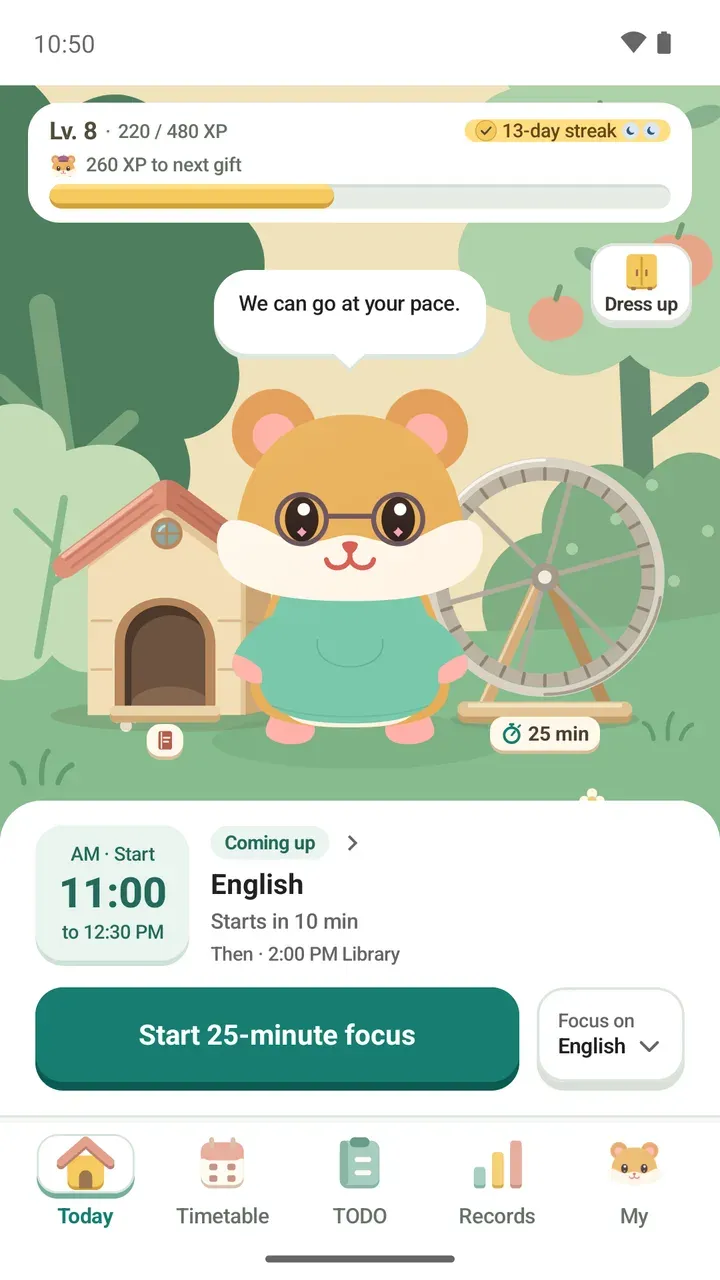
The Coming up card on the Today tab points to your next plan and the one after it, and lets you start focusing right there. Day view shows the whole day from start to finish. Use the Today tab when you only need what's next, and Day view when you want the flow of the day. There's more in the guide to the Today tab.
Good to know
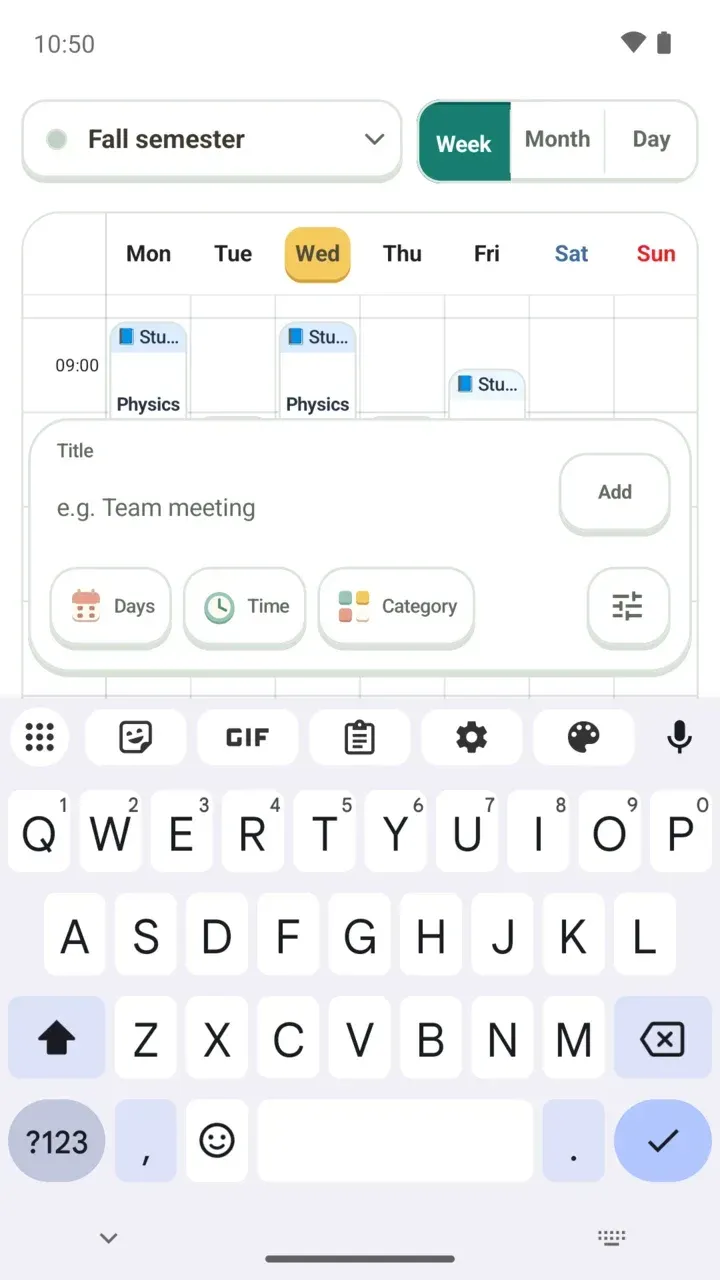
- Add plans with Add schedule… at the bottom of the screen. Options like repeats, location and memos are covered in how to add a schedule.
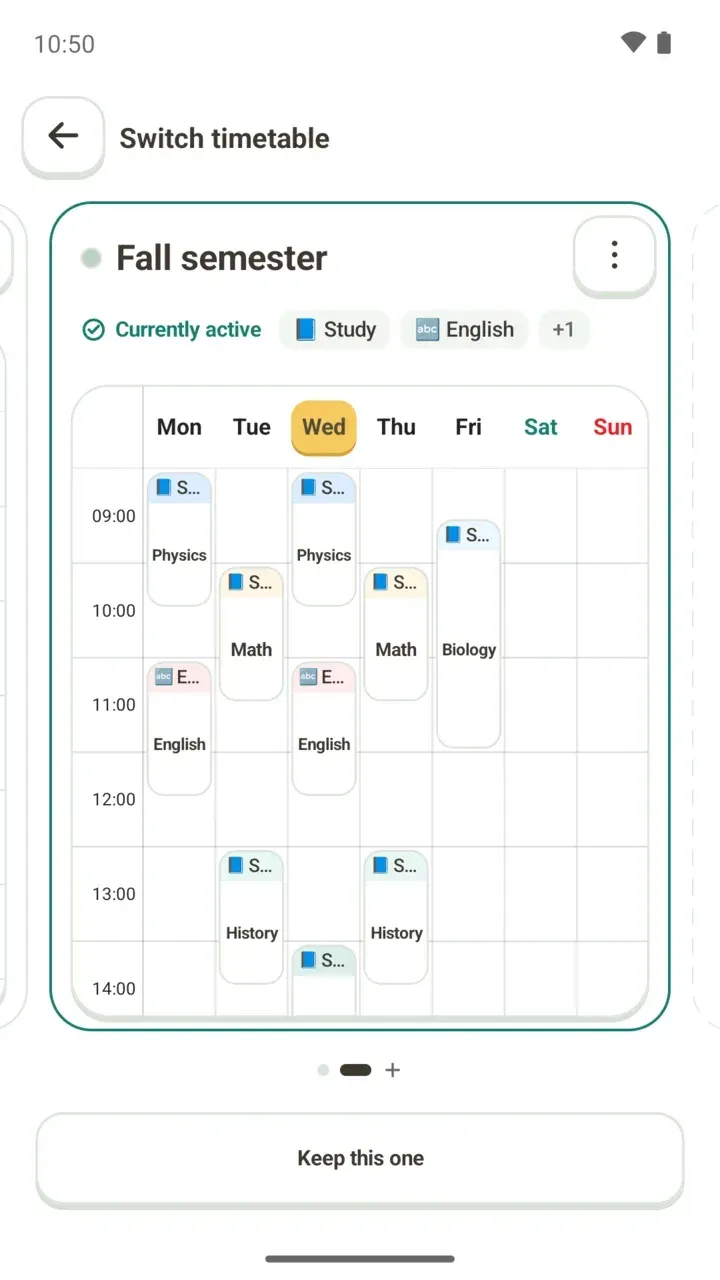
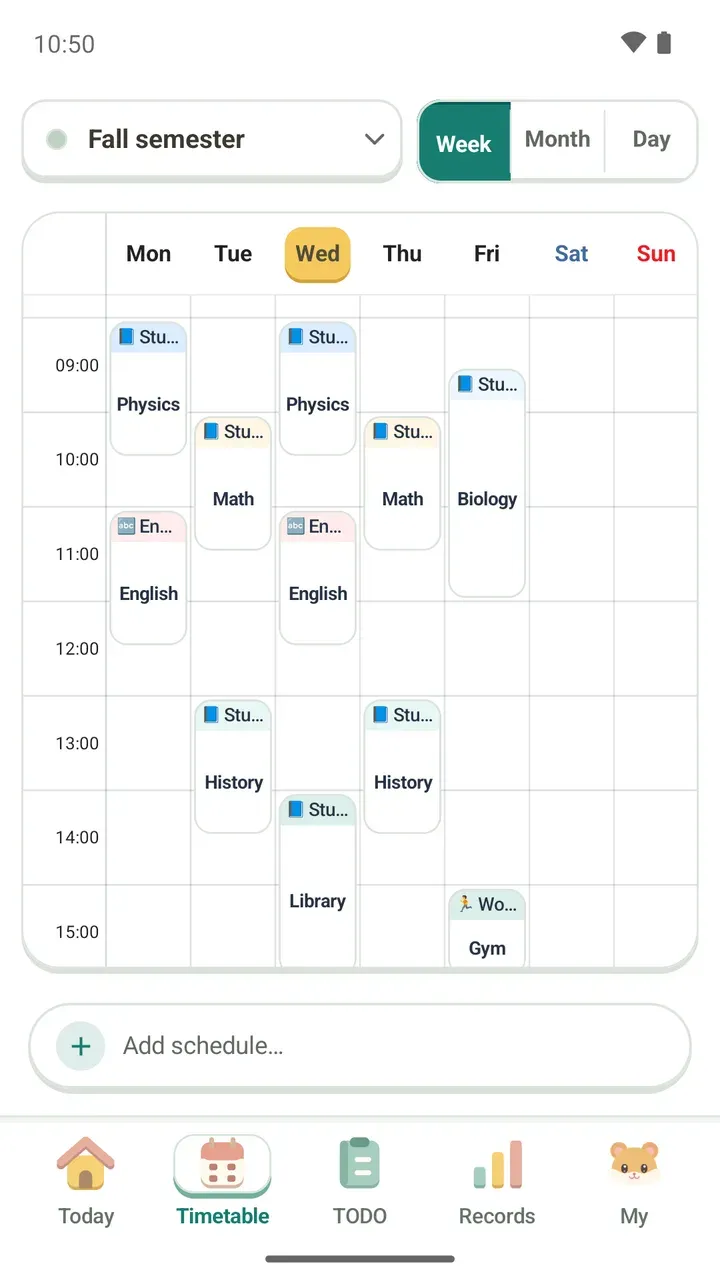
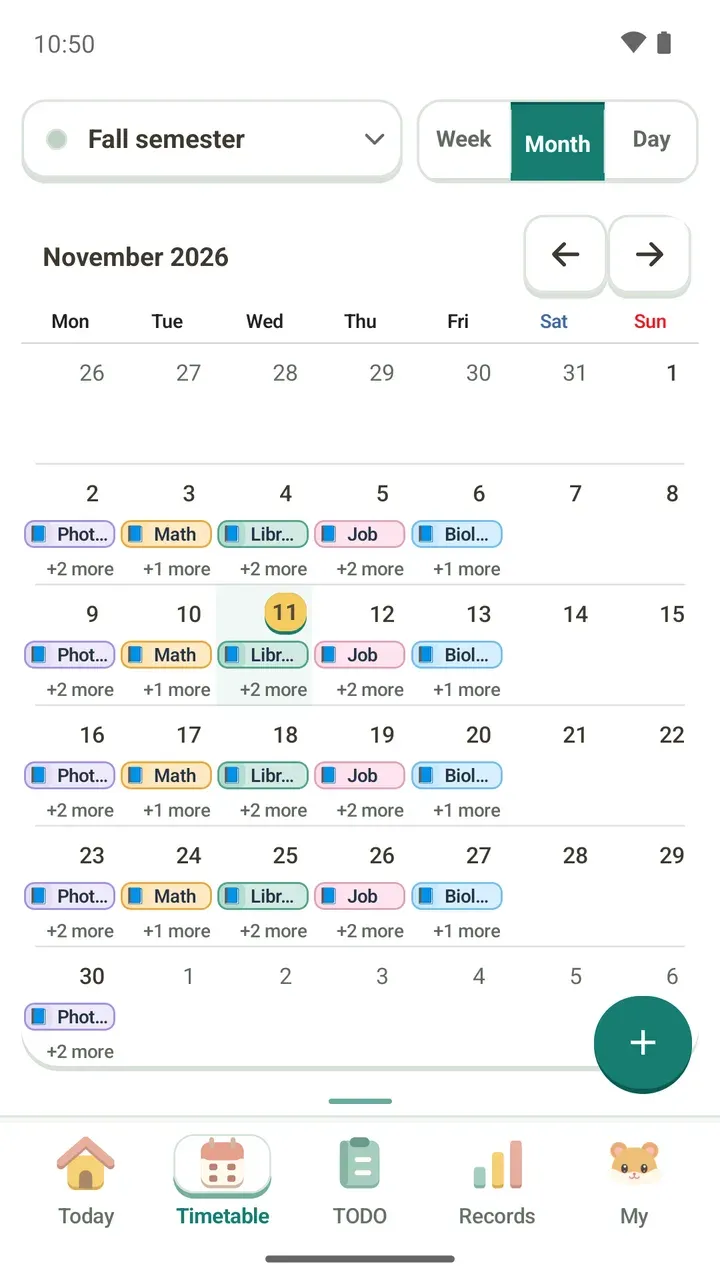
- To see a whole week at once, read the weekly timetable post. For a whole month, see the monthly timetable view.
- So you don't miss a class, you can pick a reminder on time, 5 min before or 10 min before for each plan. More in the post on schedule reminders.
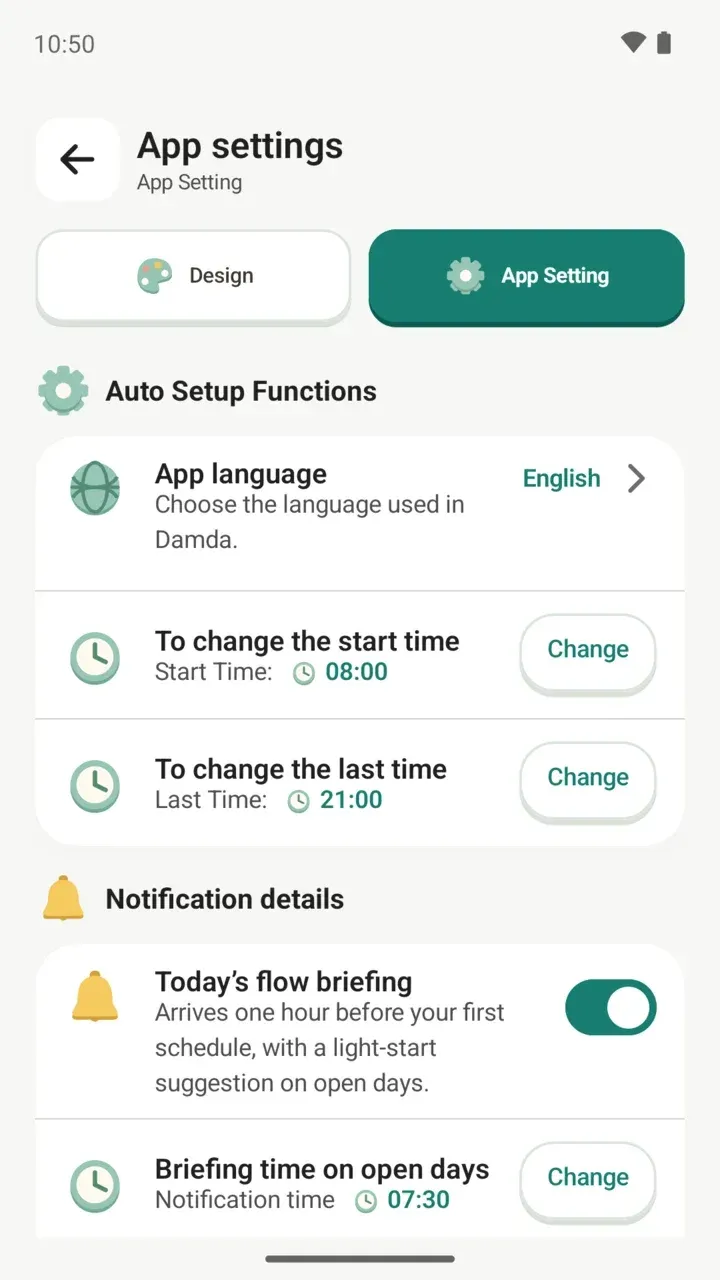
- Changing the hours shown on the timetable is a Damda Plus feature.
The busier the day, the more it helps to run through it once in time order. Open Day view in the morning and start by checking how today flows.