Multiple Timetables for Each Semester, Finals Week and Summer
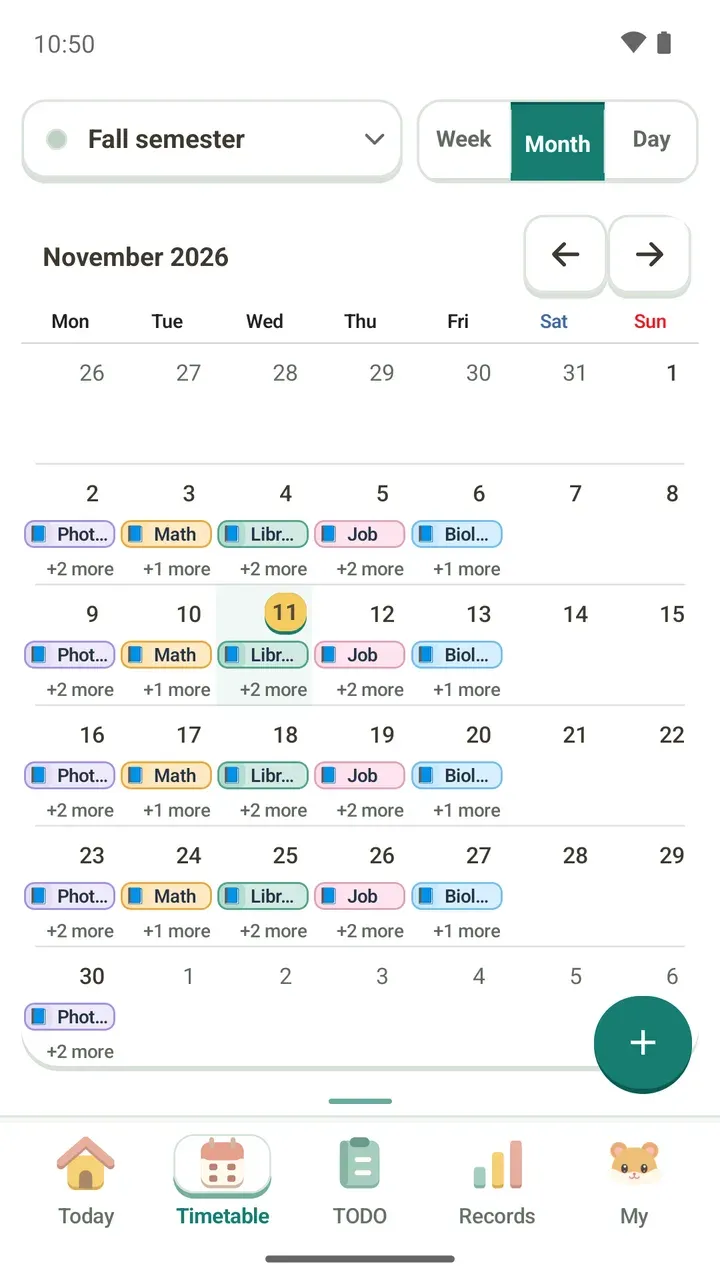
Keep a separate timetable for each semester, finals week or summer break, and switch between them. A second timetable needs Damda Plus.
A new semester means a new class schedule. But deleting last semester's timetable feels like a waste, and finals week or summer break can look nothing like a normal week.
In Damda you can keep several timetables and switch to the one you need. Set one aside for each part of your year, like finals or a break, and change over when the time comes.
Good to know first: a second timetable needs Damda Plus
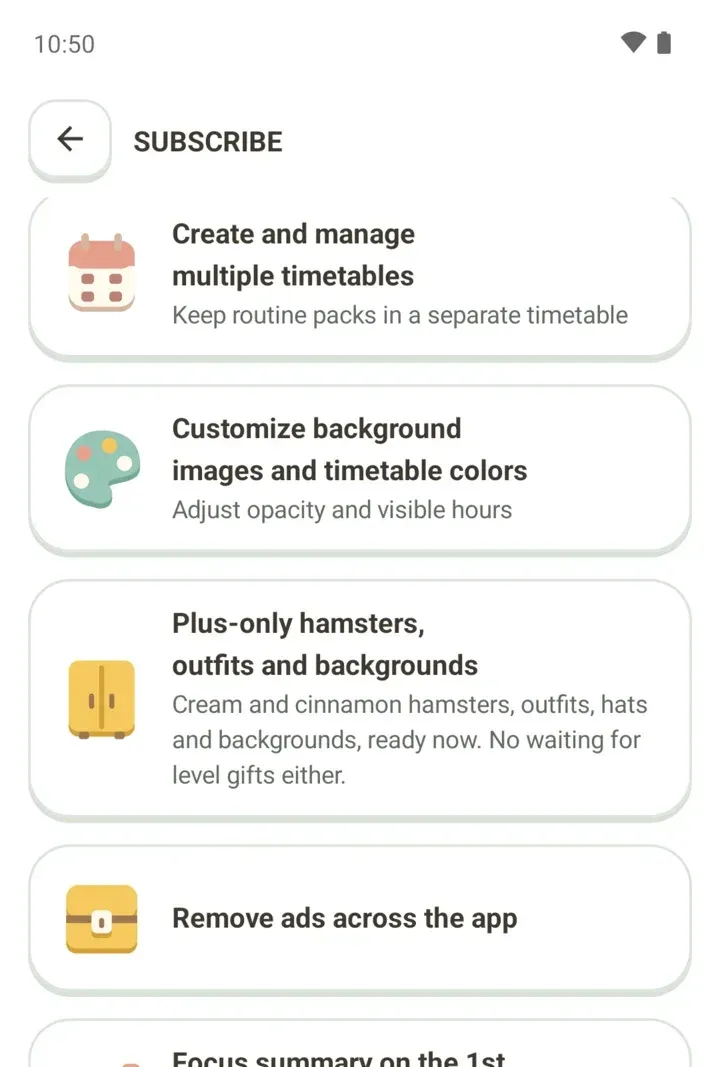
Without a subscription, you can keep using one timetable as usual. From the second timetable on, you need Damda Plus. Creating and managing multiple timetables, and keeping routine packs in a separate timetable, are Damda Plus features.
Damda Plus is a monthly subscription you can cancel anytime. Its other benefits, like removing ads, are covered in Damda Plus benefits.
Open the Switch timetable screen
- Tap the timetable name at the top of the Timetable tab. The Switch timetable screen opens.
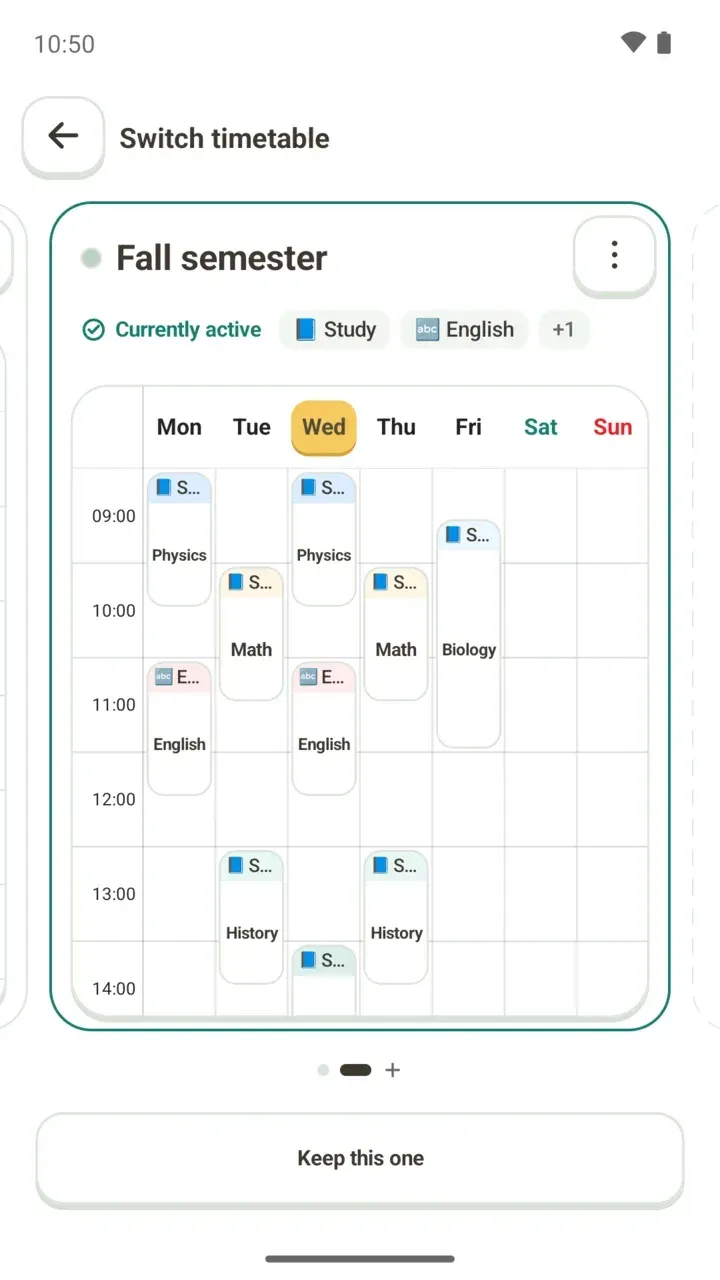
- Each timetable shows as a card. The one you're using now is marked Currently active.
- Swipe sideways to see your other timetables. The dots at the bottom show which one you're on.
- On the card you want, tap Switch to this timetable. To leave without changing anything, tap Keep this one.
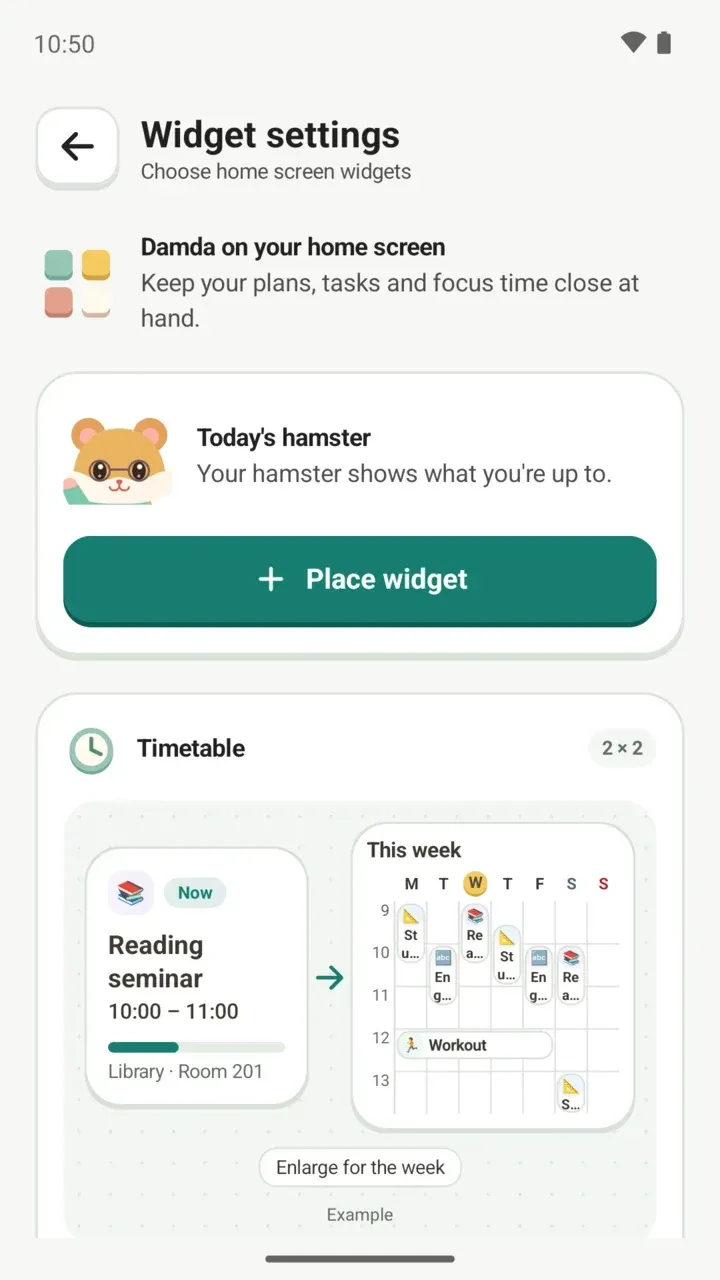
When you switch, Damda tells you which timetable you moved to, and Today and your widgets follow it too. Tapped the wrong one? Tap Undo right there.
Each card shows enough to tell your timetables apart without opening them:
- The timetable's name and color
- Currently active, if it's the one you're using
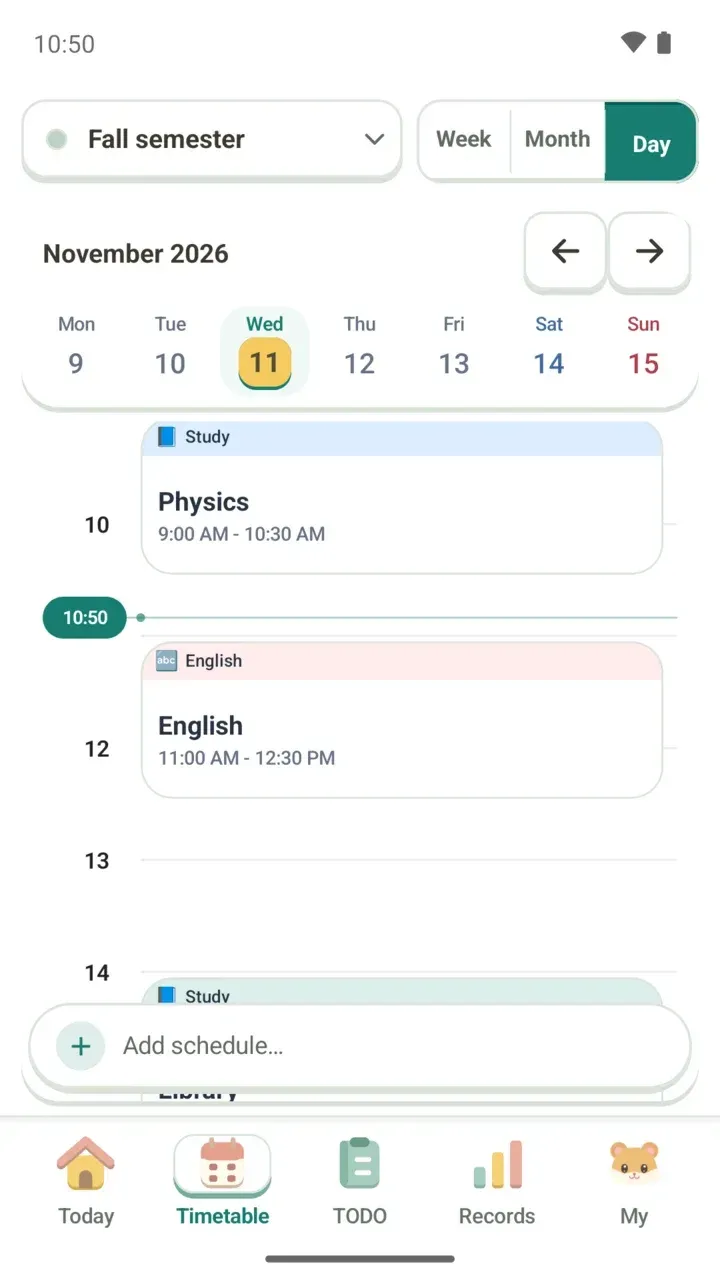
- The categories of its schedules, like Study and English (shortened to +1 and so on when there are many)
- A preview of the whole week
Create a new timetable
- On the Switch timetable screen, swipe to the + at the end of the dots to open New timetable. With Damda Plus you'll see Create a new timetable; without it, Add timetables with Plus.
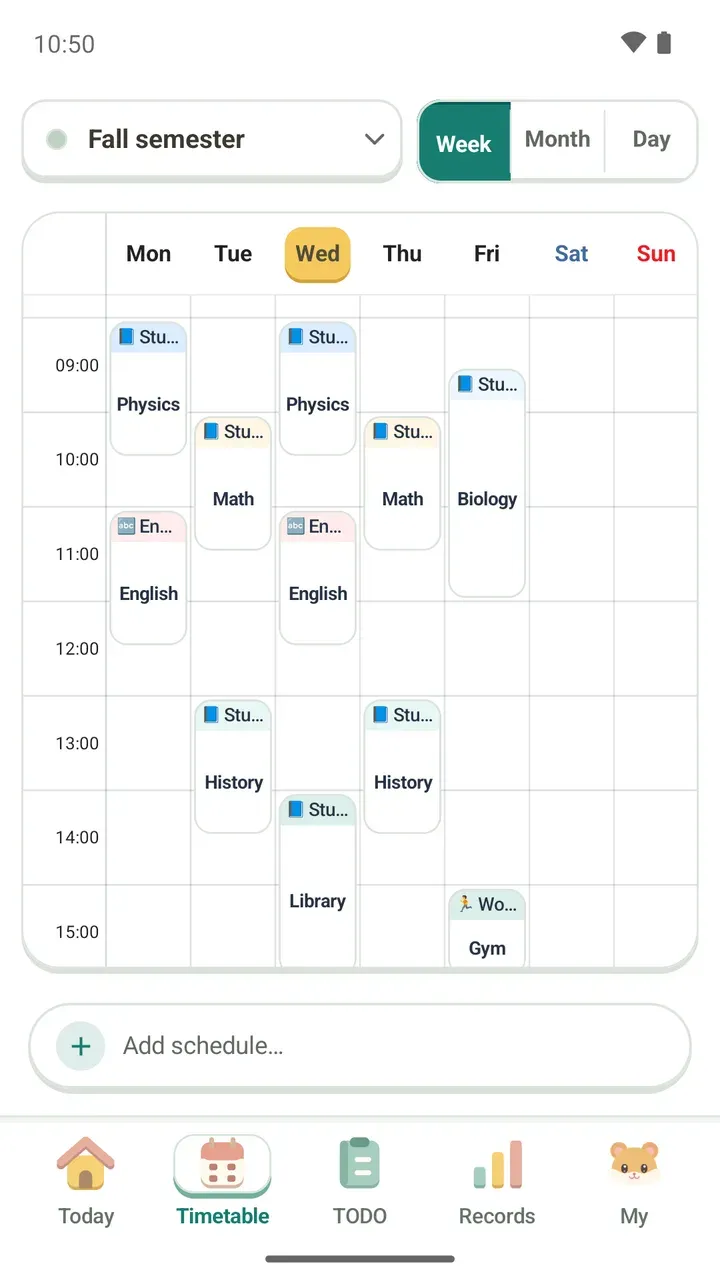
- Fill in Timetable name, for example Fall semester. You can also pick a suggested name, such as a semester, finals, a break or a workout.
- Under Timetable color, choose one of 12 colors, such as rose, sage, blue or mint. How it looks in your list shows a preview.
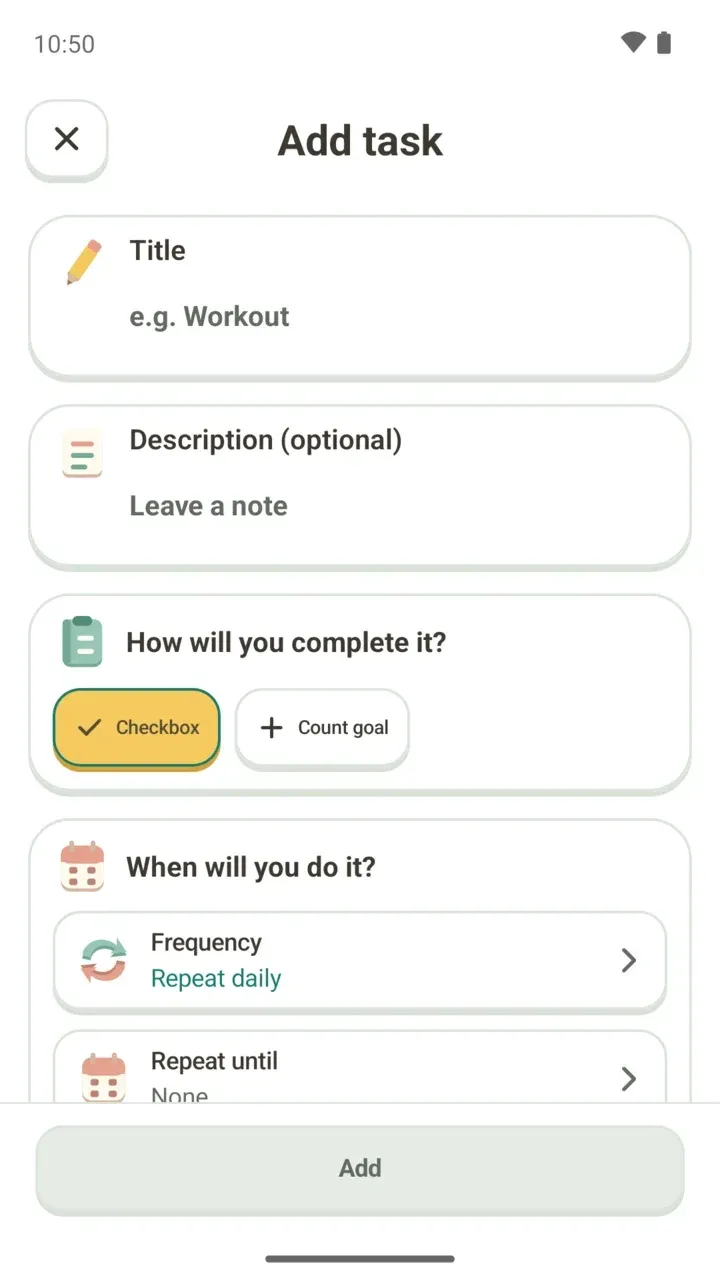
- If you like, open Add a description and write a note. It's optional, and you can change it later.
- Tap Create timetable. Creating it switches to this timetable.
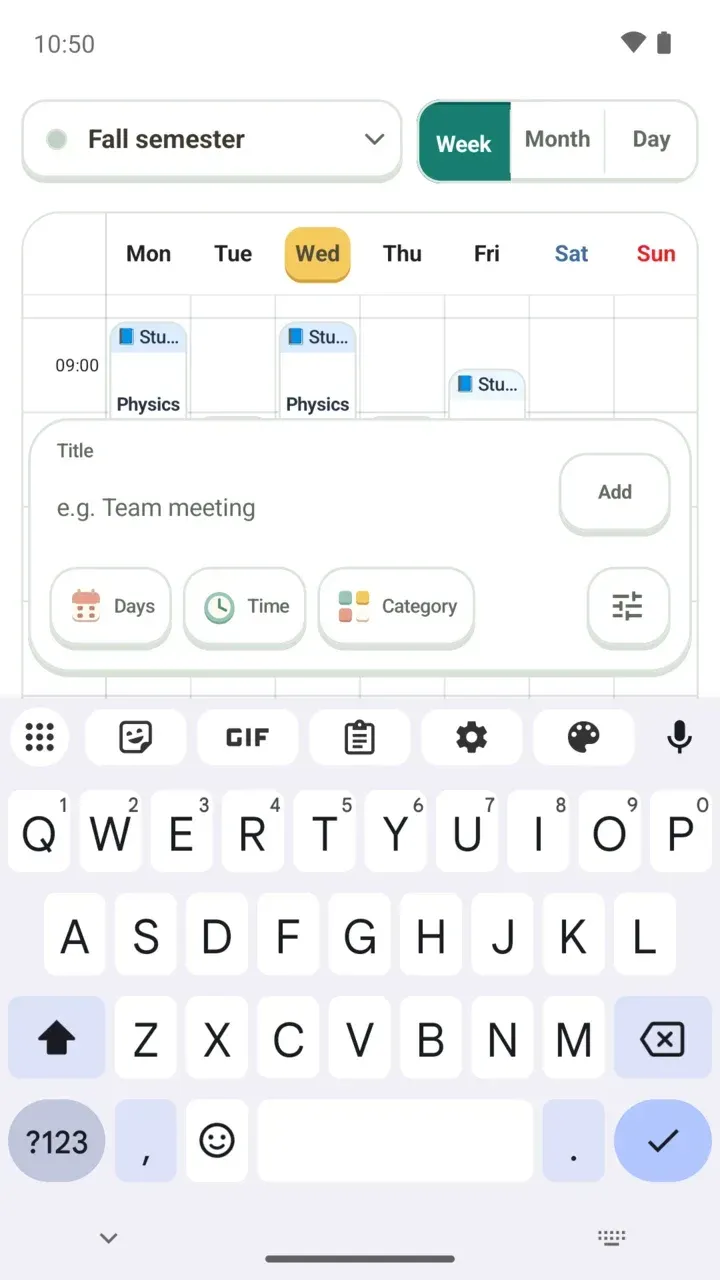
A new timetable starts empty, with No items yet. Fill it with classes and plans using Add schedule… at the bottom of the Timetable tab. To learn how to read your week, see the weekly timetable guide.
Change a name or color
- On the Switch timetable screen, swipe to the card you want to change.
- Tap the ⋮ button at the top right of the card and choose Edit name and color.
- In Edit timetable, change the name and color, then tap Save changes.
Ways to split them up
- By semester: keep one per semester, like Fall semester. When spring starts, last fall's timetable is still there.
- Finals week: keep a separate timetable filled with library time and exam dates instead of classes, then switch back when finals are over.
- Summer break: plan a summer week of its own, with a summer job, an internship or summer classes.
- Routine packs: with Damda Plus, you can keep routine packs in a separate timetable. See how to use routine packs.
Before you start
You use one timetable at a time. If you want classes, a part-time job and sports practice in the same week, put them all in one timetable rather than splitting them. That way the whole week stays easy to read.
Multiple timetables work best for swapping in a new one when one part of your year ends and another begins: a new semester, finals week or a break. Whichever one you switch to also shows on the Today tab and your widgets.