Timetable Reminders: Class Alerts and a Daily Briefing
Choose on-time, 5- or 10-minute reminders for classes and plans, get a daily briefing before your first class, and act on to-do reminders.
Ever lost track of time during a free period and walked into your next class late, or forgot it was your day for practice or a shift? Damda sends timetable reminders for the plans in your class schedule at the time you choose. Turn on the daily briefing and you also get a short look at your day one hour before your first plan.
This post covers plan reminders, the daily briefing, to-do reminders, where to find past notifications, and what to check when reminders come late.
Plan reminders: on time, 5 or 10 minutes before
Each plan can remind you On Time, 5 min before or 10 min before. Pick 10 minutes for a class across campus, and on time for something that starts right where you are.
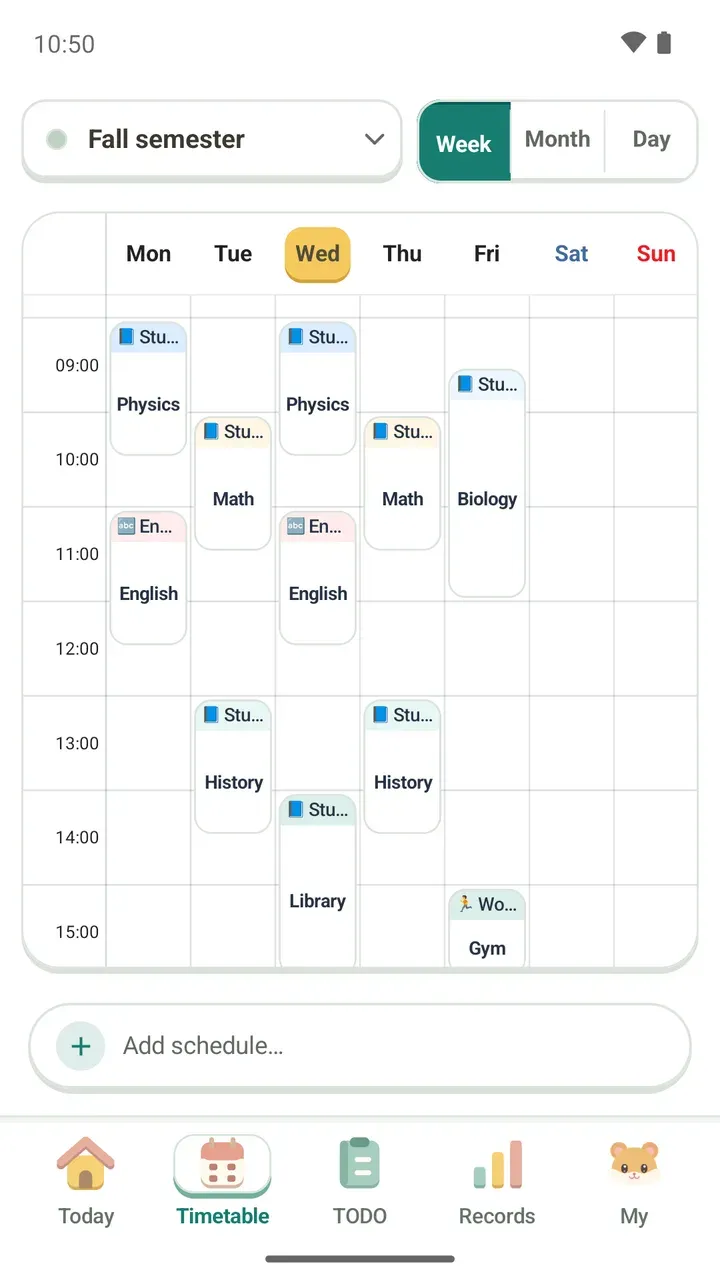
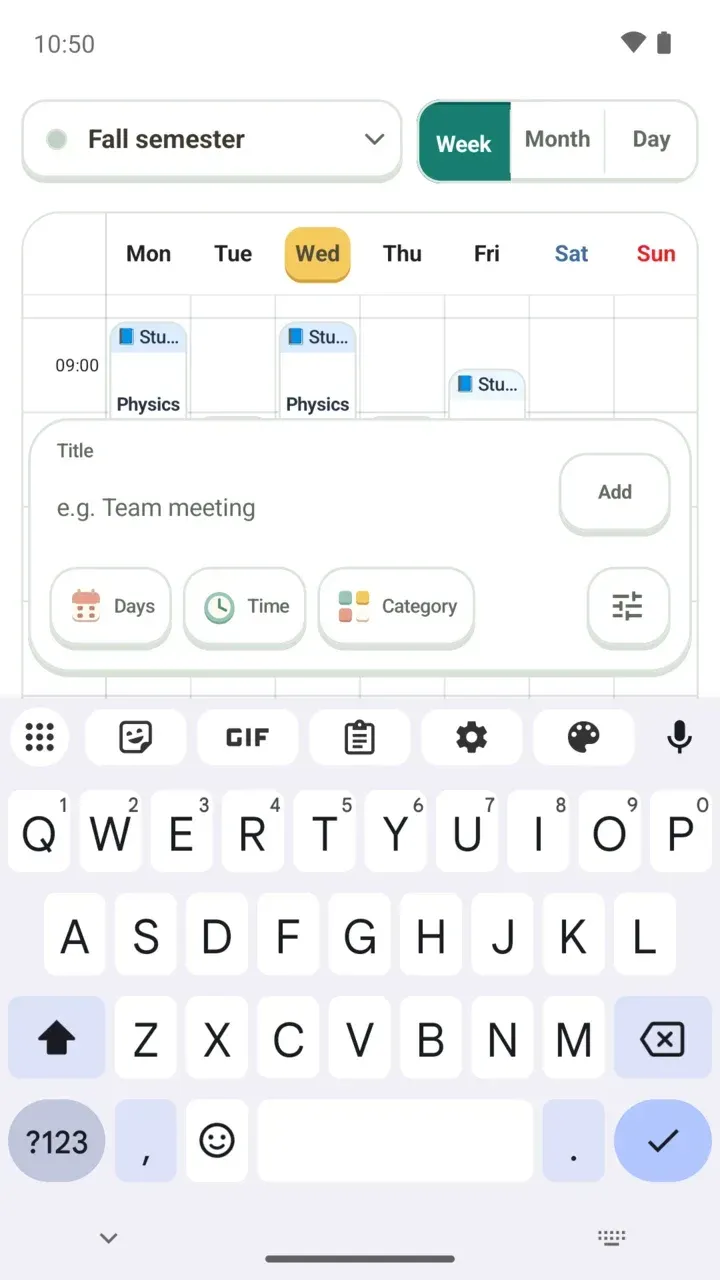
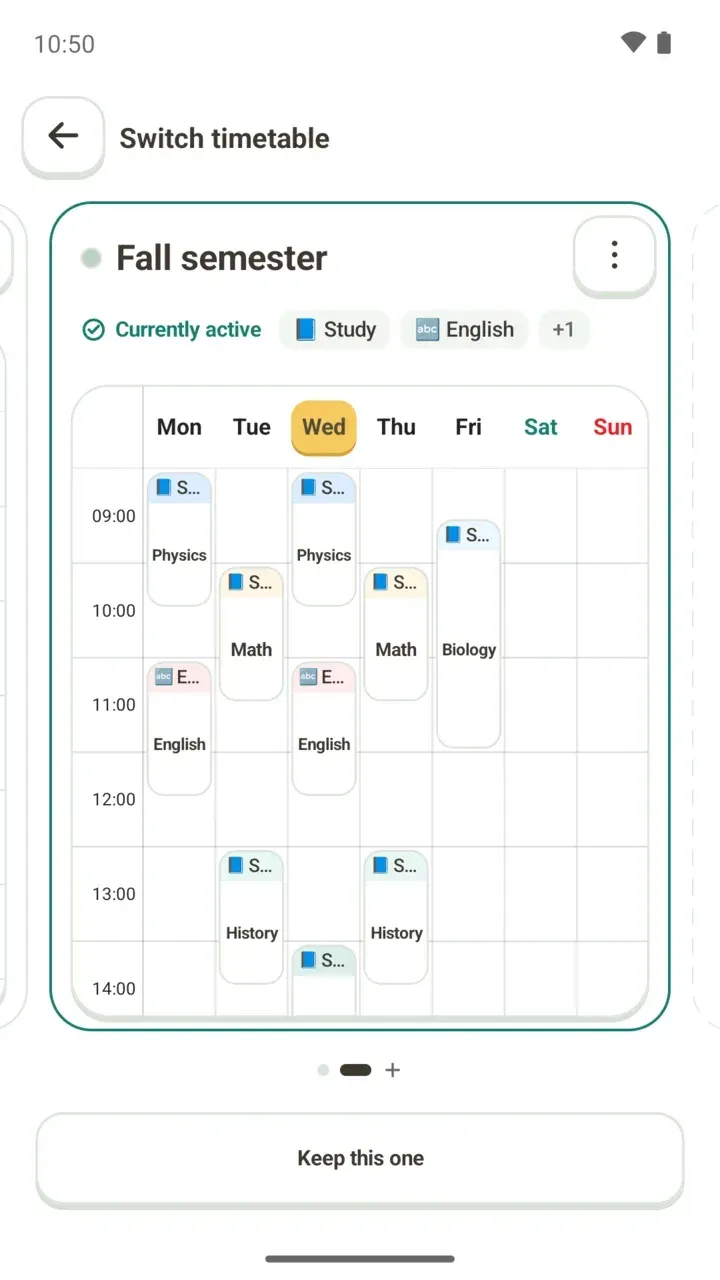
- In the Timetable tab, add a new plan or open one you already added to edit it.
- Choose On Time, 5 min before or 10 min before.
- Save, and the reminder arrives at that time.
Can't move right away? Snooze it from the notification itself. You don't need to open the app.
Tap the reminder and Damda shows that plan. If the plan changed in the meantime, you see the latest version. If it was deleted or its time has already passed, Damda tells you so and opens today's timetable.
For the other parts of a plan, like the title, days and repeats, see how to add classes to your timetable.
Daily briefing: your day, one hour before your first plan
With Today's flow briefing on, Damda sums up your day one hour before your first plan. If your first class is in the afternoon, the briefing comes later to match. On days with nothing scheduled, it arrives at a time you set.
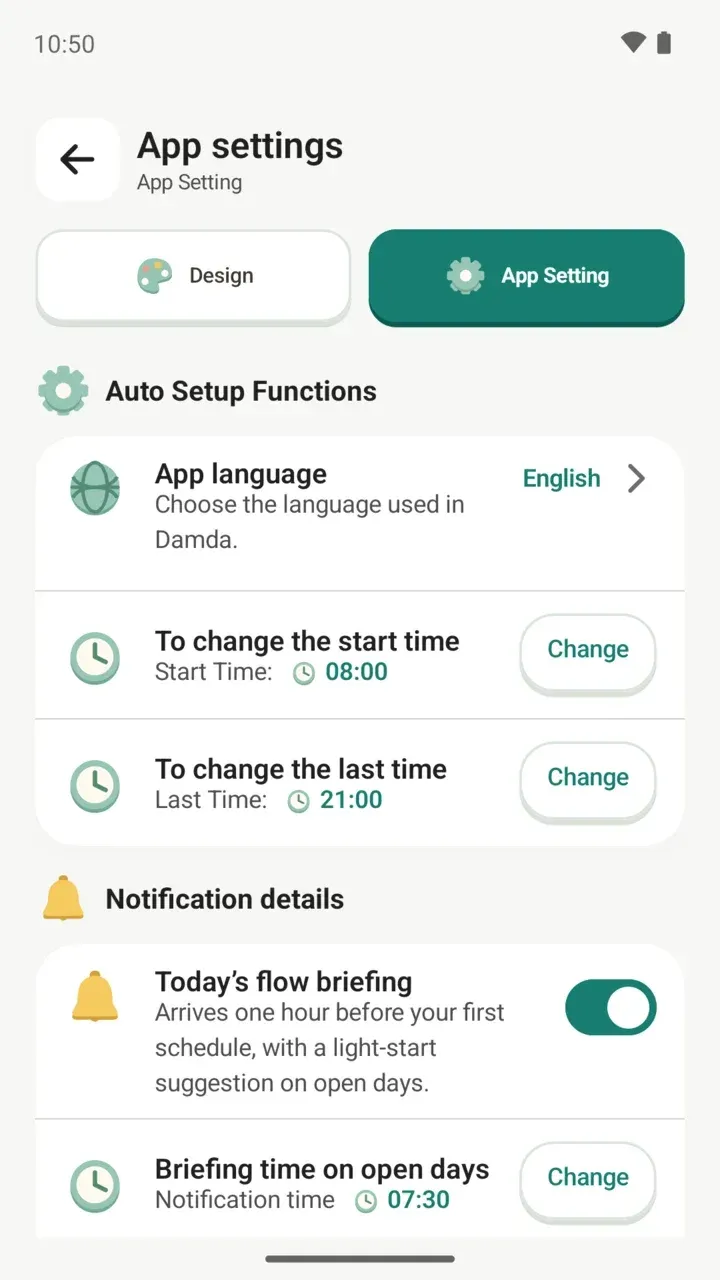
- In the My tab, tap App settings.
- Choose the App Setting tab at the top.
- Under Notification details, turn on Today's flow briefing.
- Tap Change next to Briefing time on open days to set when it arrives on those days.
The briefing suggests a small next step. If there's nothing next, it tells you how many plans and to-dos you have today, and leaves out anything at zero. If you're following a routine, a line about the new week is added on the day it starts.
Mark a to-do done or add +1 from the reminder
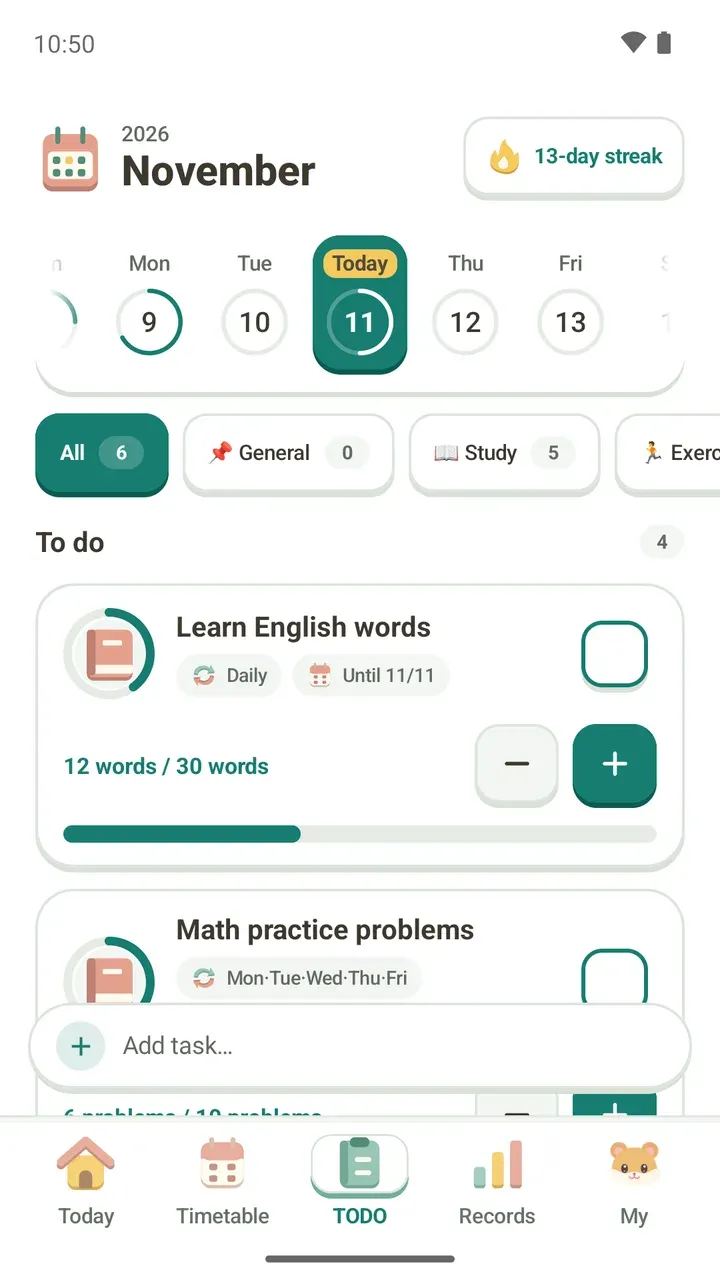
To-dos can have reminders too. When one arrives, you can check the task off right there without opening the app, or tap +1 if it has a count goal.
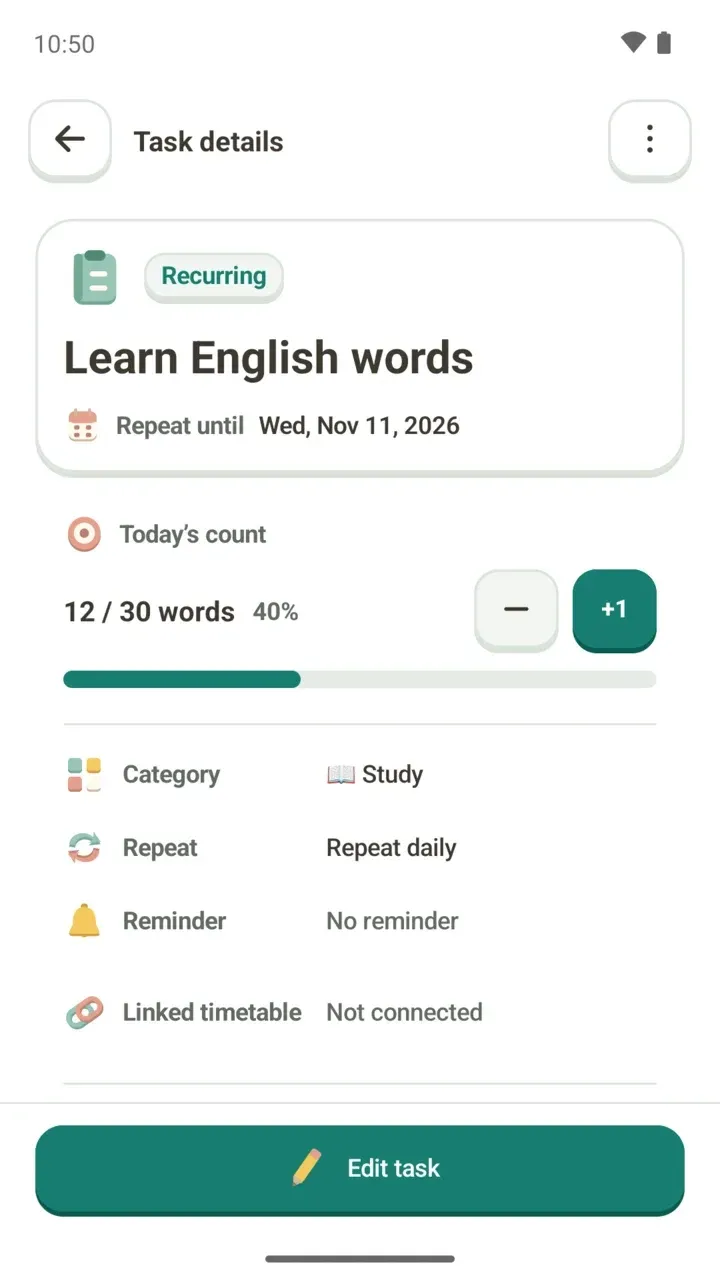
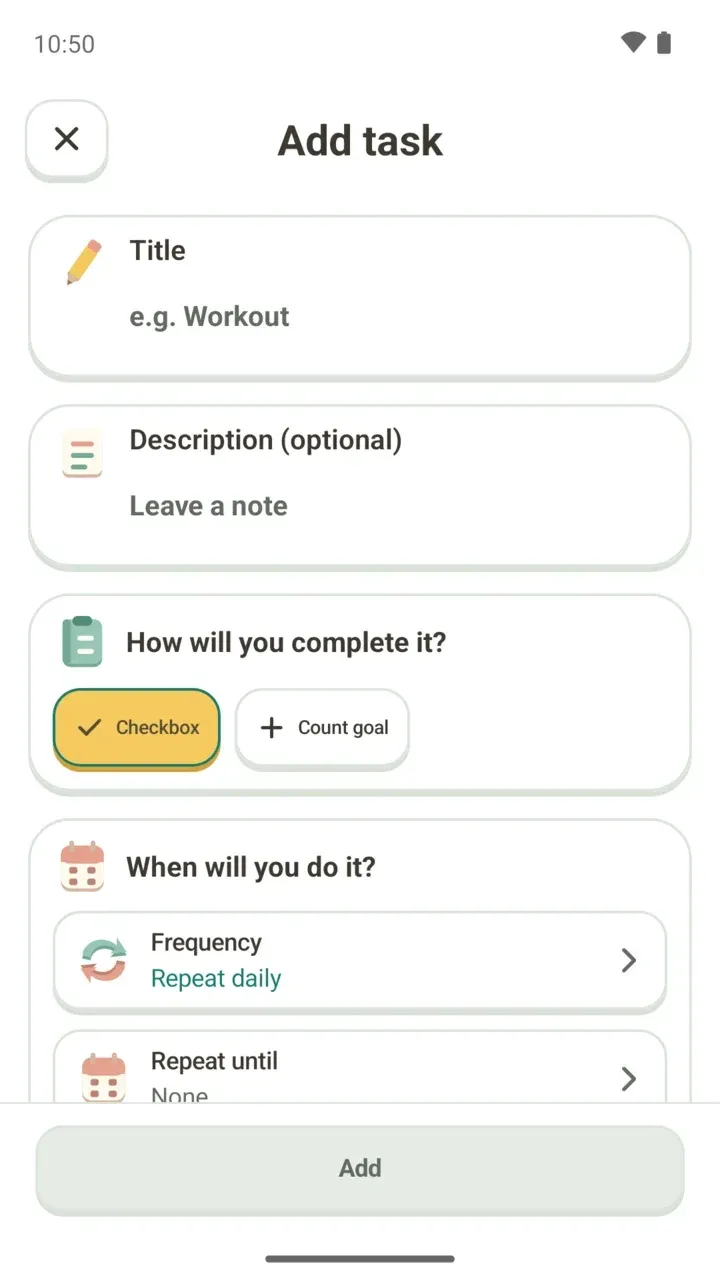
To set reminders, repeats and due dates when you add a task, see how to create a to-do.
Find past notifications and news
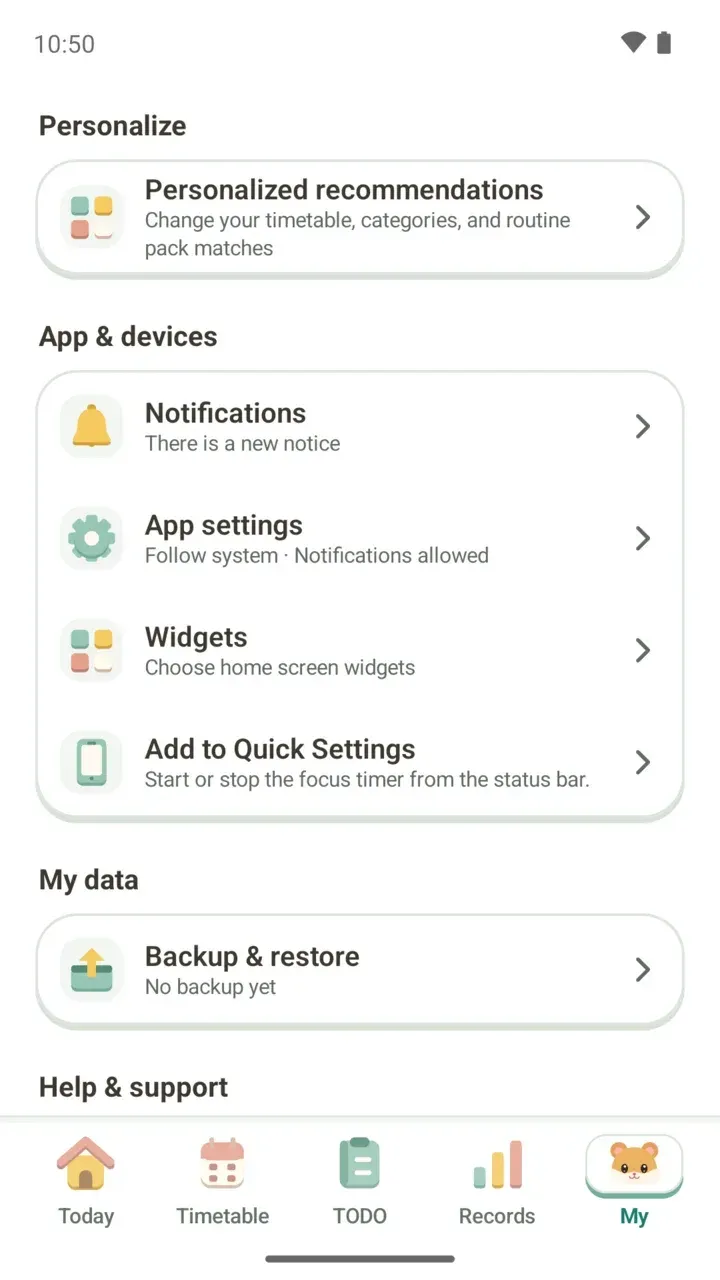
Swiped a reminder away? No problem. You can see past ones again under Notifications in the My tab.
- Notifications tab: plan and to-do reminders, grouped by date under Today, Yesterday, Last 7 days and Earlier.
- News tab: updates and other news from Damda, kept separately.
- Notifications are kept for 30 days.
- Notification settings on that screen takes you straight to the related settings.
When reminders don't arrive or come late
- Notification permission: on Android 13 and later, Damda asks whether it can send notifications. Without it, you won't get plan or to-do reminders.
- Alarms & reminders: this permission lets plan reminders show at the exact time you set. Without it, they may come late.
- If you turn off Damda notifications in Android settings, news won't appear either.
- In the My tab, the line under App settings shows whether notifications are allowed.
For the notifications the focus timer shows, see how to use the study timer. For other options like the theme and app language, see how to change app settings.