Timetable Widget: See Your Next Class on Your Home Screen
See your next class and this week's timetable on your home screen without opening the app. Damda's five widgets, how to place them, and Wear OS.
Between classes, opening an app just to check which room your next class is in, or what time your shift starts, gets old fast. It's easier when your class schedule is right there on your home screen the moment you unlock your phone.
Damda has five home screen widgets, so your timetable can live on your home screen. Here's what each one does and where to place them.
Damda's five widgets
- Timetable: fits its size and shows your next plan, today or the week. Small, it shows what's happening now and where. Enlarged, it shows your weekly timetable.
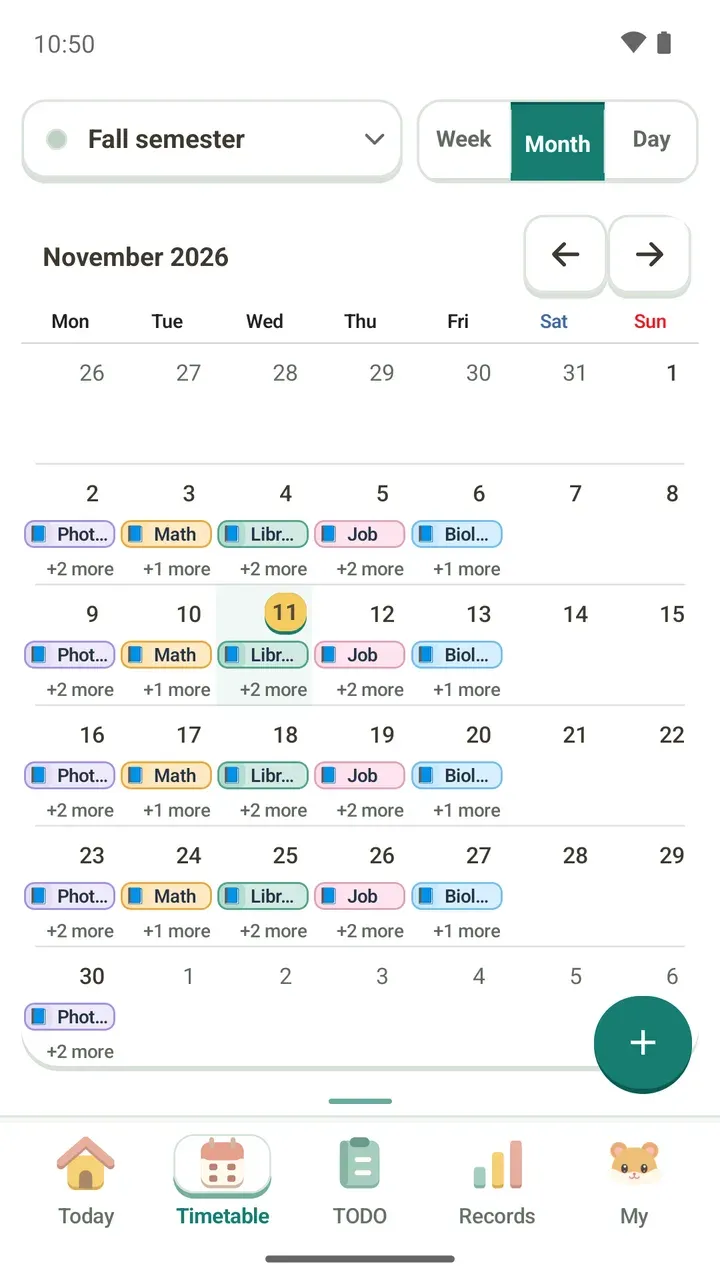
- Monthly timetable: see this month's schedules on a calendar.
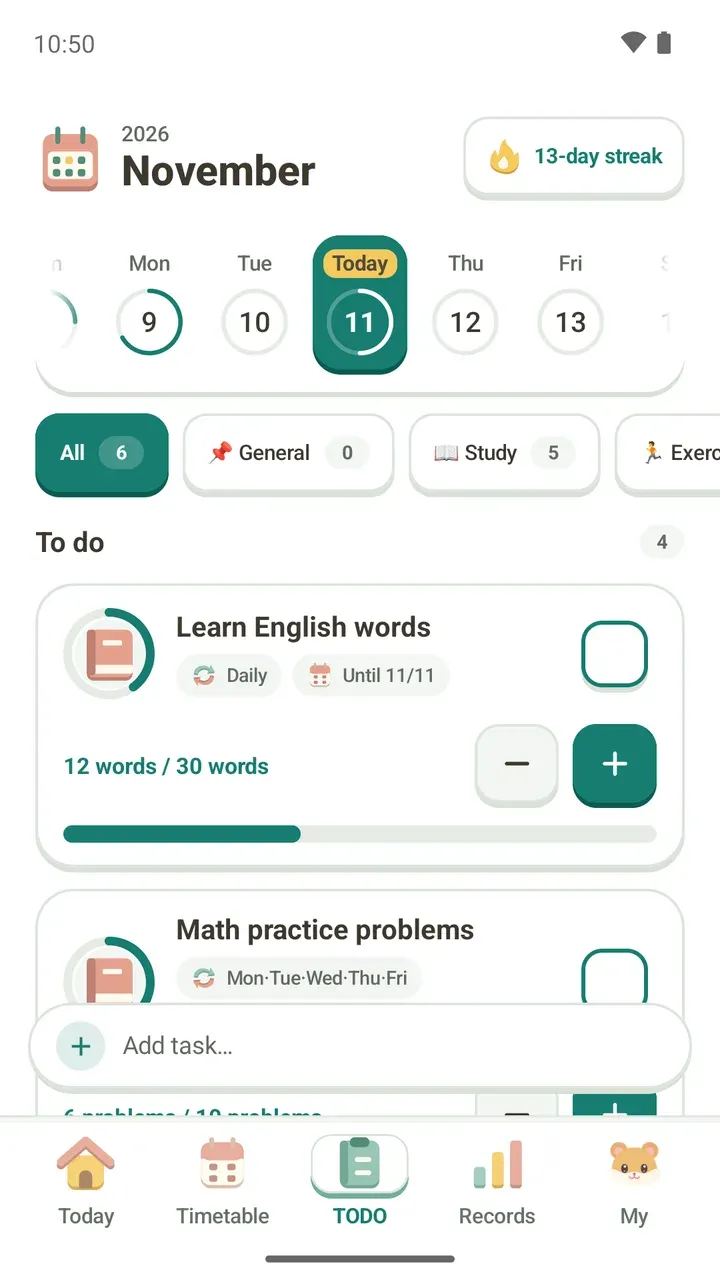
- Today's tasks: shows today's tasks and how many you've finished, and you can check one off right from the widget.
- Focus timer: watch your focus session count down, and pause it from the home screen.
- Today's hamster: your hamster shows what you're up to.
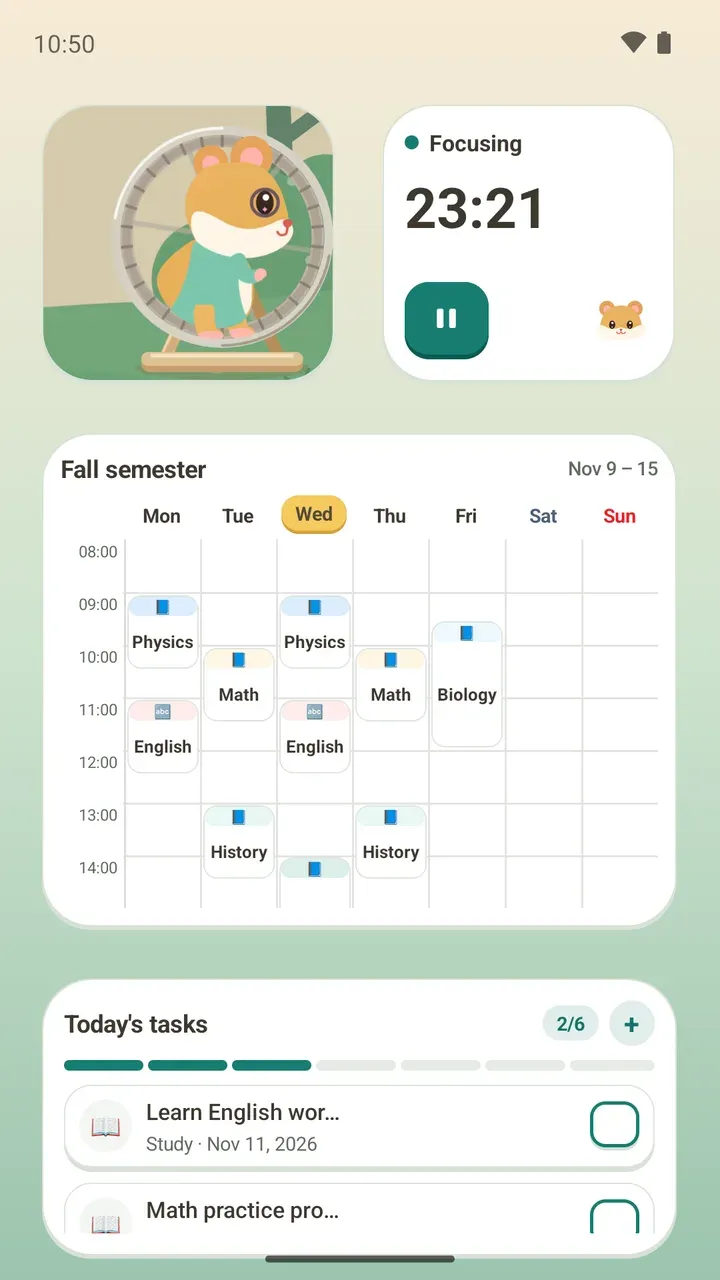
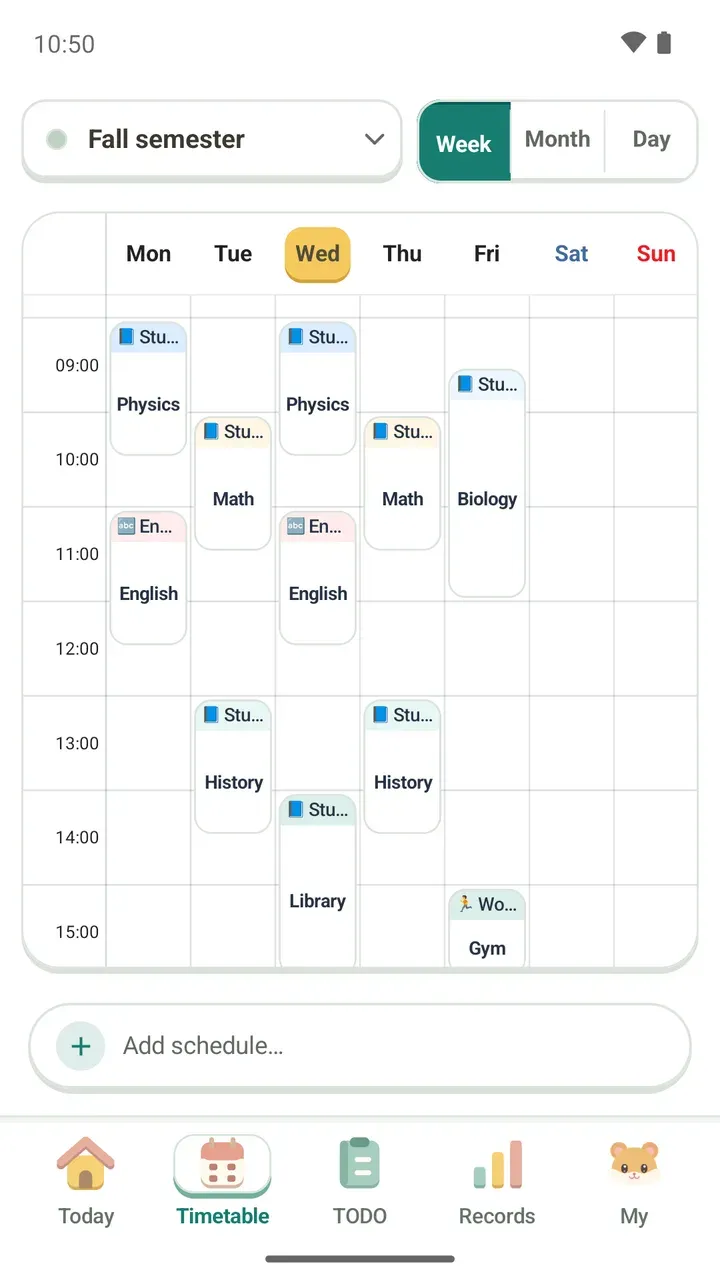
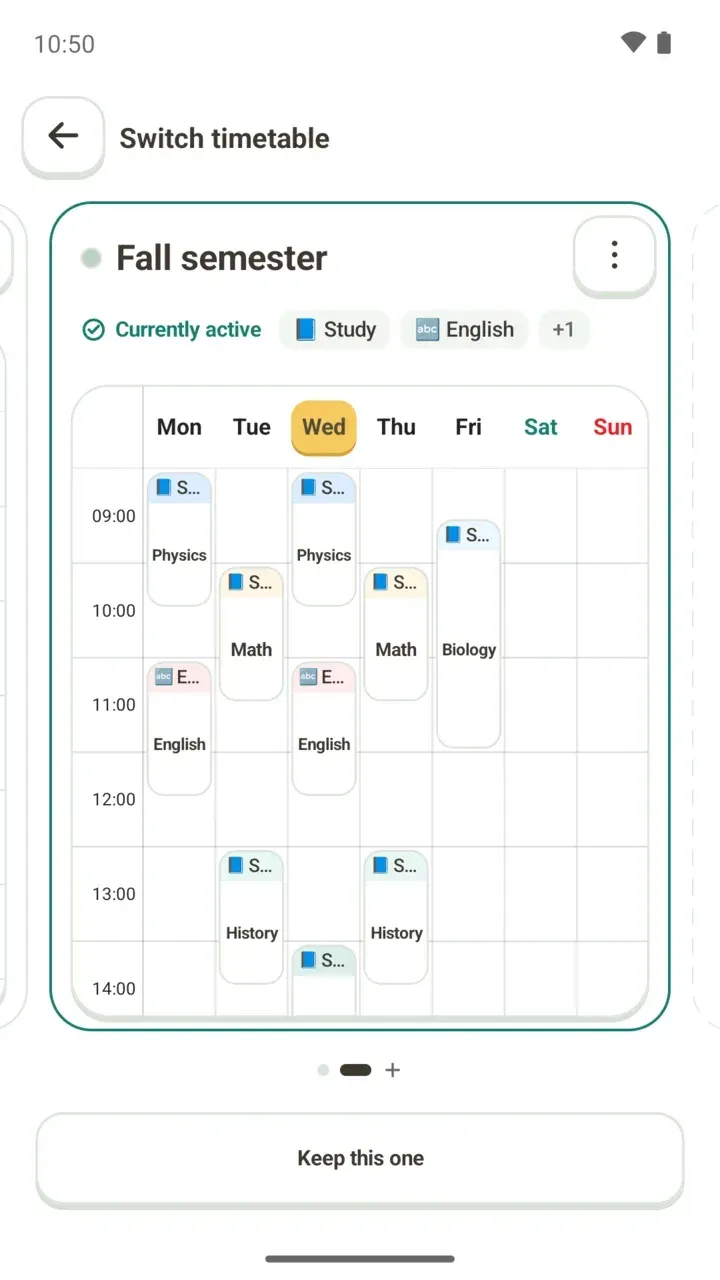
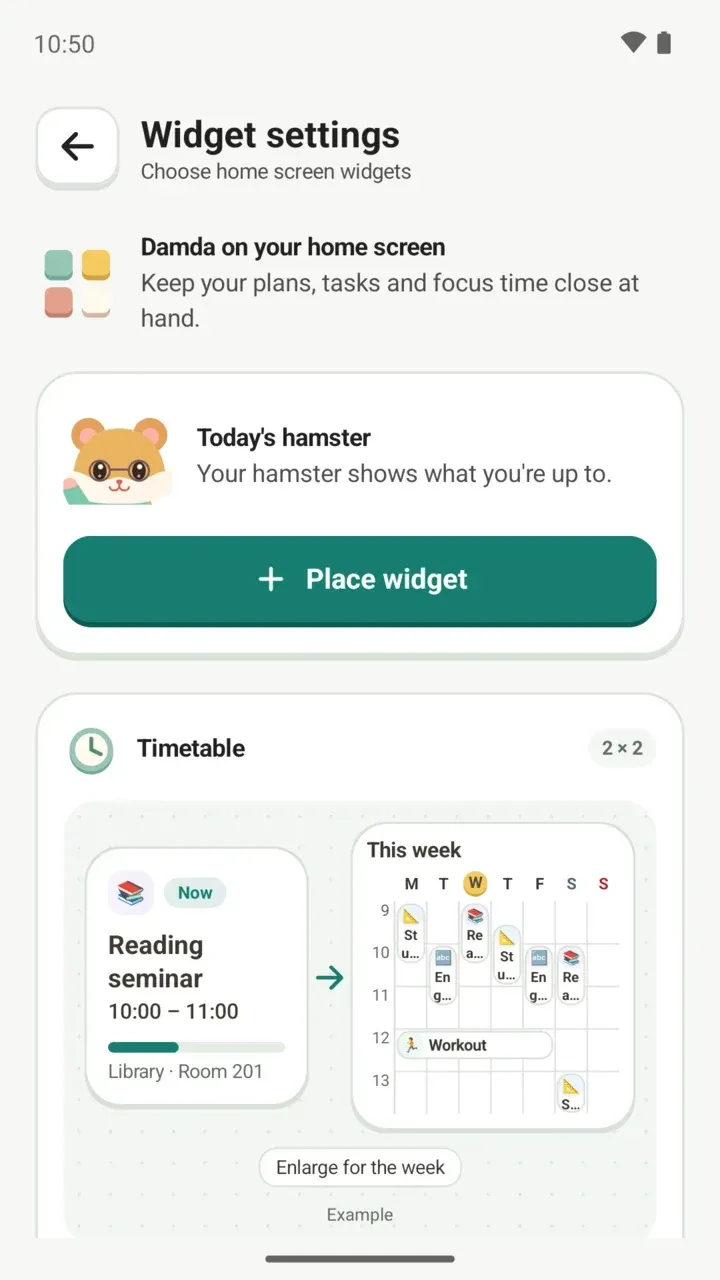
The Timetable widget is placed at 2 × 2 by default, and you can resize it. At the small size it shows the title, time and location of what's happening now, which is handy for finding your next classroom. Enlarge it and it switches to this week's timetable, so you can see the whole week.
The Today's hamster widget shows how you're doing with a moving scene instead of words. TalkBack reads out its status, such as Focusing, On a break or All done today. If you're curious about the hamster, read the story of Damda's hamster.
How to place a widget
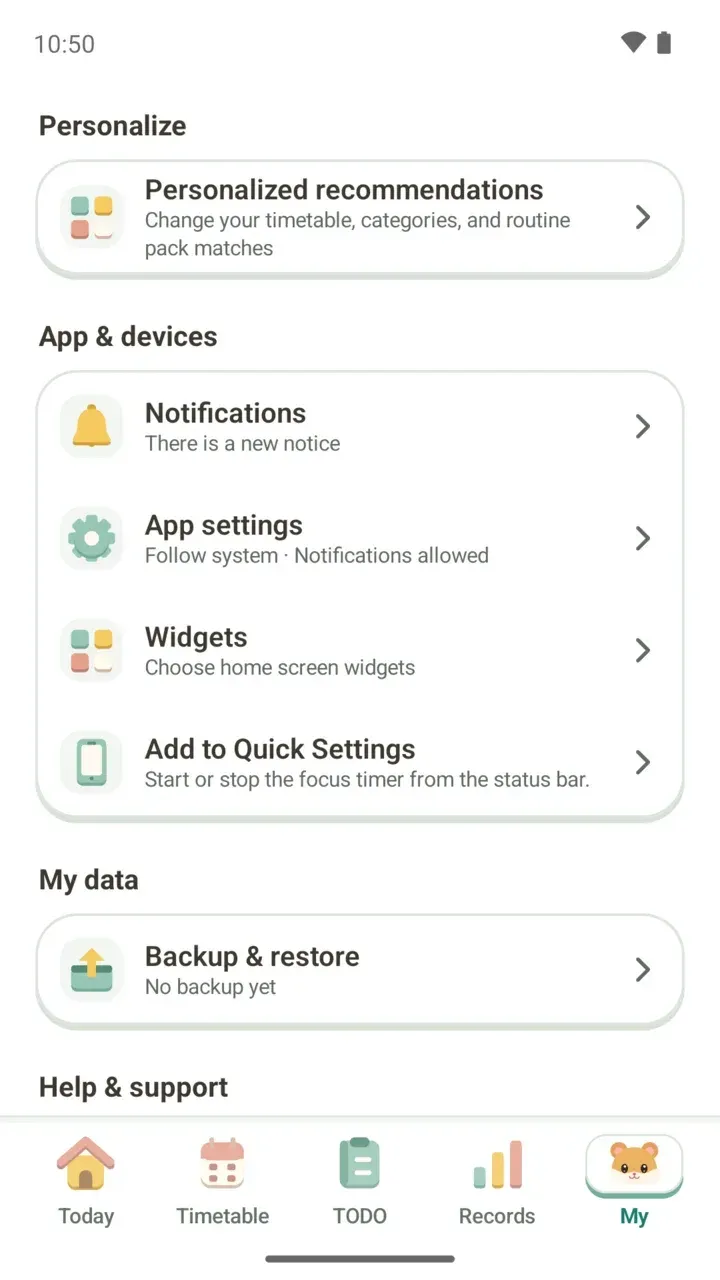
- Tap My in the bottom tabs, then tap Widgets under App & devices.
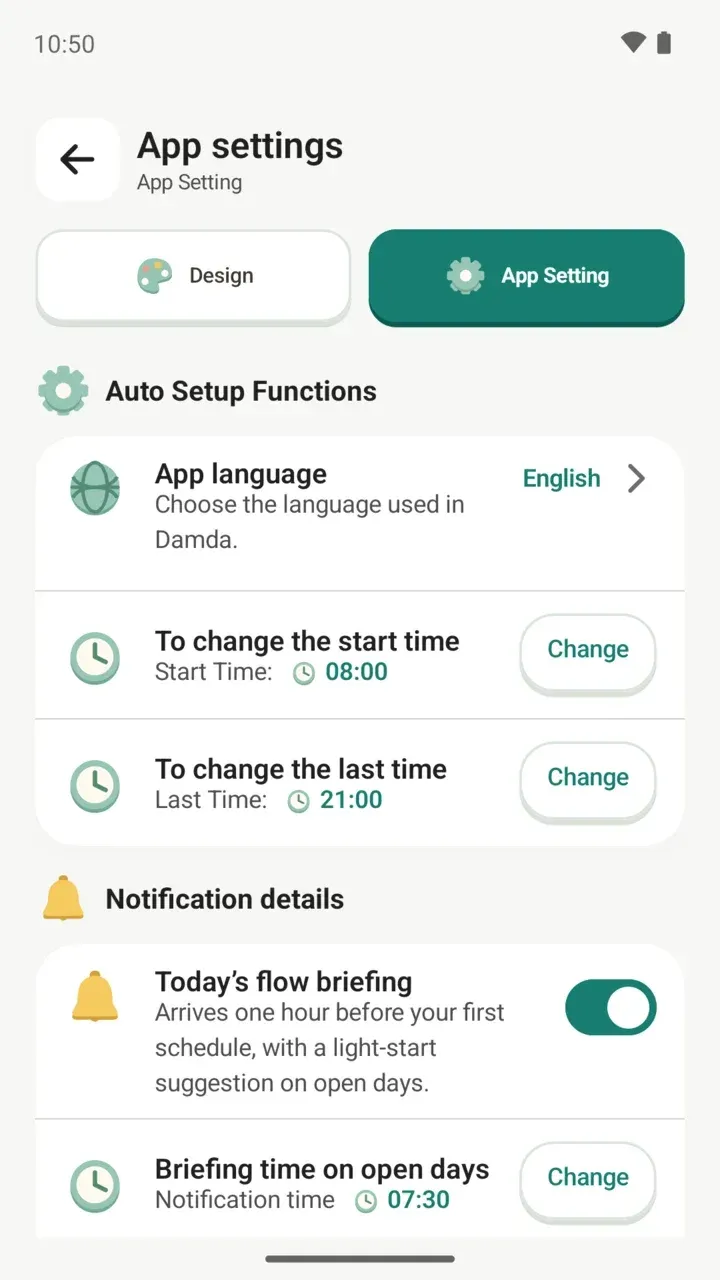
- On the Widget settings screen, find the widget you want. The Timetable widget card shows an example and its default size.
- For Today's hamster, tap Place widget to add it right away.
- For the other widgets, tap Customize and add, set the Background opacity, Widget border and Border opacity, then add it.
- On your home screen, drag the widget's edges to make it the size you want.
The background and border style apply to every Damda widget the same way, so several widgets side by side look like one set.
Widgets redrawn in 3.1.0
In the 3.1.0 update, the widgets were redrawn in the same new style as the app, and two new ones were added: Monthly timetable and Today's hamster. Widgets you placed before the update keep working. Everything else that changed is in the 3.1.0 update notes.
Today's plans on your watch
With a paired phone, a watch on Wear OS 4 or later can show today's plans and to-dos too. Add Damda's tiles, or put its complications on your watch face, and you can check them at a glance from your wrist.
You can also control the focus timer from your watch, but the timer itself runs on your phone.
Good to know
- Widgets show schedule and task titles. Keep that in mind if other people can see your home screen.
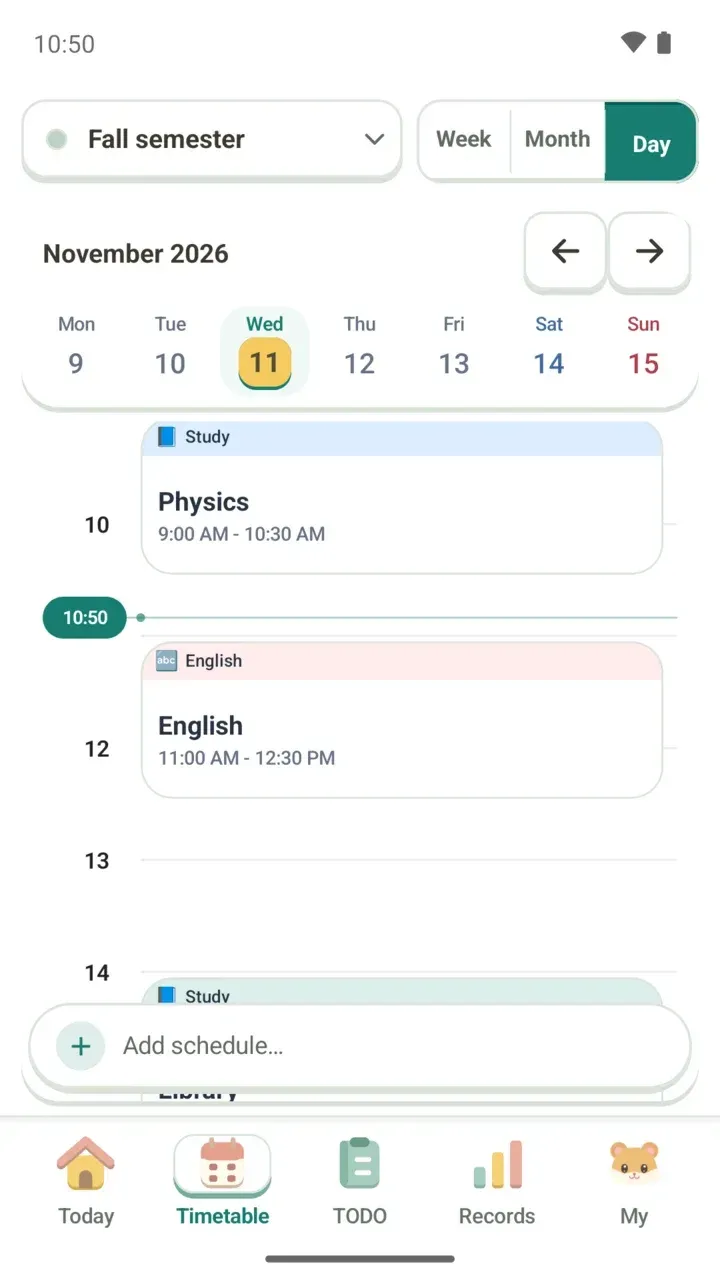
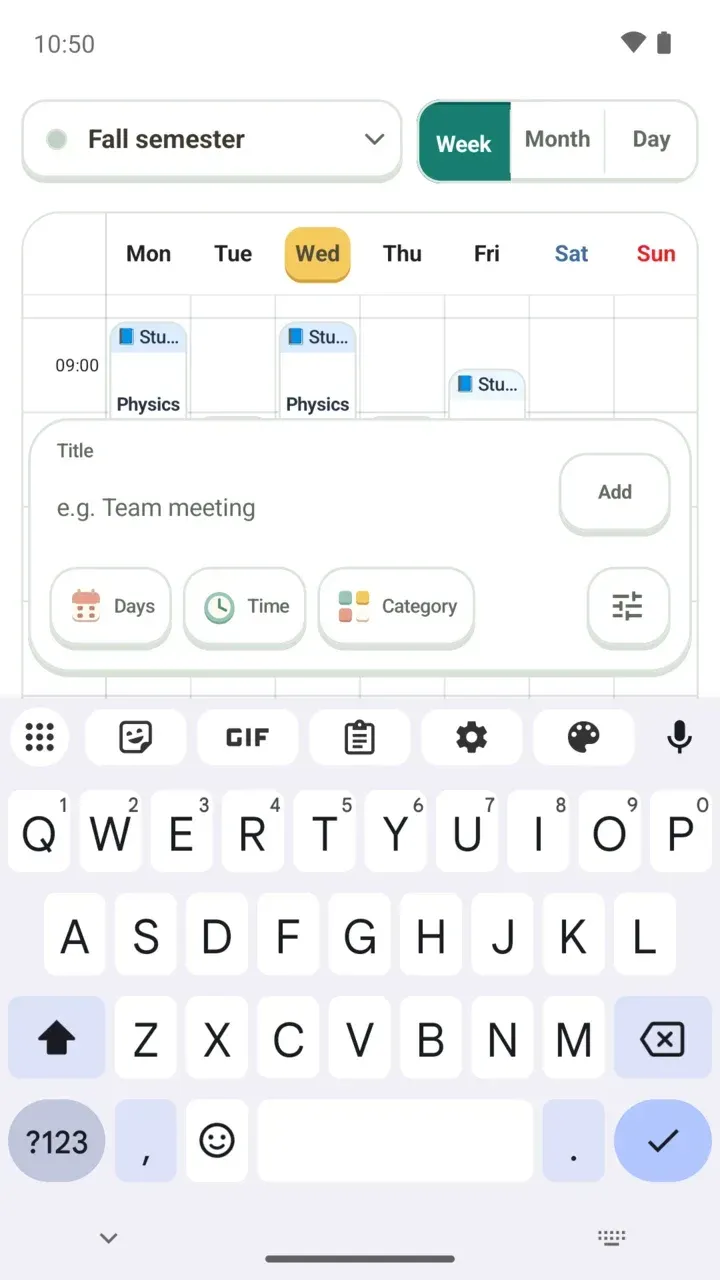
- The plans on your widget are exactly what you entered in the Timetable tab. To fill in your week first, start with building your weekly timetable.
- To see a whole month inside the app, read the monthly timetable view.
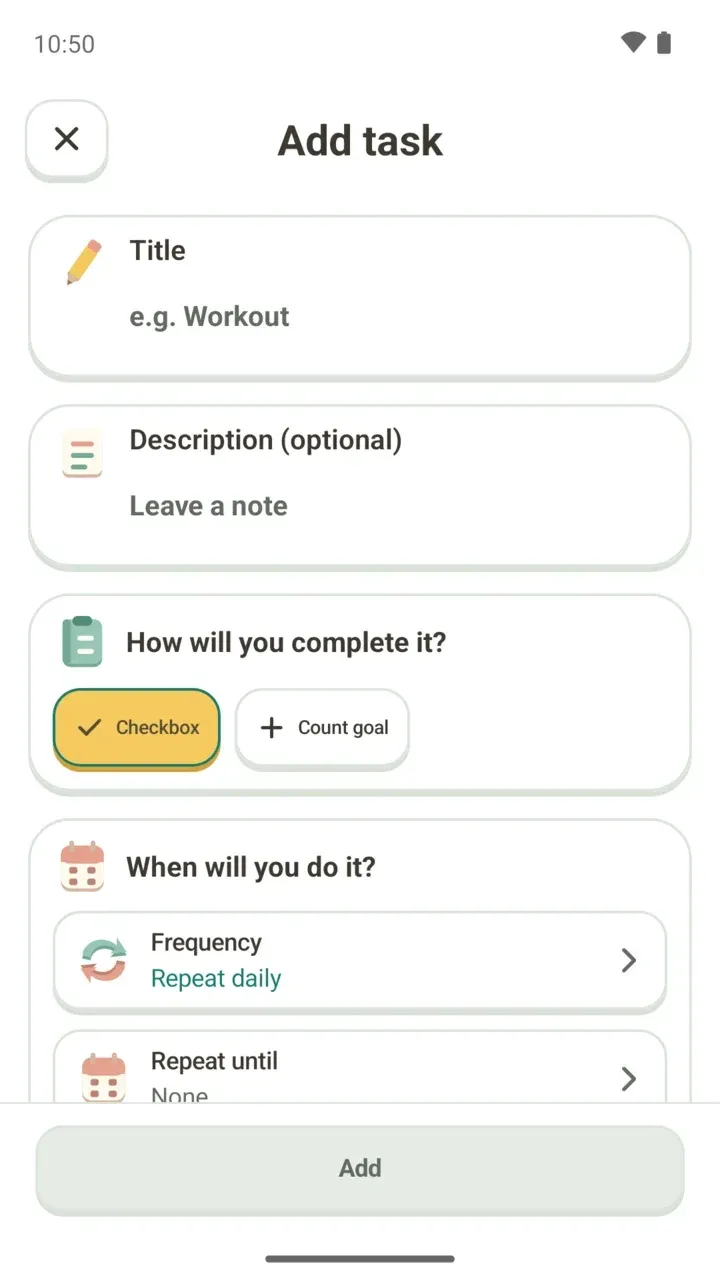
- Checking off tasks every day and filling count goals is covered in using the TODO tab, and sharing text from another app to add it as a to-do is in creating a to-do.
- To set the timer length and pick what to focus on, see using the focus timer.