Pomodoro Study Timer: From 25/5 to No Time Limit
Pomodoro presets from 25/5 to 60/10, your own length from 1 to 120 minutes, or no limit. Link a class or to-do and your focus time adds up there.
You want to try the Pomodoro method, 25 minutes of study and a 5-minute break, but installing a separate timer app feels like one more thing. If you'd like to start studying right from your timetable and keep track of which class the time went to, try Damda's focus timer.
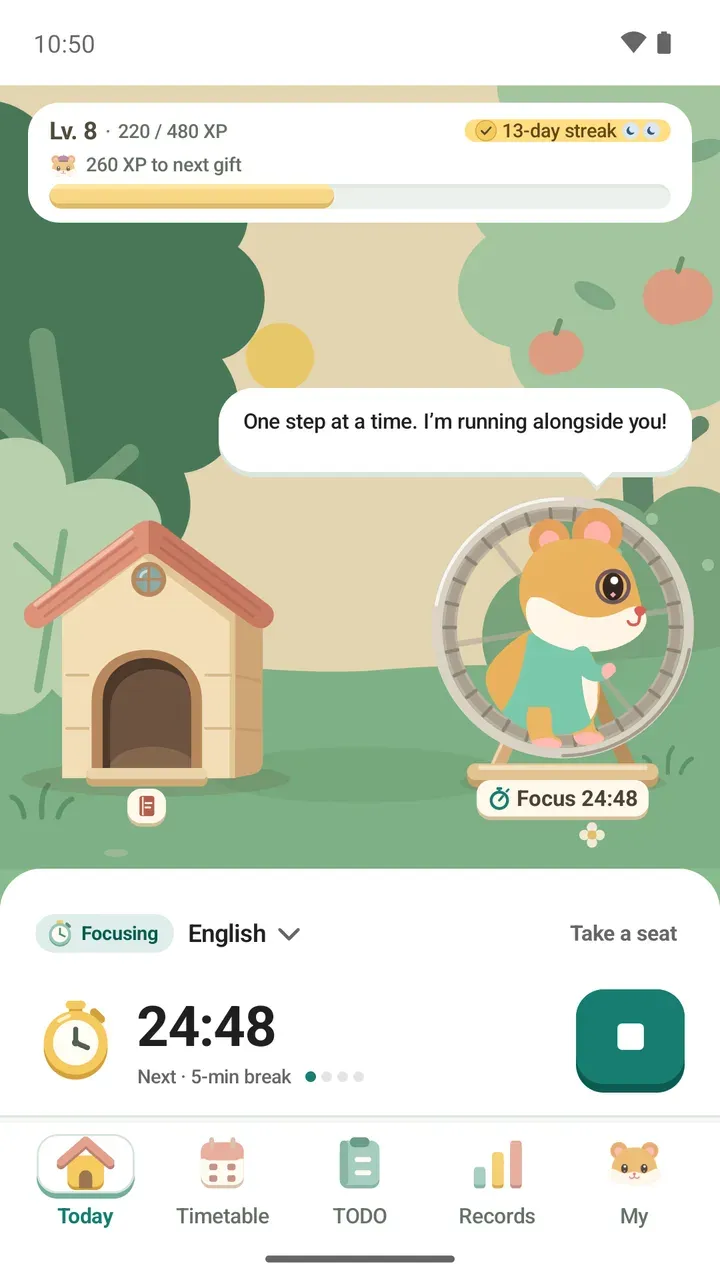
The timer lives on the Today tab. Run a preset, set your own length, or keep going with no end time. Link it to a class or a to-do and your focus time adds up there.
Choose how long to focus
In the "How long shall we run?" sheet, you pick your focus time and break together. These are the ready-made options:
- 25-minute focus · 5-min break
- 40-minute focus · 10-min break
- 45-minute focus · 10-min break
- 50-minute focus · 10-min break
- 60-minute focus · 10-min break
- No time limit: finish when you choose
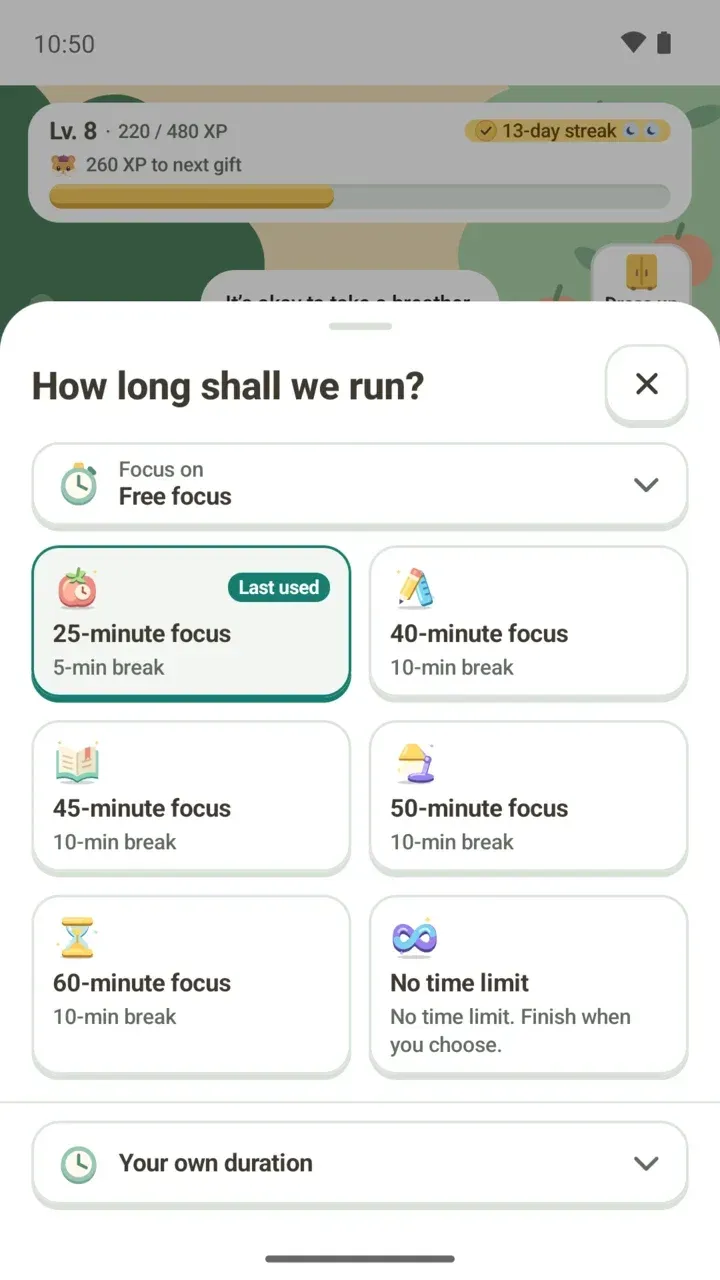
If none of these fit, open Your own duration at the bottom. You can set a focus time from 1 to 120 minutes, choose a break length, or pick No break. The start button shows the time you chose, such as 30 minutes of focus with a 5-minute break.
Choose what to focus on
Tap Focus on to open the "What will you focus on?" list. Your timetable's schedules and today's remaining to-dos are shown separately, and you can also pick Free focus.
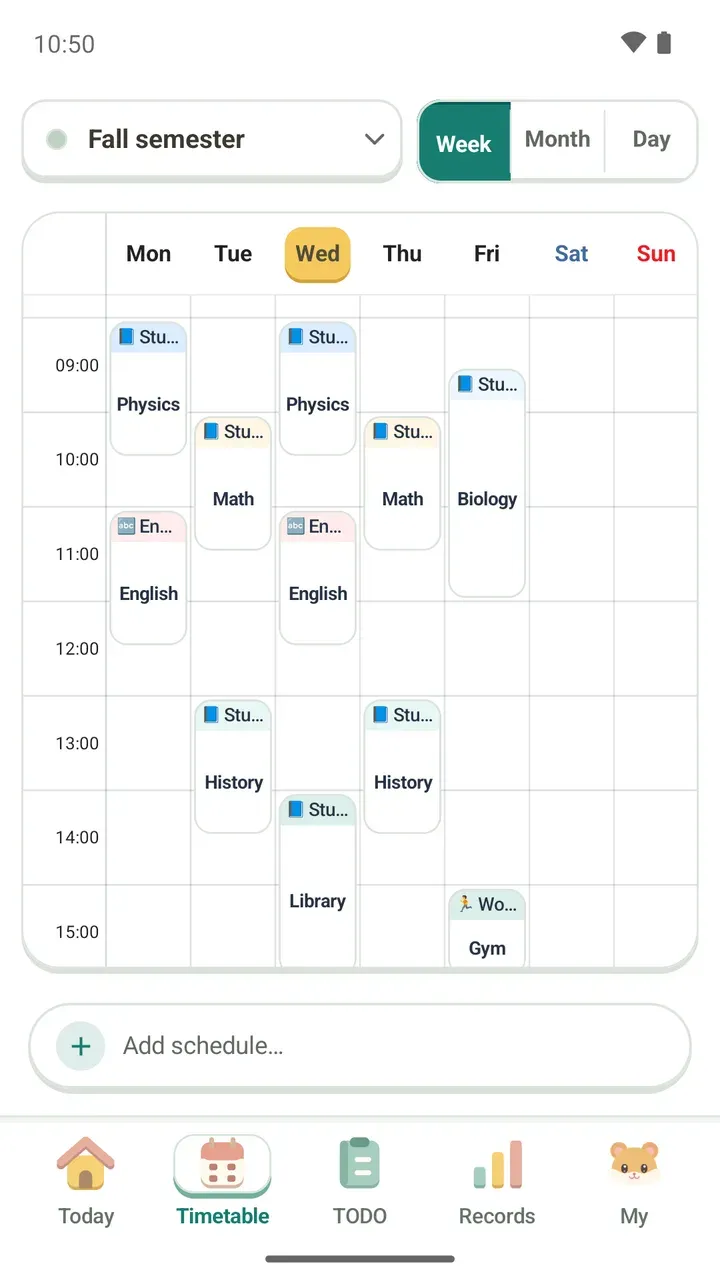
- Schedule: your focus time adds up on a class or a library study session you put on your timetable.
- To-do: your focus time adds up on a task for today, like memorizing vocabulary words.
- Free focus: focus without linking a schedule or to-do.
If you haven't added any schedules or to-dos yet, you'll see "No schedules or to-dos to choose yet," but Free focus is always there. Tap the x next to your choice to clear it.
Start focusing from the Today tab
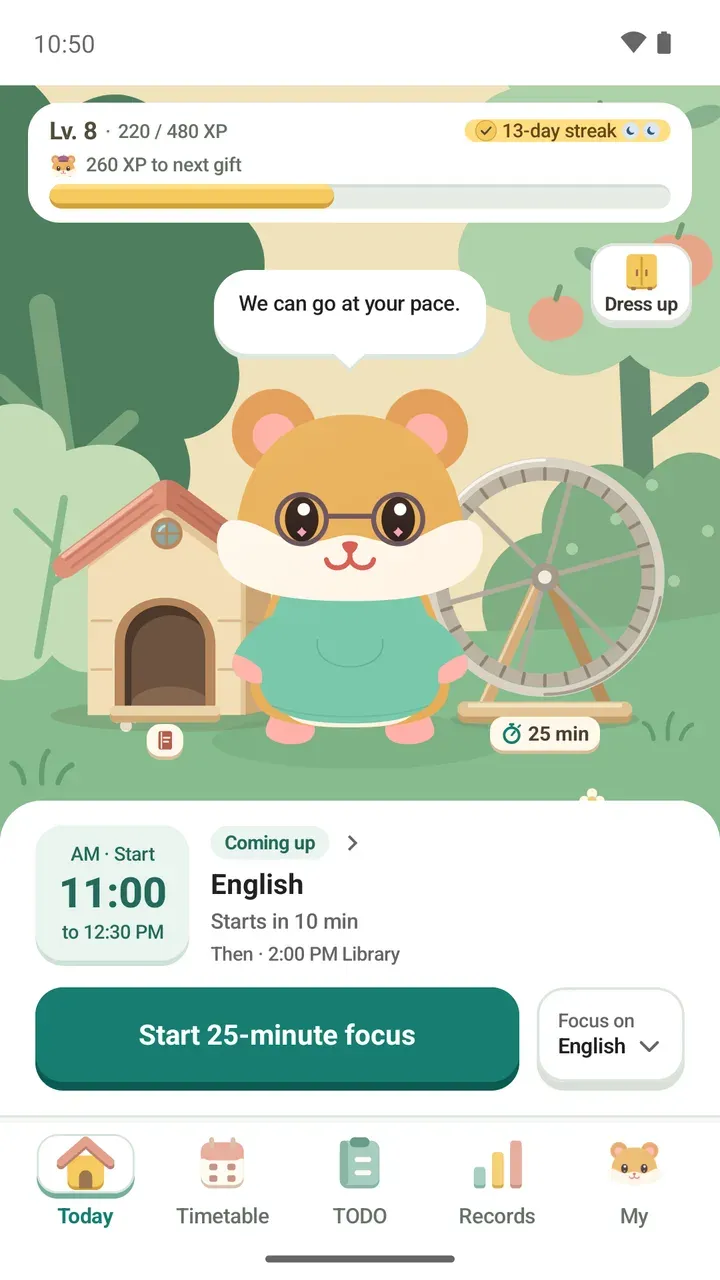
- Check your next class or plan under Coming up on the Today tab.
- Tap Focus on at the right and pick a schedule, a to-do or Free focus.
- Tap the hamster wheel to change the length in "How long shall we run?" If you want the same time as last time, skip this step.
- Tap the button that shows your time, such as Start 25-minute focus.
What you see while you focus
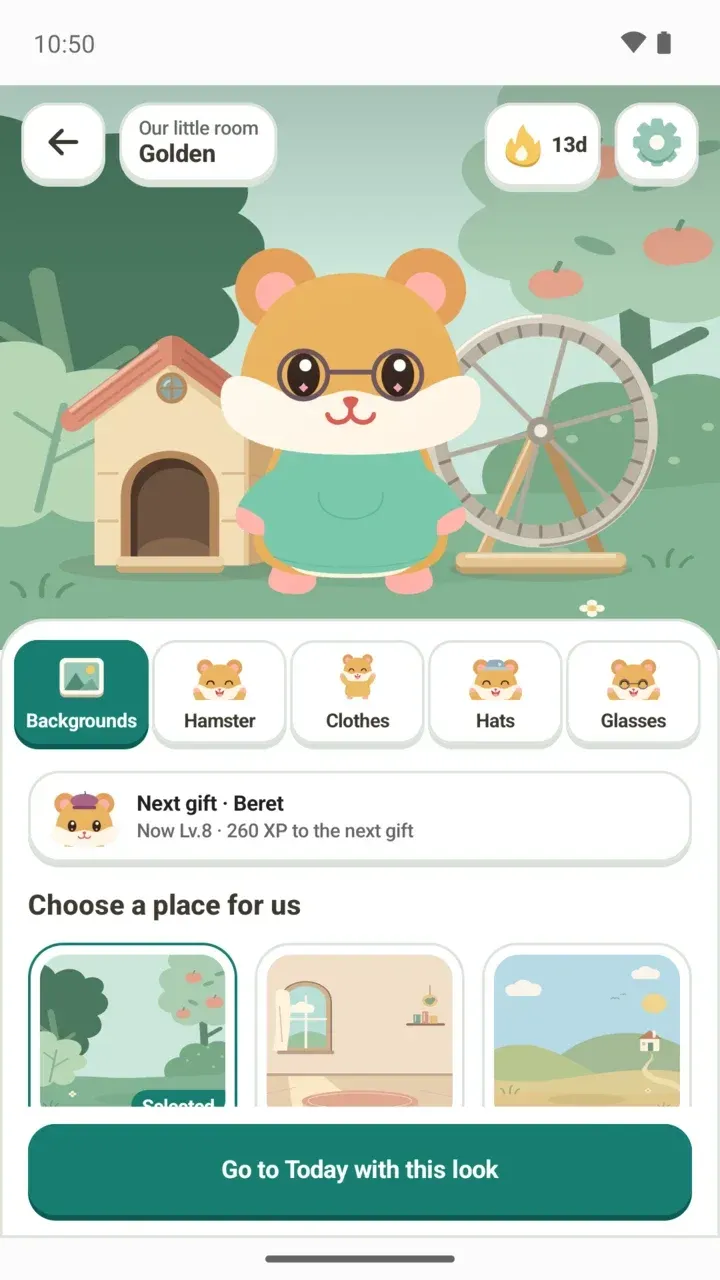
Once you start, your hamster hops on its wheel and runs with you. Below, you see the time left and what comes next, like "Next · 5-min break," and small dots show which round you're on.
When it's break time, the hamster says "We did well. Let's rest for a little while." If you'd rather keep going without a break, tap Focus now.
Started with Free focus? If you then tap the focus button on a schedule's or to-do's details screen, Damda asks whether to record your current session as that item. Say yes and all the time so far moves there. If the session is already linked to something else, Damda asks whether to record it as the new item from now on, and the time so far stays with the original one.
Tap Take a seat, to the right of your focus target, to sit in the Damda study hall and focus alongside others. The study hall post explains exactly what is shared.
Finish a session
To stop before the time is up, tap the stop button. Damda asks "Finish this session?" and saves the time so far to your records. Changed your mind? Tap Continue.
If you end it with End in the notification, a notification tells you what was recorded, like 25 minutes of focus, along with your total focus time today. Even short sessions under a minute are recorded, not thrown away.
Check and control it without opening the app
- Lock screen: follow your session's progress on the lock screen. On Android 16 and later, an ongoing session also shows in the status bar.
- Quick Settings tile: start and stop focusing with the Focus timer tile in your status bar.
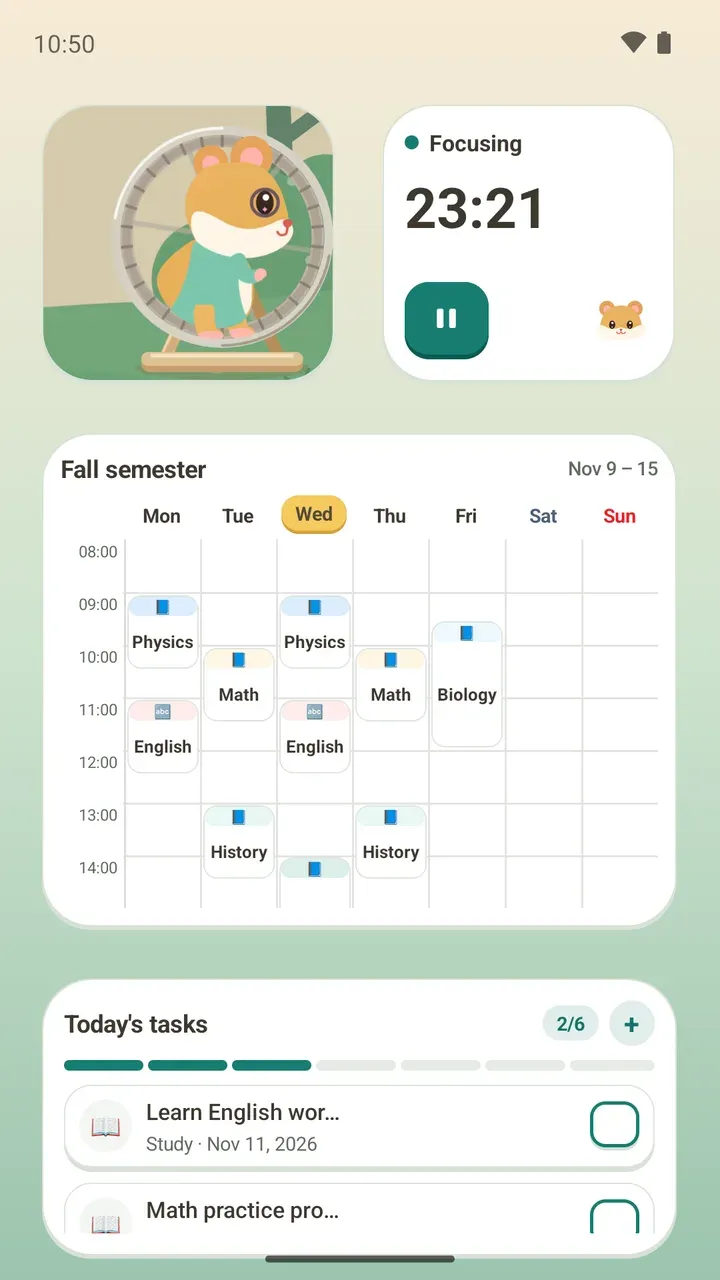
- Focus timer widget: see the time left on your home screen and pause right there.
- Wear OS watch: control the focus timer from a Wear OS 4 or later watch paired with your phone. The timer itself runs on your phone.
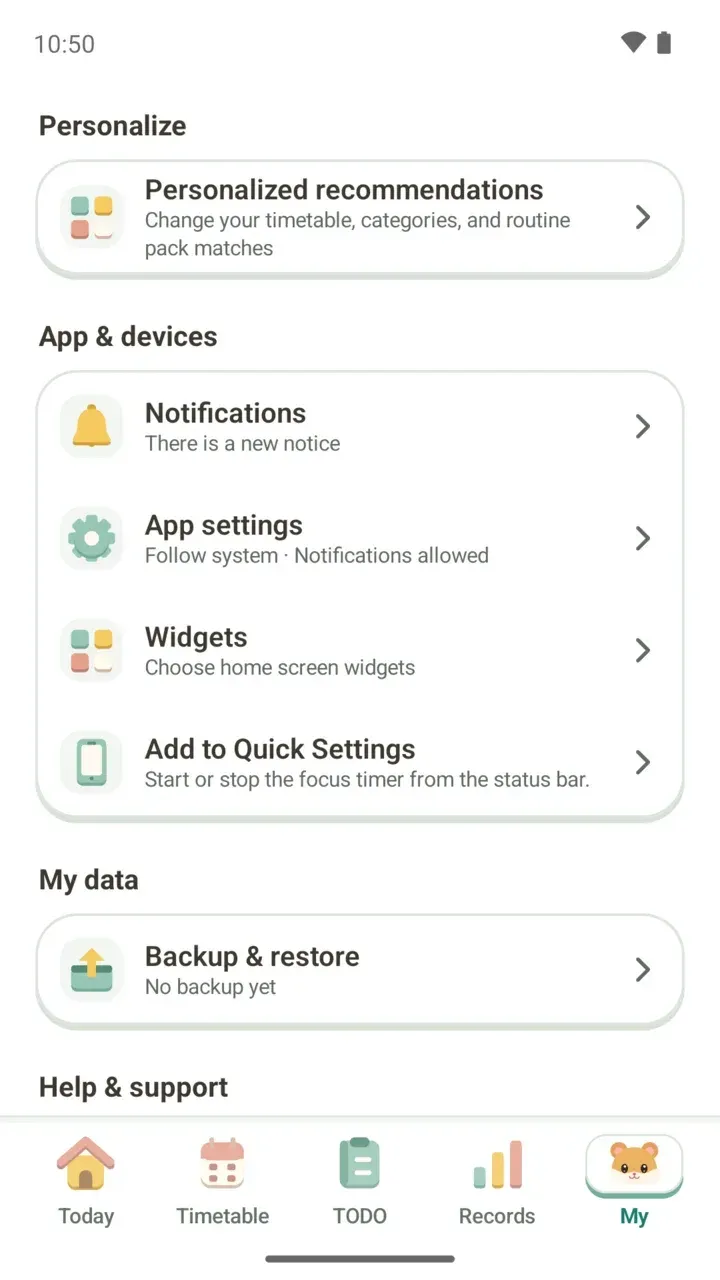
You add the Quick Settings tile from the My tab.
- On the My tab, tap Add to Quick Settings under App & devices.
- When a prompt asks to add the tile, allow it. Once it's added, the item changes to show that it's in Quick Settings.
- If no prompt appears, open Quick Settings from the status bar, tap edit and add Focus timer yourself.
To place widgets on your home screen, see the timetable widget post. To look back on your focus time in weekly and monthly charts, see the study tracker post.