How to Use the Today Tab: Next Class and Focus Timer
A top-to-bottom tour of the Today tab: your level and streak, the garden, your next class, and a focus timer you can start in one tap.
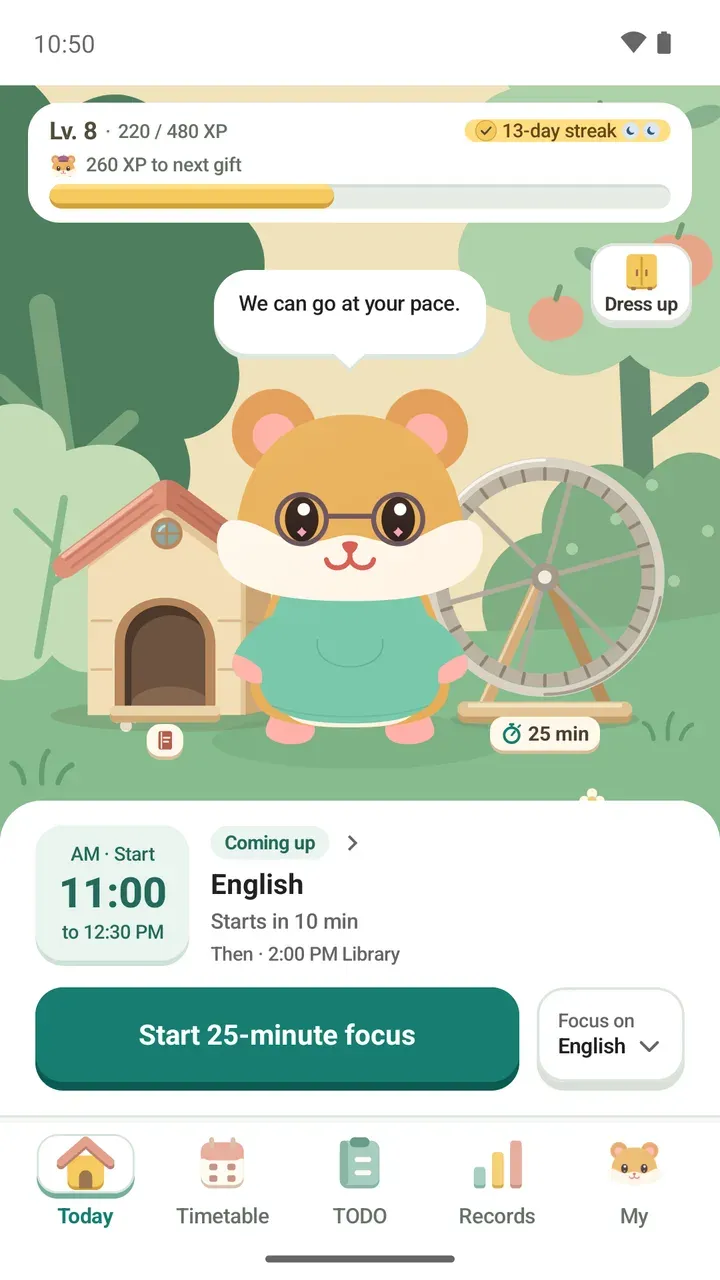
Open Damda and the Today tab is the first screen you see. Ten minutes before class, when you're wondering what's next, this one screen shows your next class and lets you start a focus timer right away.
Let's go through it from top to bottom. The level, XP, streak and class names in the screenshots are all sample data.
At the top: your level and next gift
The card at the top shows your level and XP, like “Lv. 8 · 220 / 480 XP”. Below it are “260 XP to next gift” and a bar. How full the bar is tells you at a glance how close the next gift is.
Keeping at it earns XP, and leveling up brings gifts such as outfits for your hamster. The missions and five chapters are covered in the Level path post.
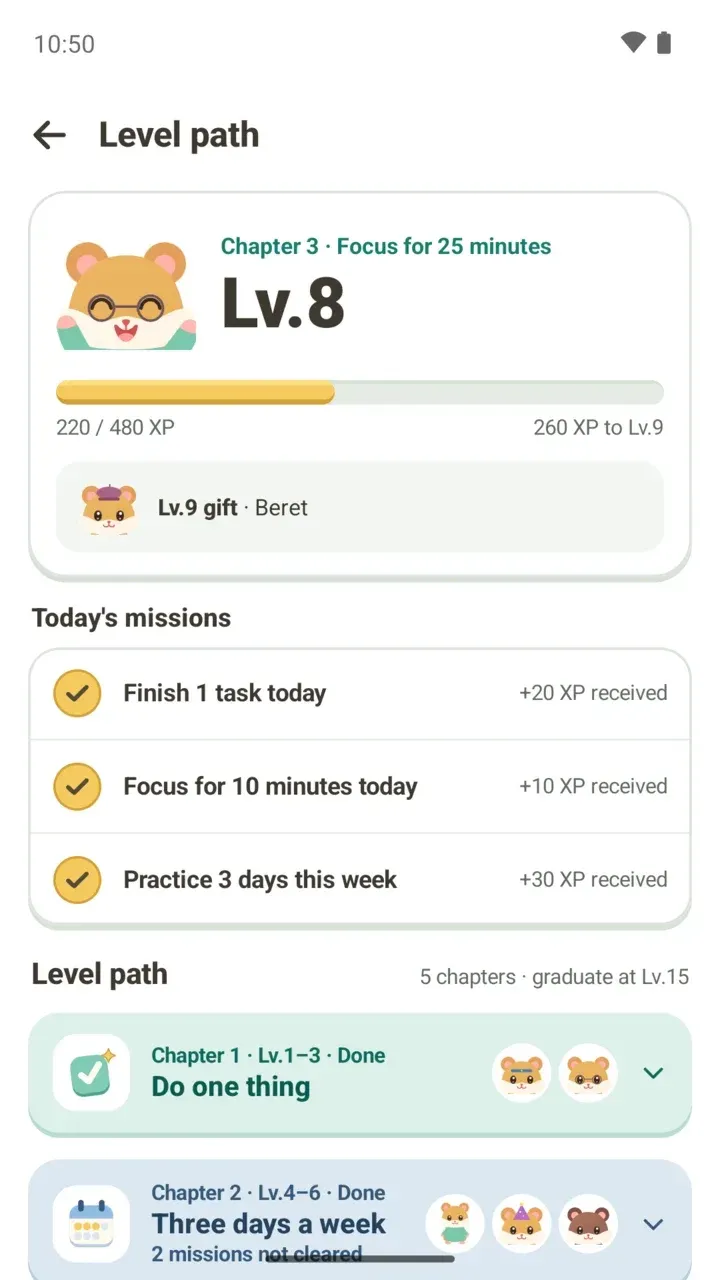
On the right: your streak badge
The yellow badge on the right shows how many days in a row you've kept going. When there's no streak going, it starts at “Day 1 today” instead of 0.
A day counts when you complete one task or record at least a minute of focus. The small marks next to the badge are rest days you've saved. Here's how a rest day covers an empty day.
In the middle: a garden that follows the time of day
The small garden in the background changes its sky for morning, daytime, evening and night. Your hamster talks to you to match the time, too: “Good morning! Let's do one thing together.” in the morning, or “A calm night. Good to see you.” at night. At night it doesn't nudge you toward tasks.
The garden has a wheel and a little house. Tap the wheel to pick a length and start focusing, and the house keeps a line about your day. There's more about your hamster in its own post.
The Coming up card
The white card's Coming up section shows your next plan in large type. On the left are its start time and when it ends, like “to 12:30 PM”. On the right are the title and how long until it begins, like “Starts in 10 min”.
The line below, “Then · 2:00 PM Library”, gives you a look at the plan after that. The card changes with your day:
- While a plan is under way, it switches to Happening now and shows how many minutes are left.
- When nothing is left today, it shows your next plan for tomorrow.
- If you haven't added any plans, it says No upcoming schedule.
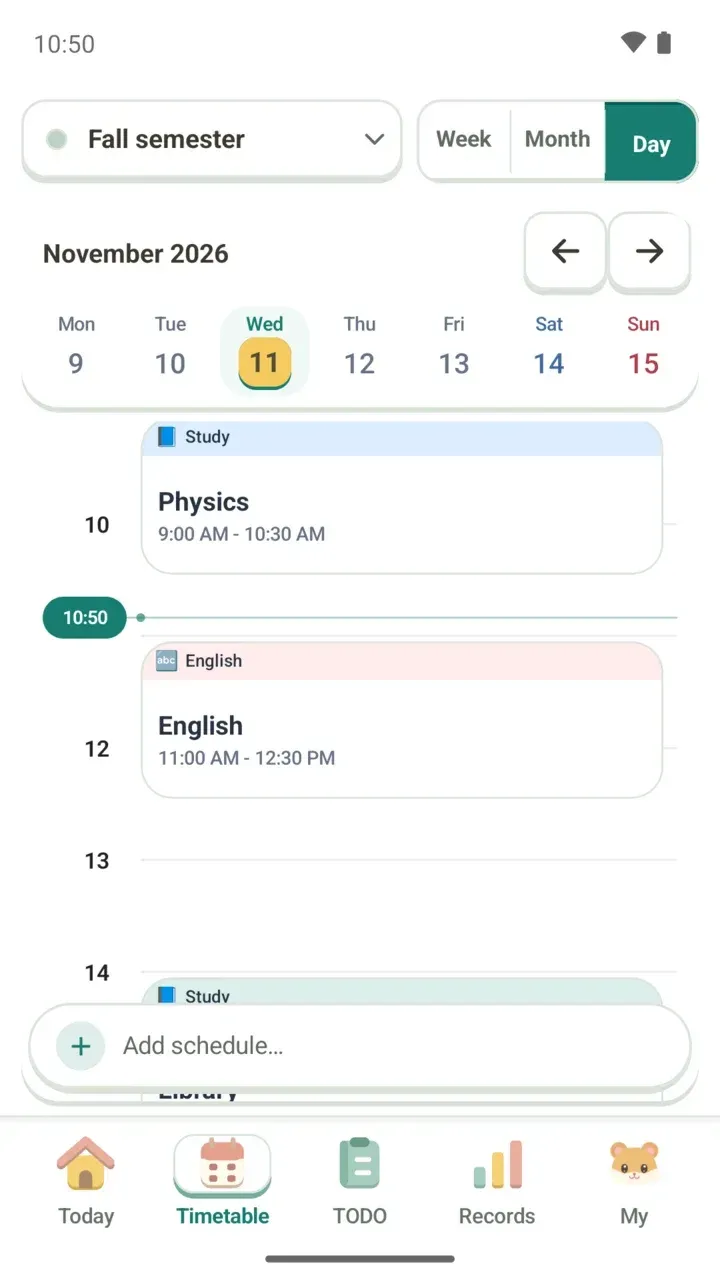
This card only shows the next plan and the one after it. To see your whole day in order, use the Day view in the Timetable tab.
Pick what to focus on and start
Under Focus on, pick a class or to-do and your focus time is counted there. If you'd rather not link it to anything, choose Free focus.
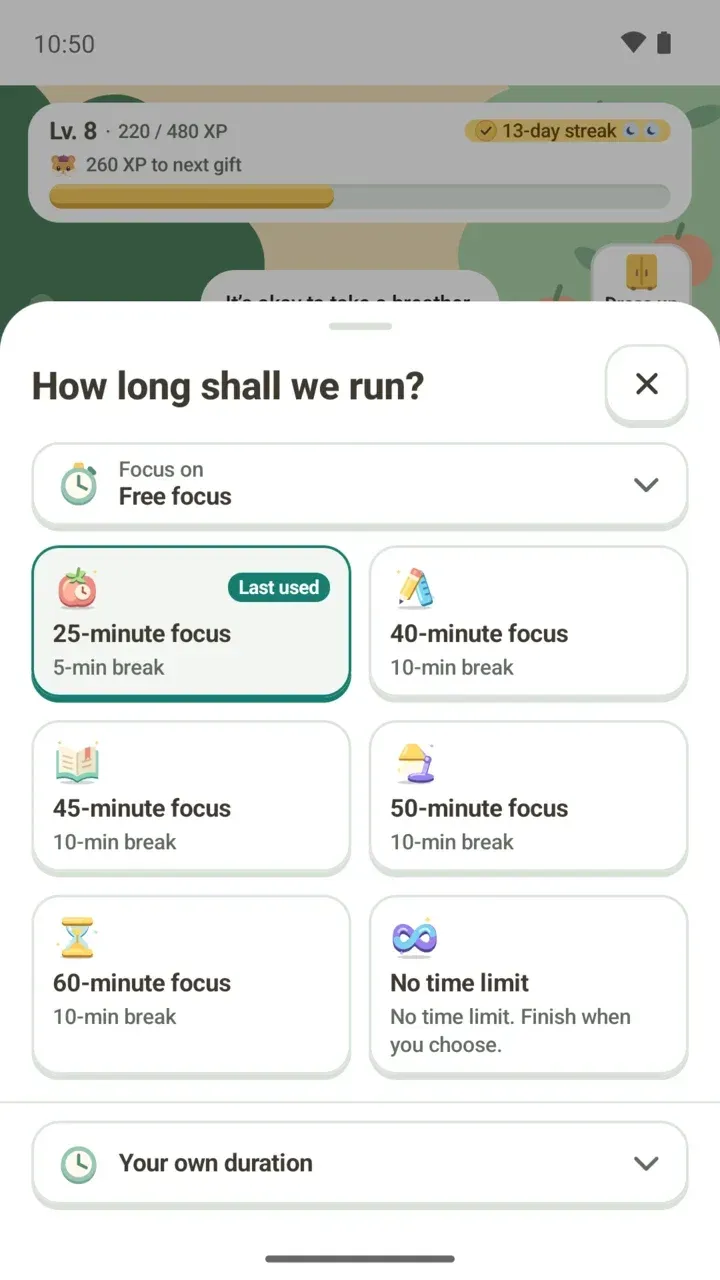
Then tap Start 25-minute focus and the timer starts right away. For a different length, tap the wheel and choose in How long shall we run?
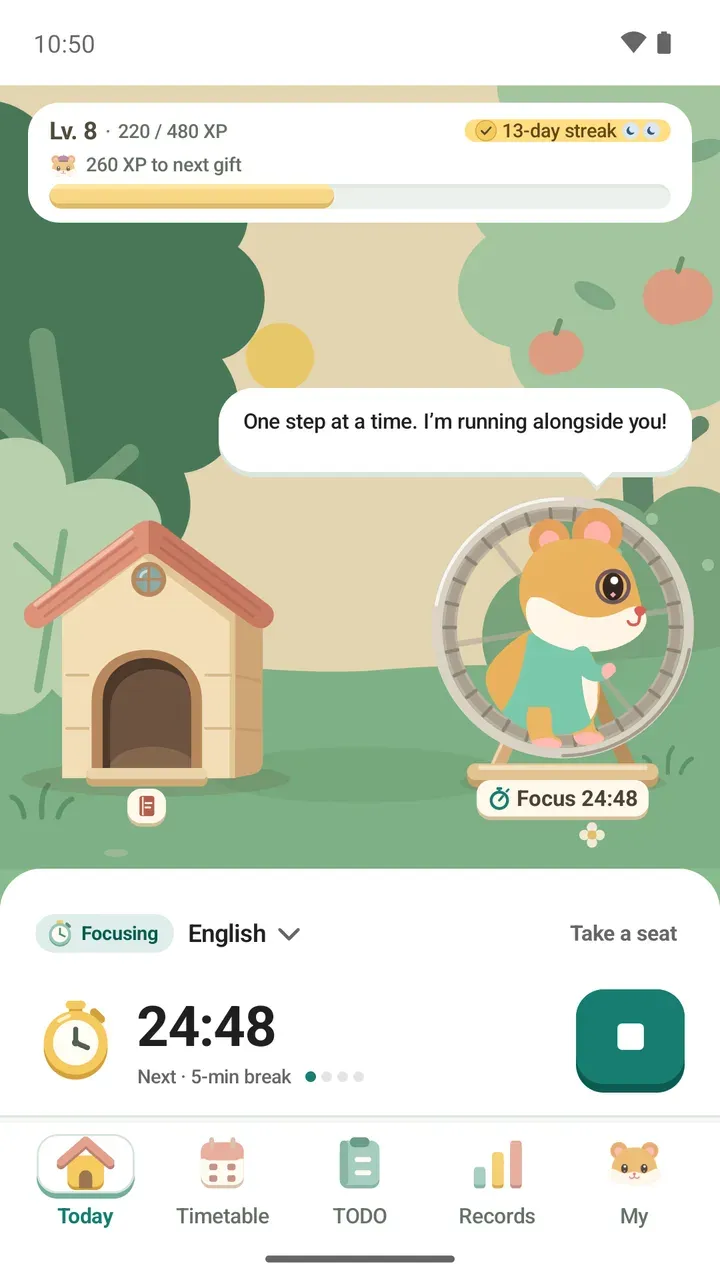
You can follow your progress on the lock screen too.
Ten minutes before class, try this
- Open Damda and check your next class and “Starts in 10 min” under Coming up on the Today tab.
- Glance at the Then line to see what comes after.
- Under Focus on, pick the class or a to-do you want to review.
- If time is short, tap the wheel and set the length under Your own duration.
- Start focusing. When you finish, the time is counted toward the class or to-do you picked.
Dress up and Today's reflection
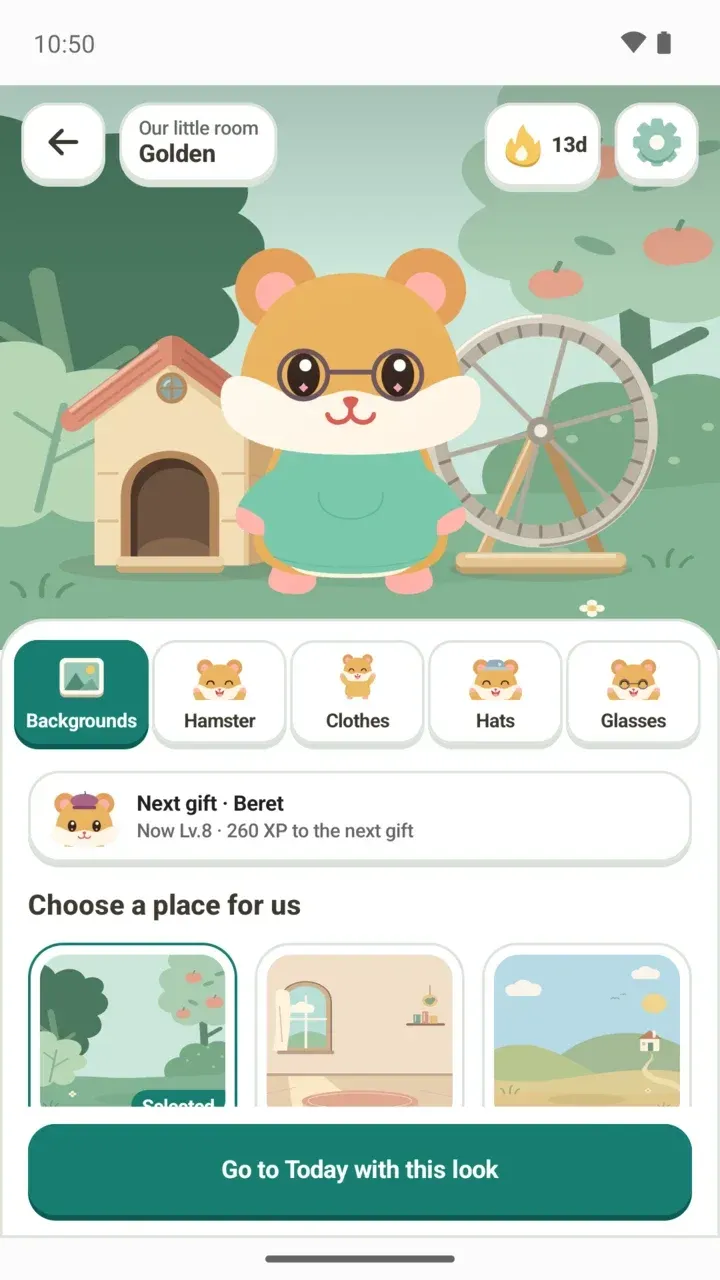
Tap Dress up at the top right to choose Backgrounds, Hamster, Clothes, Hats and Glasses. When you like the look, tap Go to Today with this look to show it on the Today tab. There's a step-by-step guide in the post on customizing your room.
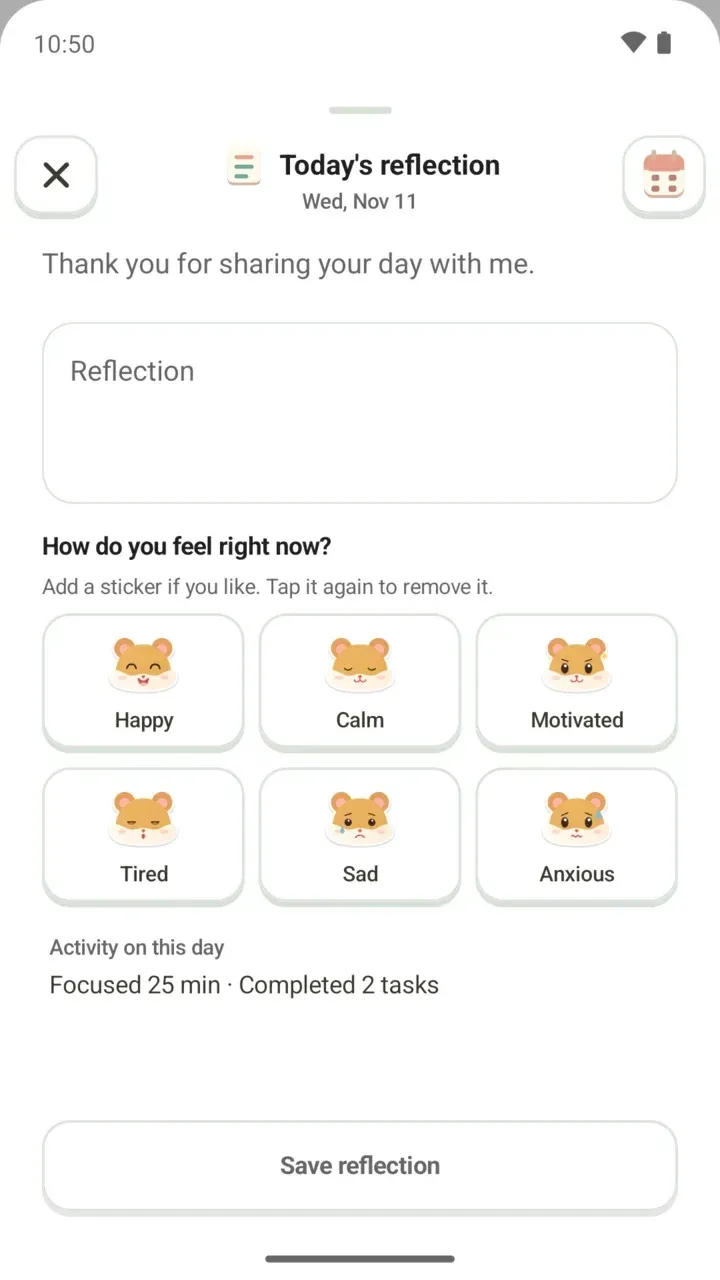
From the house in the garden you can open Today's reflection. Write a few words, add a sticker for how you feel right now, and see that day's focus time and finished tasks alongside. There's more in the daily reflection post.
The first time you open the Today tab, your hamster points out each part once. Want to dive right in? Tap Skip.