Daily Reflection Journal: One Line and a Mood Sticker
Write a line about your day and pick a mood sticker. Your focus time and tasks done show beside it, and the Day journal keeps your entries by month.
Some days end and you can't quite remember what you did. A full journal entry feels like too much, but letting the day slip by feels like a waste.
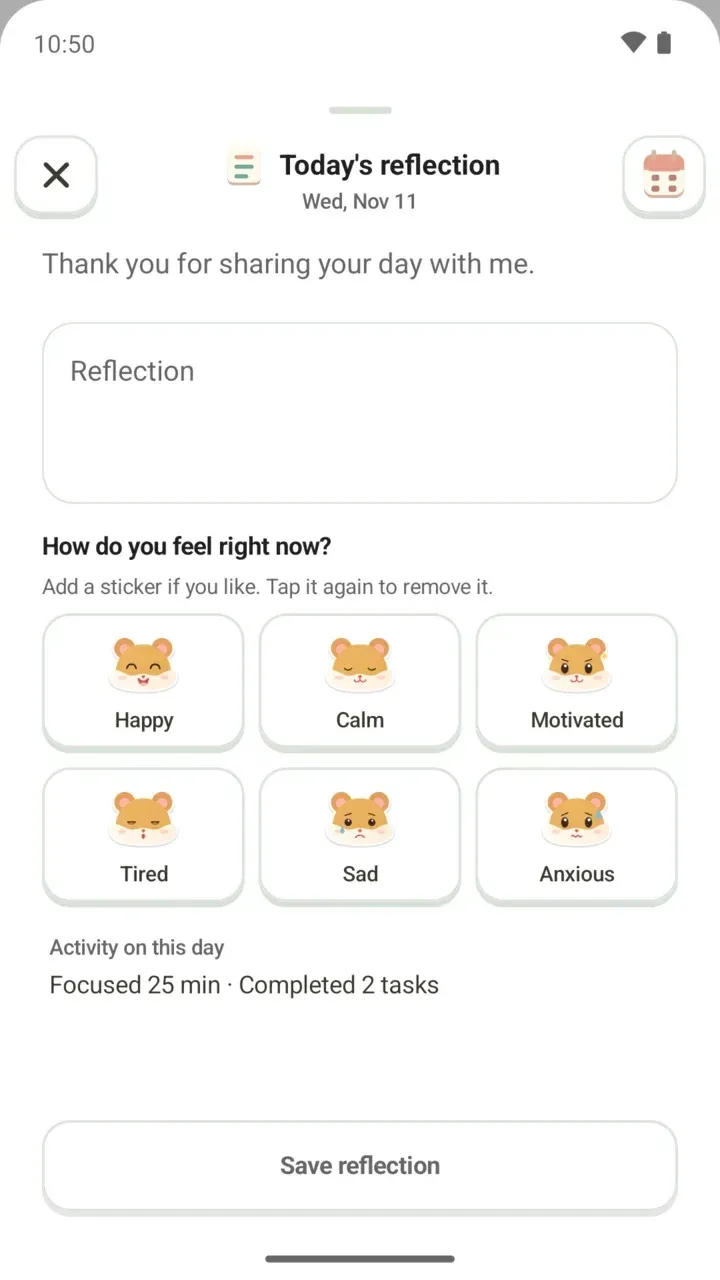
Today's reflection in Damda is a daily journal that only needs a sentence or two. You pick a mood sticker for how you feel, and the app shows your focus time and finished tasks for the day right beside it.
Where to write your reflection
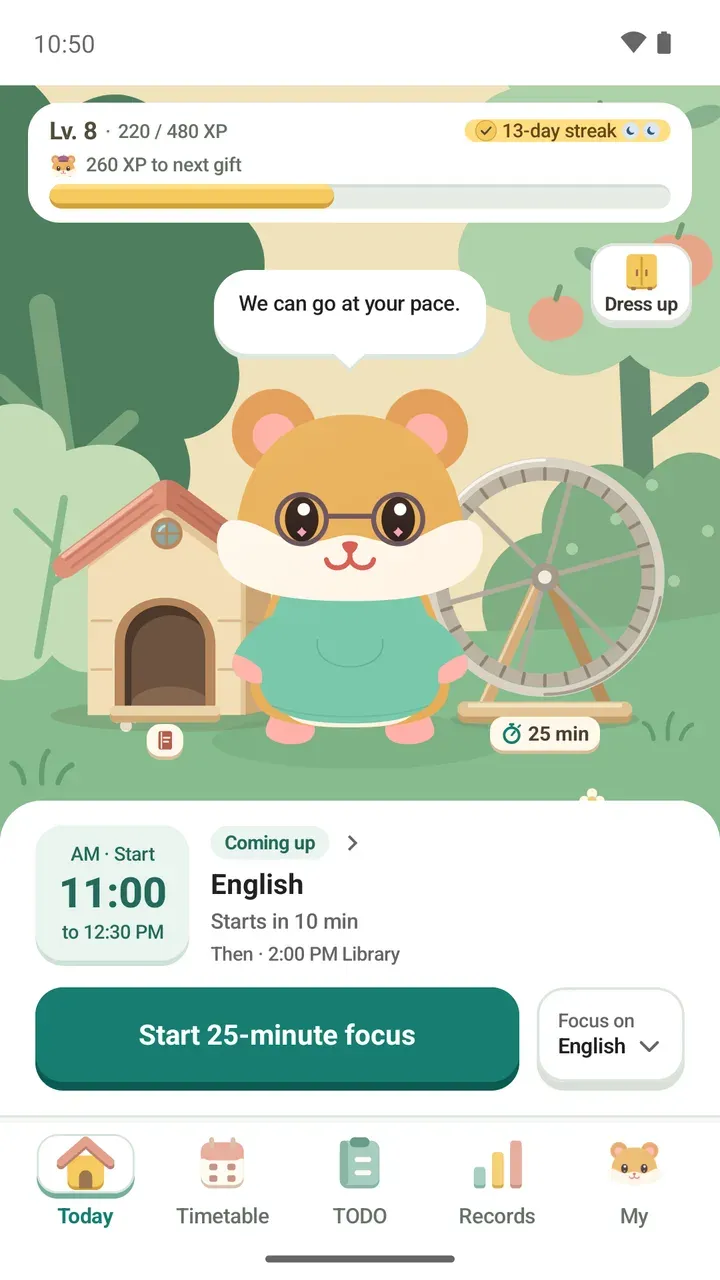
Tap the little house in the garden on the Today tab to open Today's reflection. From 8 in the evening, and on days you finish all your tasks, you'll also see 'Leave today in one line?' with a Write today's line button. Sometimes your hamster asks first: 'Want to reflect on today?'
You can also tap Write today's reflection in the Day journal to get to the same place.
Write today's reflection
- Tap the house in the garden or Write today's line to open Today's reflection. Today's date and 'Thank you for sharing your day with me.' appear at the top.
- In the Reflection box, write a few words about what happened today or a moment you want to remember.
- Under How do you feel right now?, pick the sticker that fits your mood. If you picked the wrong one, tap it again to remove it.
- Check your focus time and tasks done for today under Activity on this day.
- Tap Save reflection.
What you saved stays on the Today tab as Today's line, and you can tap Edit to change it later.
Six mood stickers
Each sticker shows a hamster with a different face. Even when a feeling is hard to put into words, picking one makes the day easier to remember later.
- Happy
- Calm
- Motivated
- Tired
- Sad
- Anxious
What you did that day shows up too
Activity on this day shows the time you put into the focus timer and how many tasks you completed, like 'Focused 25 min · Completed 2 tasks'. You don't have to write any of that down, so the Reflection box is free for the parts of your day that numbers can't capture.
If your activity can't be loaded, you'll see 'Activity is currently unavailable.'
Read past reflections in the Day journal
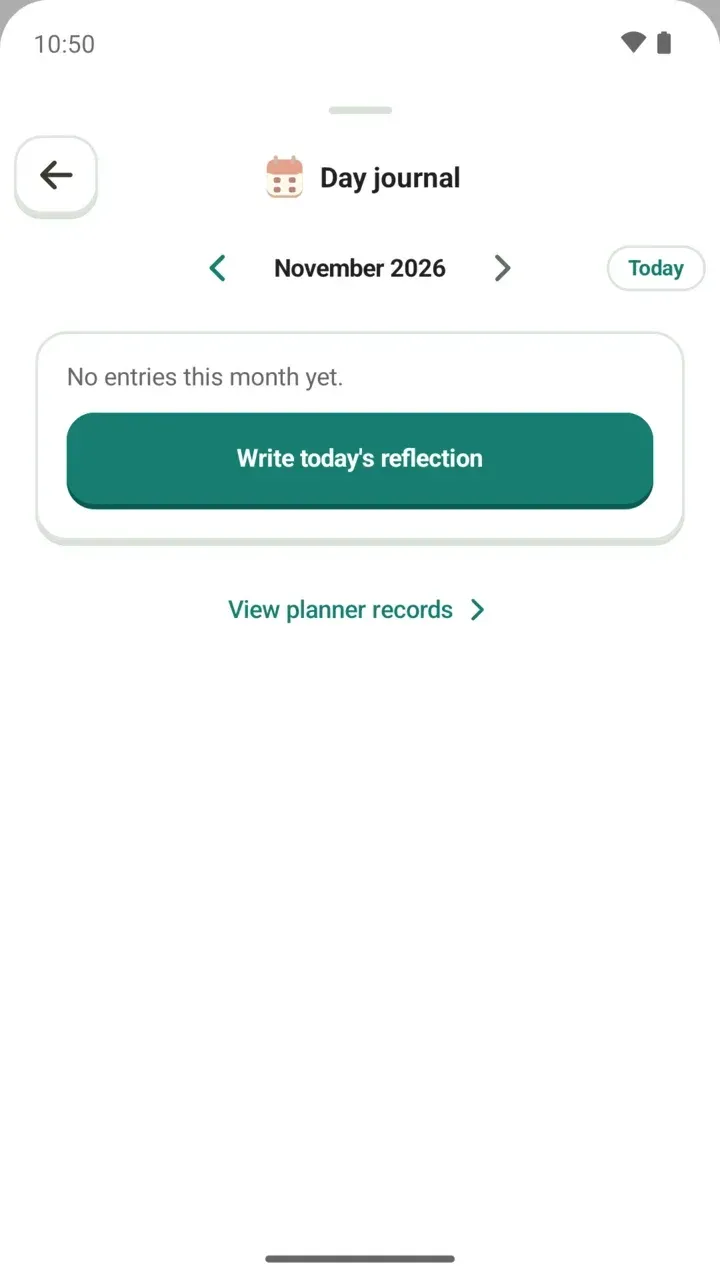
Tap the calendar button at the top right of Today's reflection to open the Day journal. It collects every reflection you've written, sorted by month.
- Use the arrows at the top to go to the previous or next month, and tap Today to come back to this month.
- When you look at one day, move with Previous day and Next day to see that day's goal, reflection and activity together.
- Tap Write on an empty day, or Edit on a day you've already written.
- Tap View planner records to go to your planner records.
- When you're done, tap Back to today.
The Day journal can also hold a goal alongside your reflection. It's a space for a small promise to yourself, labeled One intention for this day. To carry over the goal from the day before, use The previous day's journal or Continue with this goal.
Where your reflections are stored
Your Day journal, including reflections and goals, stays on this device only, with no sign-up. Even if you join the study hall, nothing you write is uploaded.
It isn't included in Android cloud backup or device transfer, so before you change phones, go to My > Backup & restore and make a backup file. The backup includes your Day journal and goals, encrypted with a password you choose.