How to Back Up and Restore Your Timetable on a New Phone
Damda has no sign-up, so your timetable and records live only on this phone. Make a backup file before you switch phones or reinstall, then restore it.
Getting a new phone, or about to delete and reinstall the app? Read this first. It shows you how to back up your timetable and bring a whole semester of classes and records with you.
First, know this: Damda saves only on this device
Damda works without an account. That means your timetable, to-dos, memos and everything else live on the phone you're using now, not on an account or a server.
If you delete the app, your data goes with it. It isn't included in Android cloud backup or phone-to-phone transfer, and there's no sync with the cloud or a computer. The one way to move your data is a backup file made by Damda.
Find the Backup & restore screen
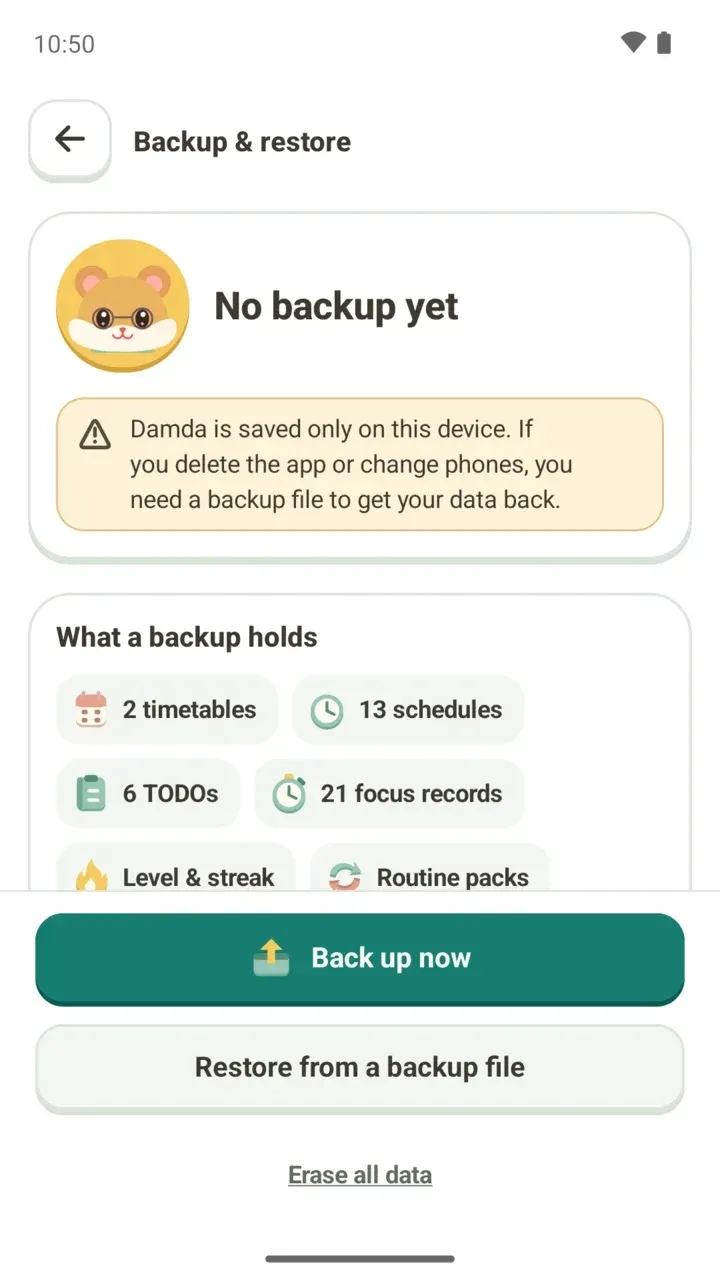
Open Backup & restore from the My tab. The My tab also gives you a quick status, such as "No backup yet" or how long ago you last backed up and how many new records you've added since.
The top of the screen shows your backup status. Below it, "What a backup holds" shows the data on this phone right now. The counts in the screenshot are sample data.
What goes into a backup file
- Timetables and schedules
- TODOs and categories
- Memos and photos
- Focus records
- Day journal
- D-day goals
- Level & streak
- Routine packs
- Customization & settings, and your profile name
Your seat and ranking records in the study hall are stored online, not on your phone, so they're separate from this backup. To delete that online data, see the Damda study hall post.
Back up now
- Tap "Back up now". If the focus timer is running, finish your session first.
- On "Set a backup password", enter a password twice and tap "Back up with this password". It can't be numbers only.
- When you see "Backed up" along with where the file was saved, you're done.
You choose where the backup file is saved. You can check the location again on the screen that appears when the backup is finished.
Everything in a new backup file, including schedules, memos and photos, is locked with this password. The password isn't stored anywhere, so if you forget it, Damda can't open the file for you either. You'll need it on your new phone, so write it down somewhere safe.
If your photos are too large to fit in one file, you can choose "Back up without photos". The text of your memos is still included.
The backup file stays where you saved it even if you delete the app. If you saved it to a cloud folder, that service's policies apply to the file.
Moving to a new phone, step by step
- On your old phone, go to My > Backup & restore and tap "Back up now" to make a backup file (.damda).
- Move that file somewhere your new phone can open it.
- Install Damda on your new phone, go to My > Backup & restore, tap "Restore from a backup file" and pick the file. You can also start by opening the file directly and choosing "Restore in Damda".
- Enter the password you set when you backed up and tap "Open file".
- Look over the backup on the review screen, then tap "Replace with this backup". When the app restarts, you're done.
On a new phone where you haven't added anything yet, you'll see "Bring back your earlier Damda data". Pick the backup file you made before and your records come right back.
Compare with your current data before restoring
The review screen shows the date of the backup and the Damda version it was made with. Under "Now → After restore", it lines up the number of schedules, TODOs, memos, focus records, day journal entries and D-day goals side by side.
- Restoring replaces your current data with this backup, and the app restarts.
- If the backup has fewer records than you have now, Damda tells you first.
- Your level and streak keep whichever is higher, now or in the backup.
- "Back up my current data first" saves a copy of your current data before anything changes.
Changed your mind after restoring? "Undo restore" takes you back to your data from before the restore. If a restore doesn't finish, your earlier data is left as it was, so just open the backup file again.
What about older backup files?
Only new backups need a password. Older backup files can still be restored without one. Since they come from an earlier version, your day journal, level and customization stay as they are on this phone. You can read about this change and the rest of the update in the 3.1.0 update post.
If Damda says the backup was made with a newer version of the app, update the app, then open the file again.
Erase all data
"Erase all data" at the very bottom of the screen deletes your timetable, TODOs, memos, records, day journal, level, customization and settings. It can't be undone, so the first prompt includes a "Back up first" button.
If you continue, Damda asks once more. You need to check "I understand that all data will be erased and the app will close" before you can tap "Erase all".
One backup buys peace of mind
Even if you're not switching phones, it's worth having a backup file. Backup & restore shows how many new records you've added since your last backup, so make a fresh one whenever a good amount has built up.