What Is Damda? A Timetable App and Study Planner
Meet Damda, a timetable app and study planner for Android, with to-dos, a Pomodoro timer, study records, an anonymous study hall and widgets.
Damda is a timetable app and study planner for busy weeks. Enter your class schedule, practice, exam prep and part-time shifts once, and the whole week is easy to read at a glance.
Right beside that timetable are your to-dos, a focus timer, your study records and a study hall where you can focus with others anonymously. This post walks through each part so you can tell what Damda is and whether it fits your week.
Made for weeks like these
- You're a college student with different class times every day, and you keep double-checking your schedule.
- Classes end and you head straight to practice, a club or a job, so your day has no gaps.
- You made an exam study plan and want to keep track of how much you actually did.
- Part-time shifts sit between your classes, and you want the whole week on one screen.
If you're looking for grade or GPA tracking, app blocking, or automatic sync between devices, Damda doesn't have those.
First of all, a timetable you can read
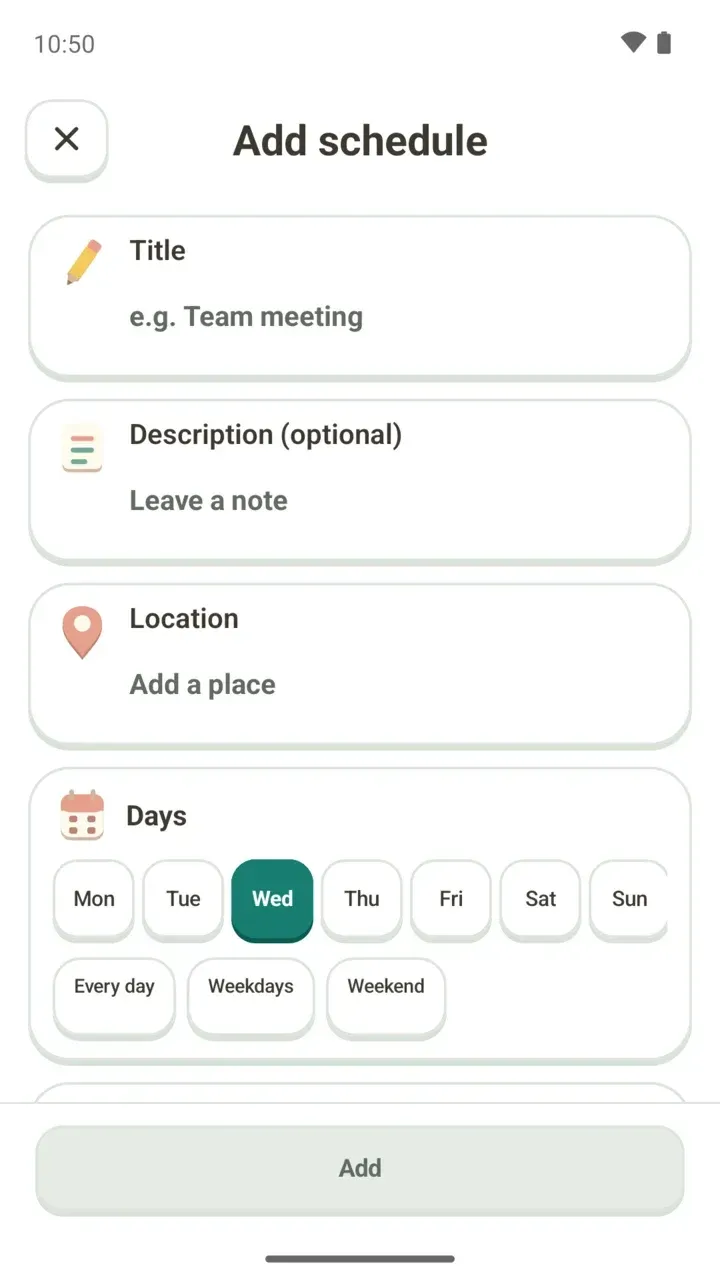
The timetable is the heart of Damda. Your plans sit in color-coded blocks, and you can switch between Week, Month and Day views.
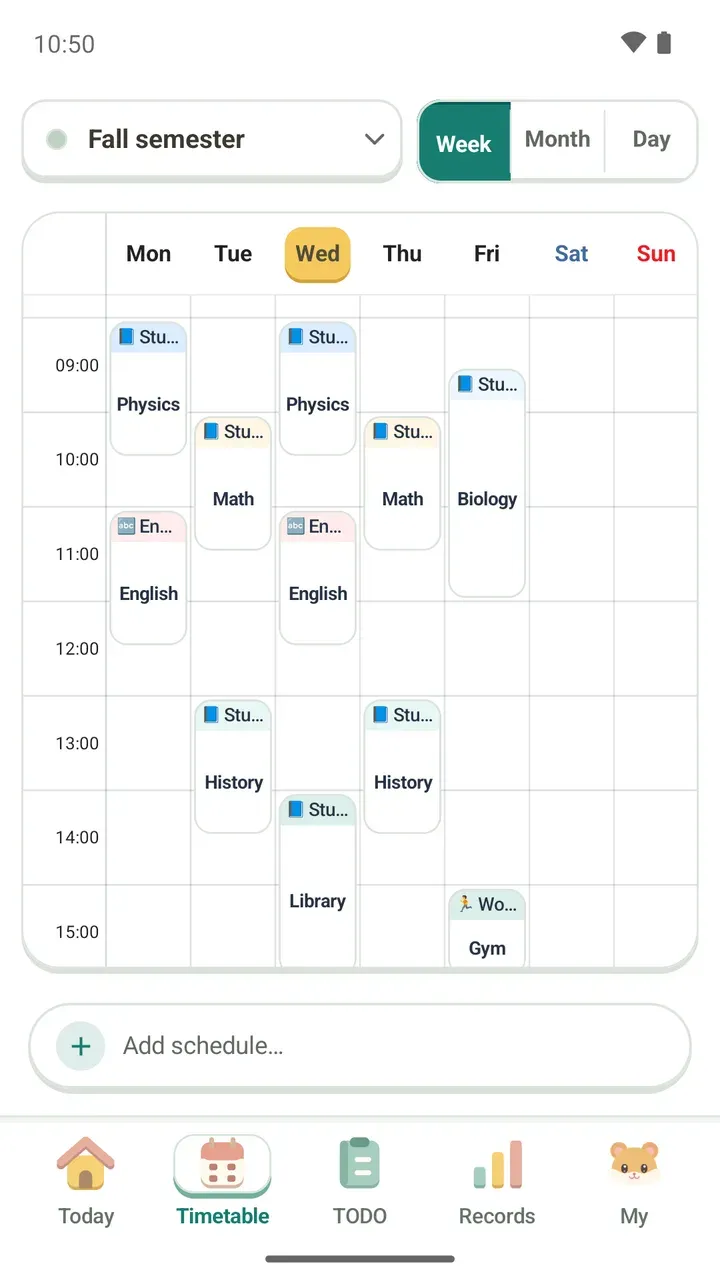
- Keep a location, a memo and photos with each plan.
- Choose Repeat weekly or One time, and overlaps are caught before you save.
- Get a reminder on time, 5 or 10 minutes before, with snooze right in the notification.
- Share a plan as a clean image card.
To learn how to build and read your timetable, see Weekly Timetable: See Classes, Shifts and Plans at a Glance.
What sits right beside it
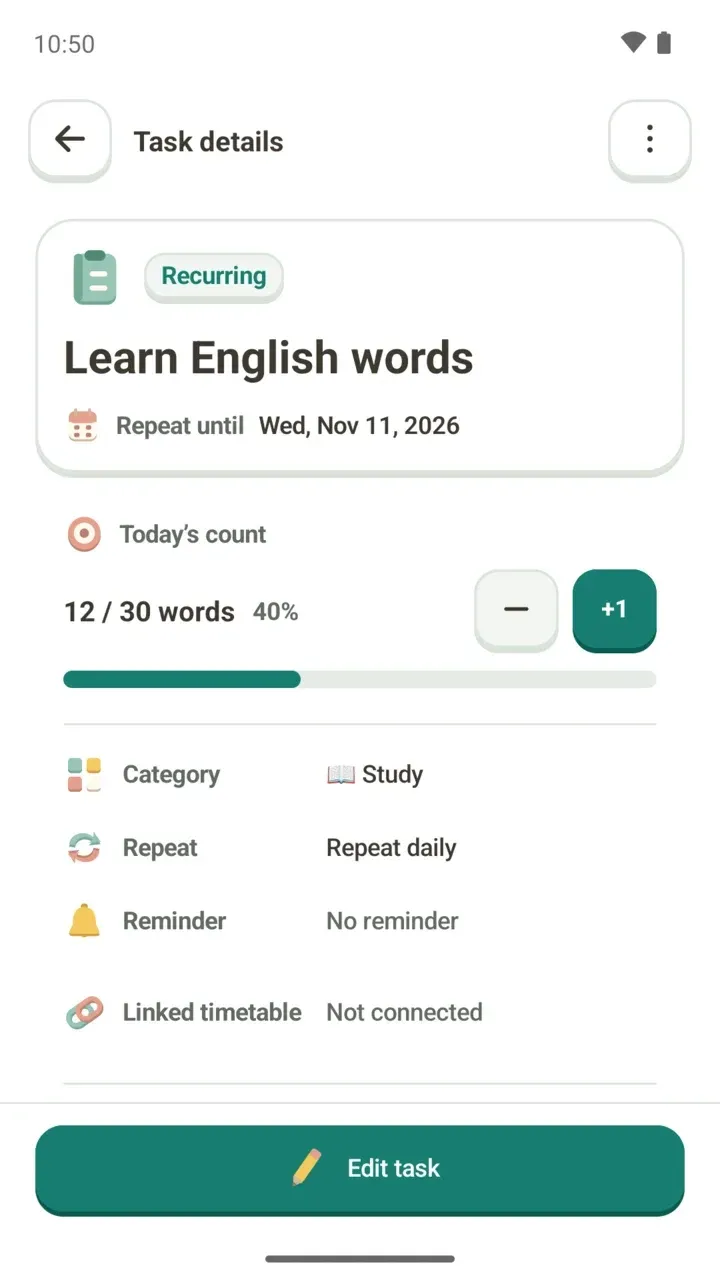
To-dos: check a task off, or fill a count like 30 words a day. Repeat it every day or on the weekdays you choose, set a due date with D-day and a category, and link it to a plan on your timetable.
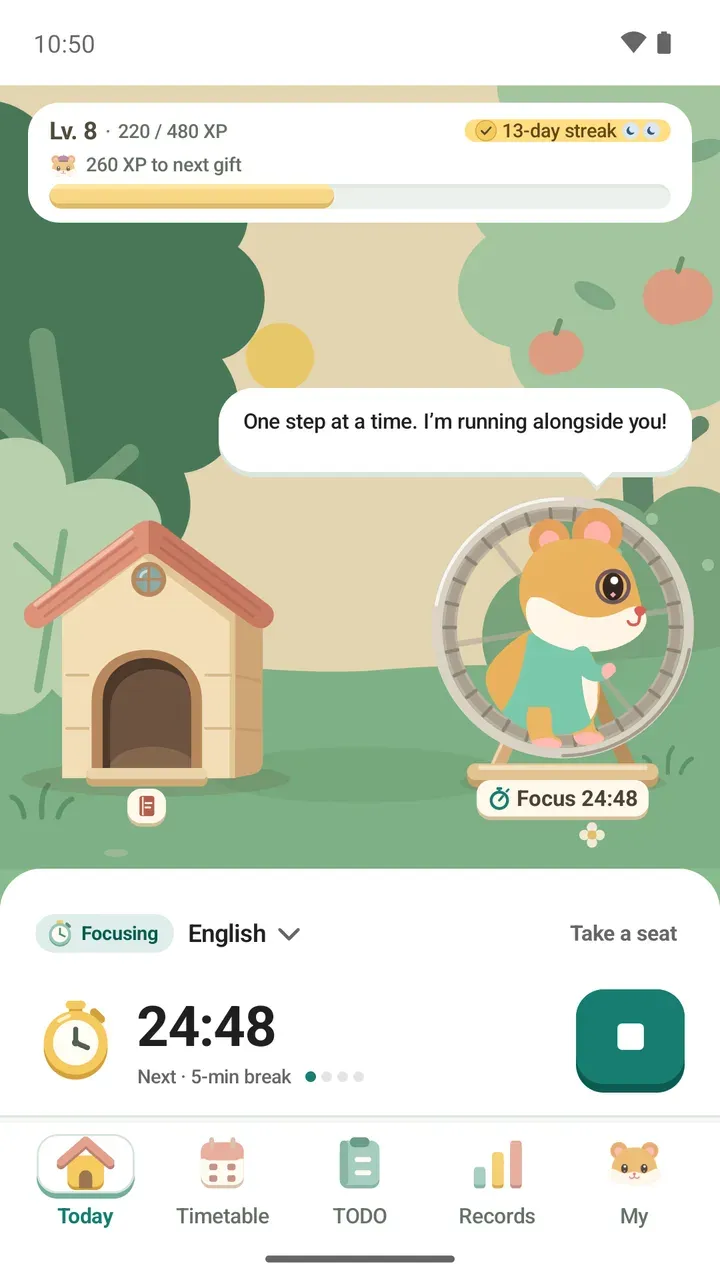
Focus timer: use Pomodoro 25/5, longer presets up to 60/10, your own length from 1 to 120 minutes, or no time limit. Link a session to a class or to-do and the time is counted there. You can follow your progress on the lock screen too.
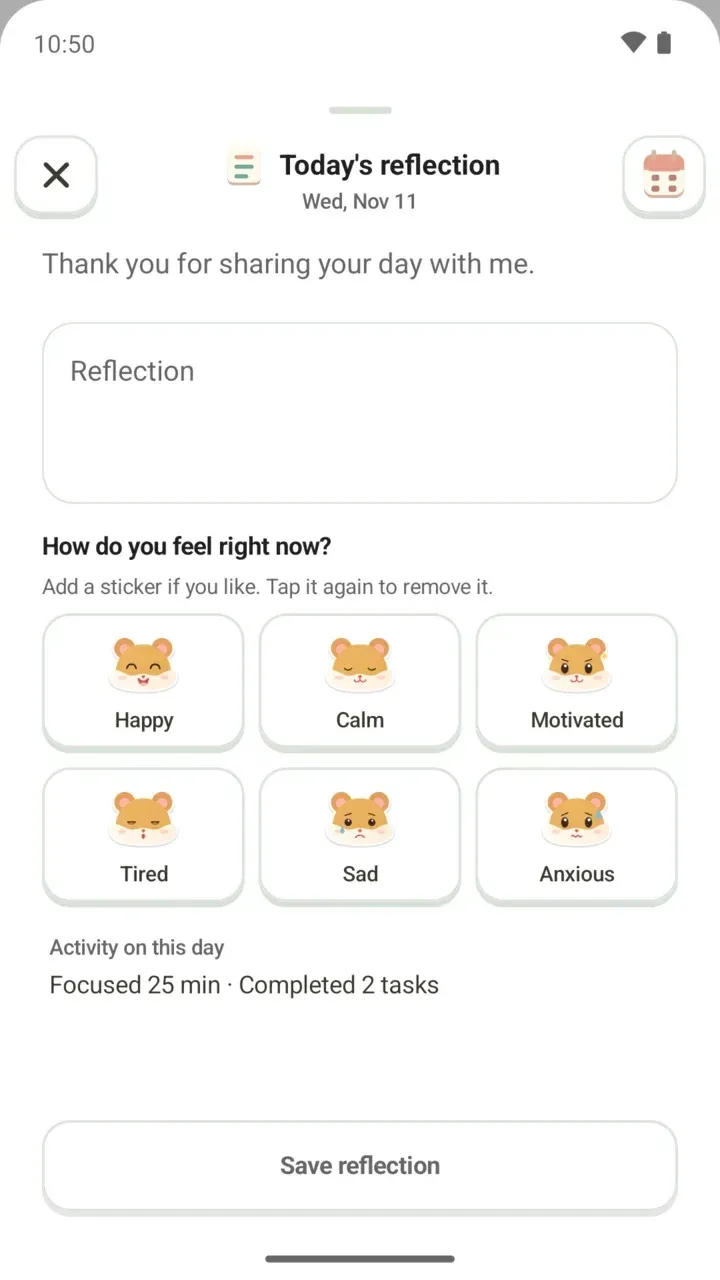
Records: look back on your streaks, the to-dos you're keeping up, your longest runs and weekly and monthly focus charts. Three active days in a week earn one rest day, and it covers an empty day by itself. You can hold two, and they can't be bought.
Damda study hall: a live room of hamsters at their desks. Pick a seat to join anonymously and start focusing.
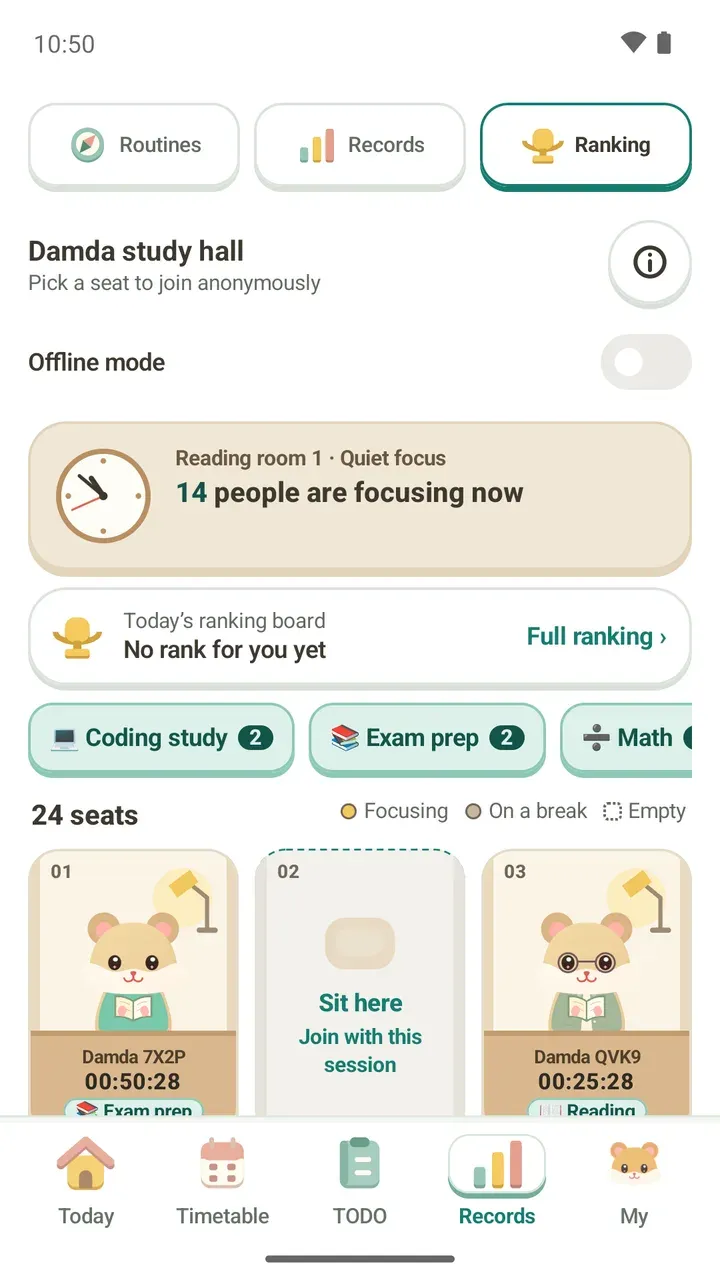
Once you first pick a seat, your focus time today, activity type, status and seat are shared while you use the focus timer. With offline mode on, nothing is uploaded. Read more in the study hall post.
Five tabs, one line each
- Today: see your next plan and your streak and start focusing right away. Your hamster in its garden and your level live here too.
- Timetable: see your week in Week, Month or Day view and add plans.
- TODO: check off tasks for each date or fill a count.
- Records: Routines, Records and Ranking are here, and you open the study hall from this tab.
- My: Customize my room, the Level path, Damda Plus, and Settings and backup.
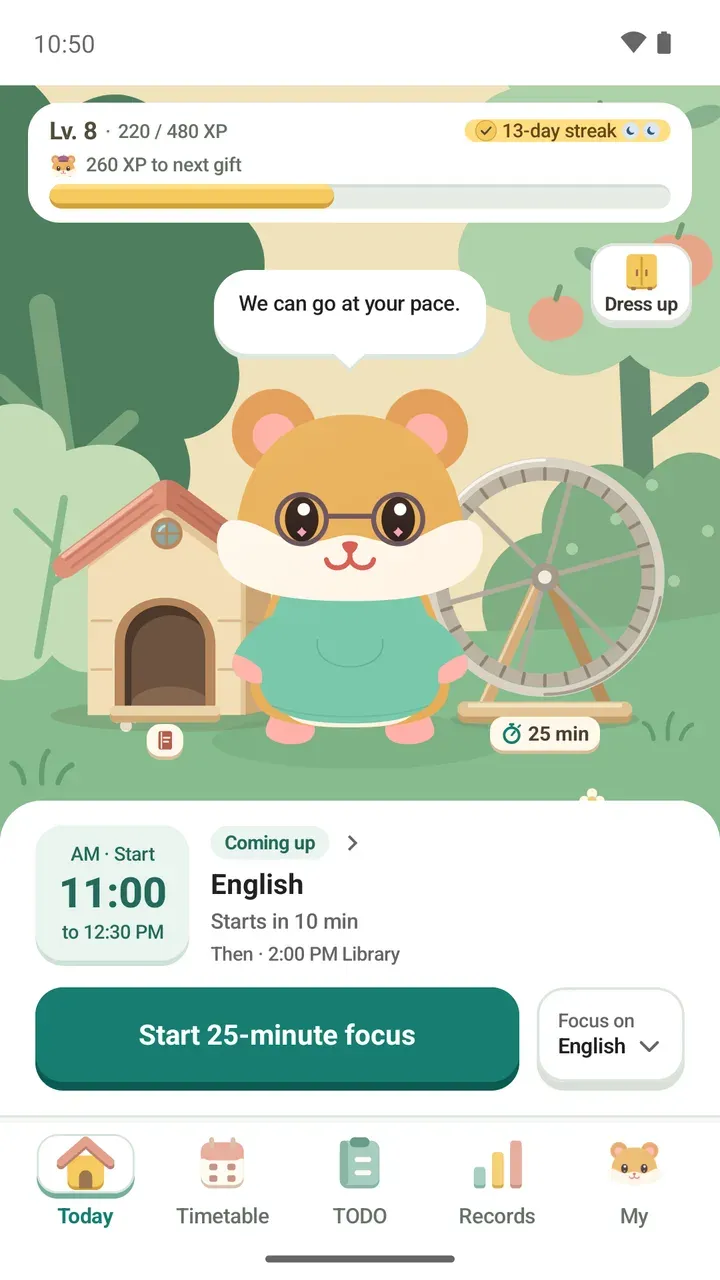
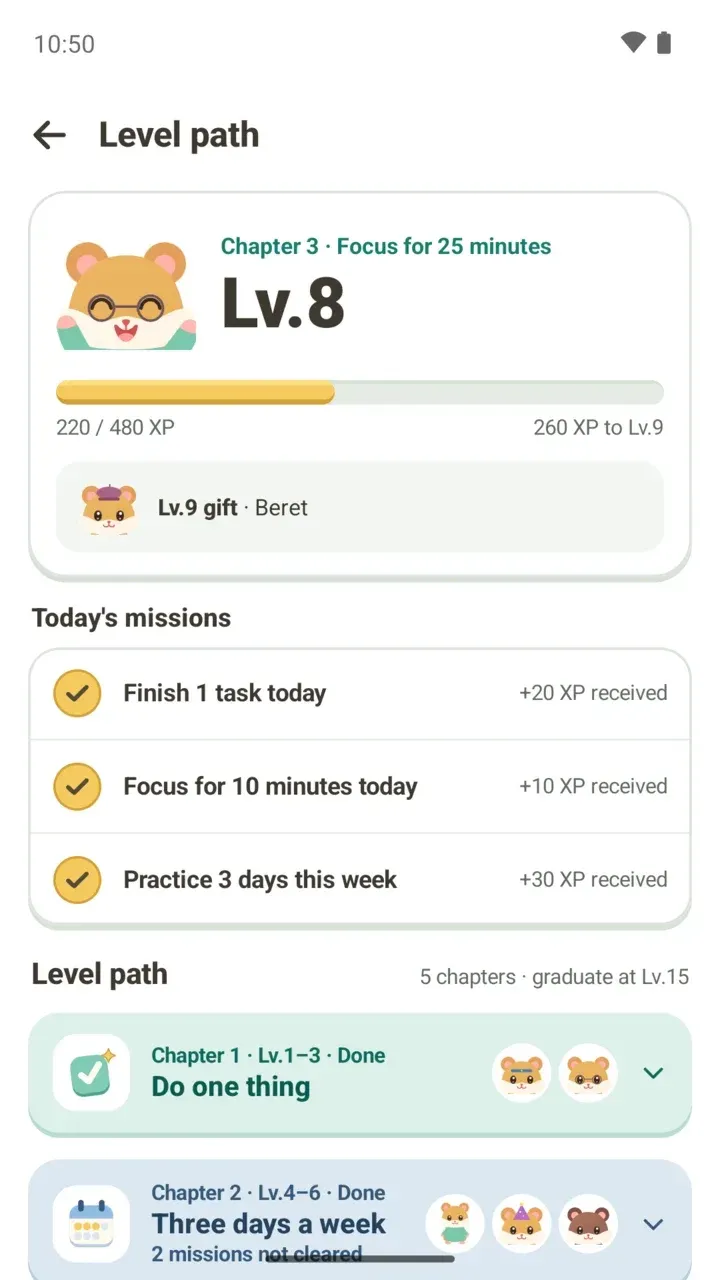
Keeping at it earns XP. Work through five chapters of missions on the Level path to collect outfits for your hamster, then put them on from Dress up on the Today tab. You can also add routine packs for study, jobs, exercise, focus, money and daily life to your current timetable.
Widgets, watch and big screens
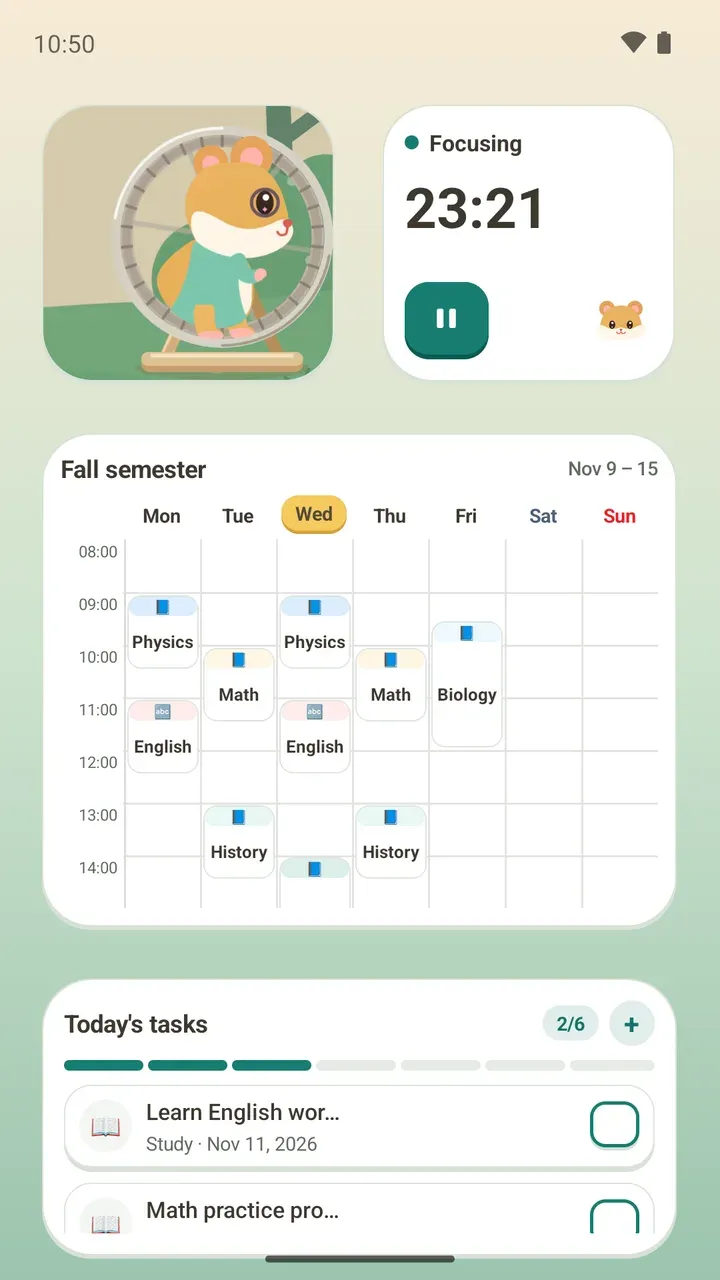
To see your timetable without opening the app, there are five home screen widgets.
- Timetable widget: fits its size and shows your next plan, today or the week.
- Monthly timetable widget
- To-do widget
- Focus timer widget
- Today's hamster widget
On a Wear OS 4 or later watch paired with your phone, you can check today's plans and to-dos, control the focus timer, and add tiles and complications. The timer itself runs on your phone. On tablets and foldables, Damda shows a list and its details side by side.
No sign-up, and your data stays on your phone
There's no sign-up, so you can start right away. Your timetable, to-dos and memos are stored only on this device and don't sync to other devices.
That's why it's worth keeping a backup file for when you change phones. New backups are encrypted with a password you set, and you can compare a backup with your current data before you restore it.
Ads and Damda Plus
Damda shows ads. Damda Plus is a monthly subscription you can cancel anytime. It removes ads on every screen and adds a few extras. The timetable, to-dos, timer, records, study hall and widgets all work without it.
- Remove ads across the app
- More timetables, plus a dedicated timetable for routine packs
- Background images and timetable colors, with adjustable opacity and visible hours
- Plus-only hamsters, outfits, hats and backgrounds, with every level gift ready now
- A focus summary on the 1st of each month
You can check the price on the subscription screen in Google Play. Payments, cancellations and refunds are all handled through Google Play.
New to Damda? Start in this order
- Install Damda from Google Play. It opens right away, with no sign-up.
- In the Timetable tab, add the classes and plans you can't move first.
- In the TODO tab, add tasks to check off and tasks with a count to fill.
- In the Today tab, check your next plan and start focusing to build your records.
For a step-by-step guide, see Getting started. Damda is made and run by one developer. You can read who made it and why in the Damda story.