App Settings: Dark Mode, App Language and Timetable Hours
Set dark mode, app language, timetable start and end times, the daily briefing and phone search from the My tab and App settings.
Maybe your timetable is too bright when you check it at night, or you'd rather your task titles didn't show up in your phone's search. You can change things like these in the My tab.
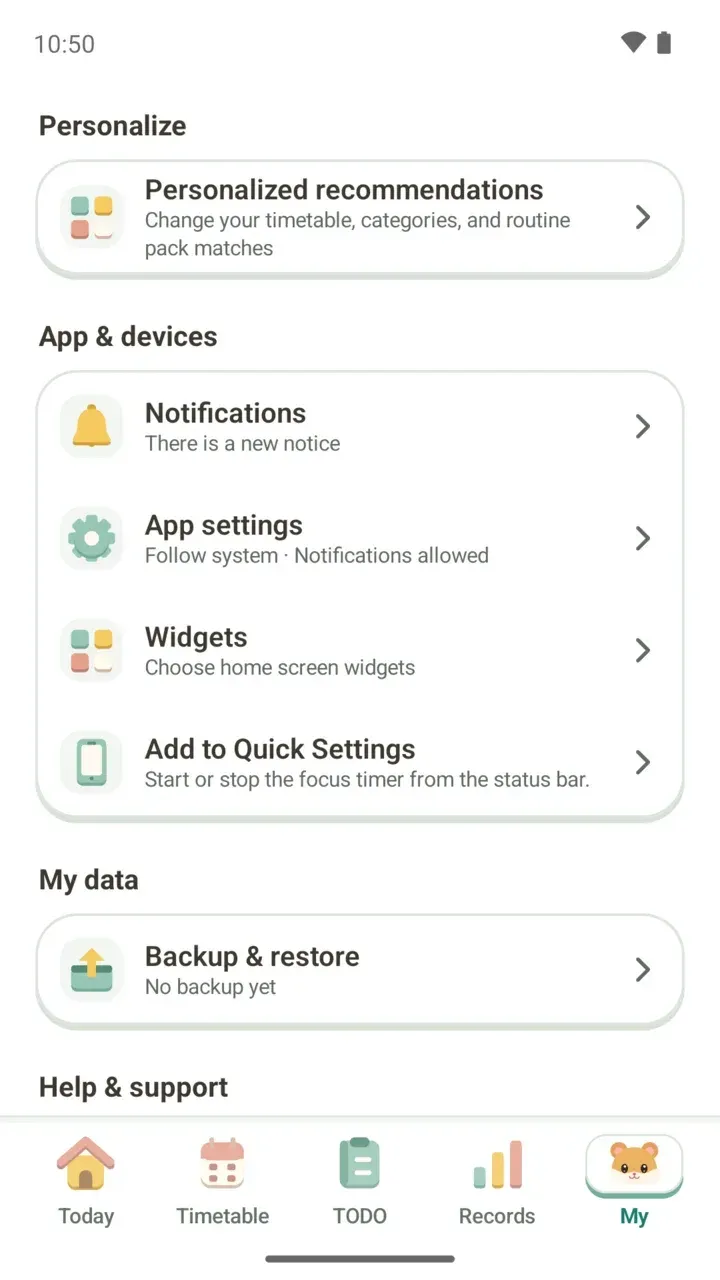
Here's how the My tab is laid out, followed by the settings people look for most in the Design and App Setting tabs of App settings.
What's in the My tab
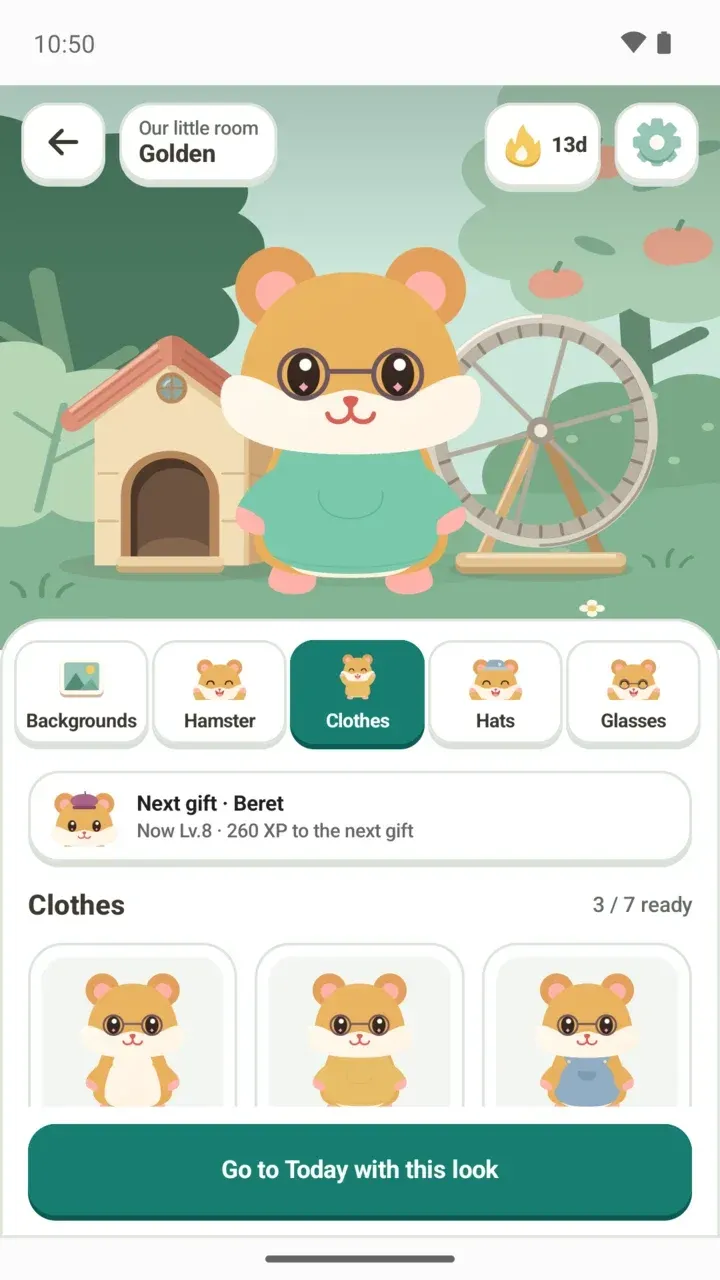
My is the last tab on the right at the bottom of the screen. At the top you'll find the Damda Plus card, Customize my room and the Level path. Scroll down and the rest is grouped like this:
- Personalize: Personalized recommendations
- App & devices: Notifications, App settings, Widgets, Add to Quick Settings
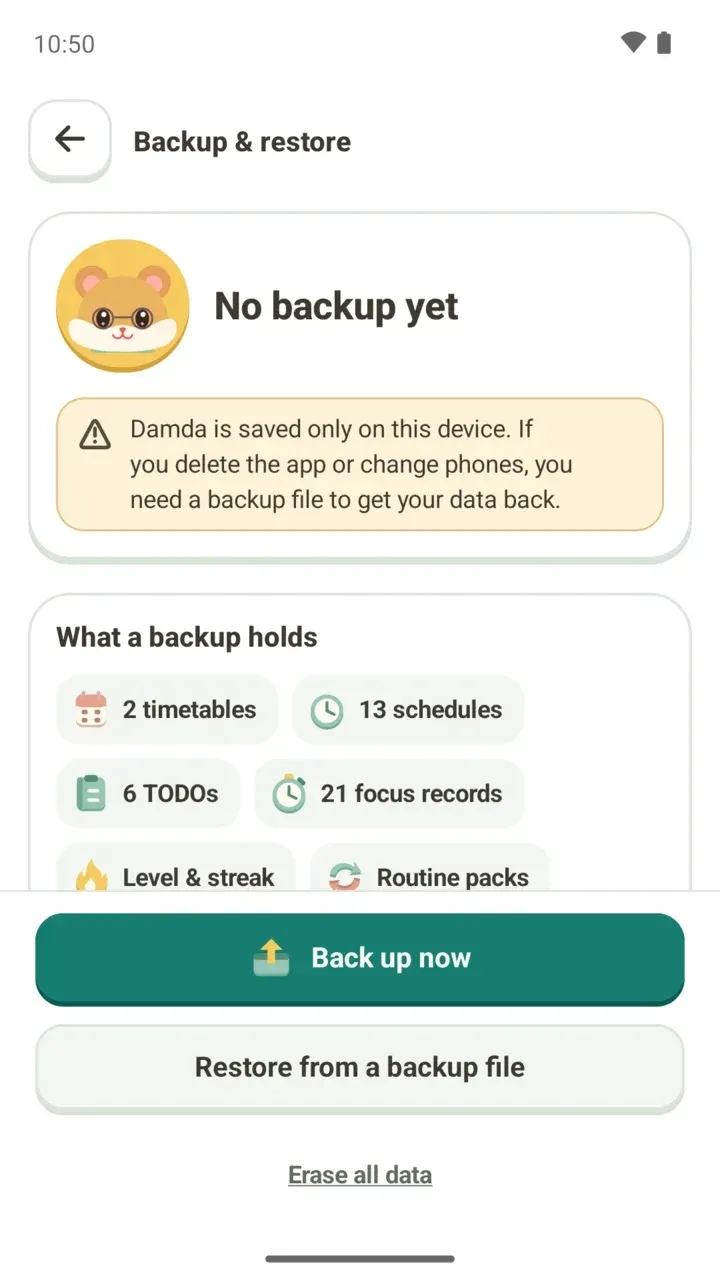
- My data: Backup & restore
Switch to dark mode
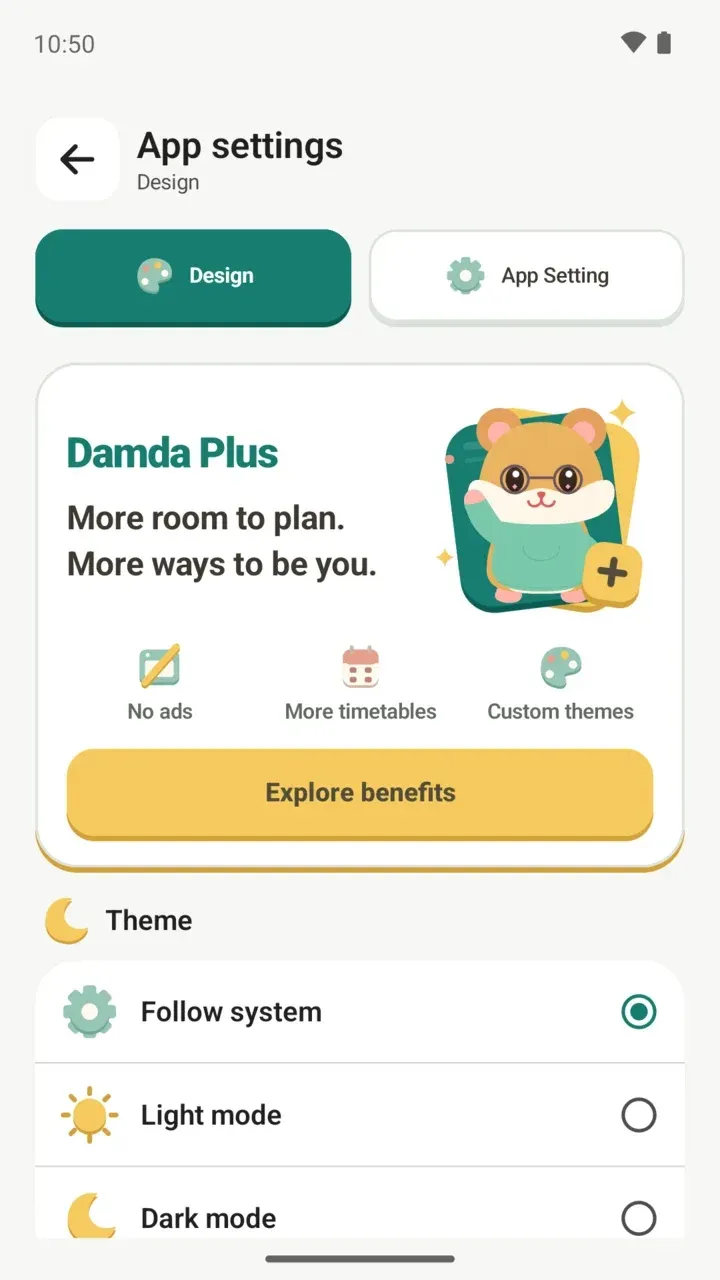
- In the My tab, tap App settings.
- Choose the Design tab at the top.
- Under Theme, pick Follow system, Light mode or Dark mode.
If you want Damda to match your phone's dark mode setting, pick Follow system.
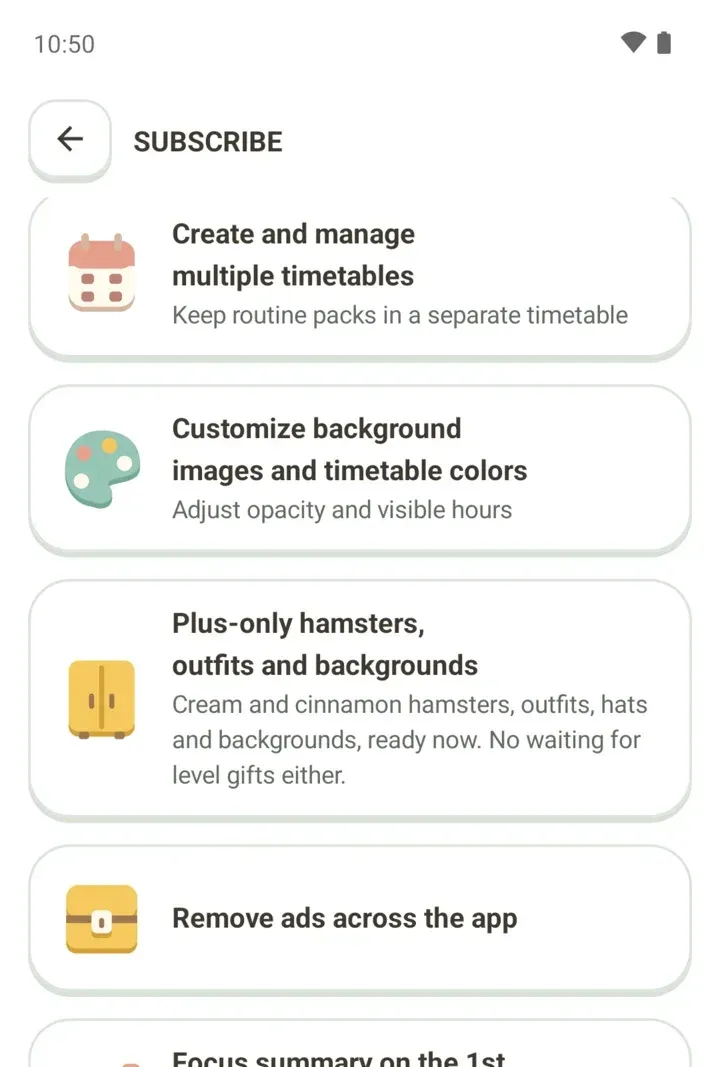
Custom themes, shown on the card at the top of the Design tab, are Damda Plus extras such as background images and timetable colors. You can see what changes in the Damda Plus benefits post.
Change the app language
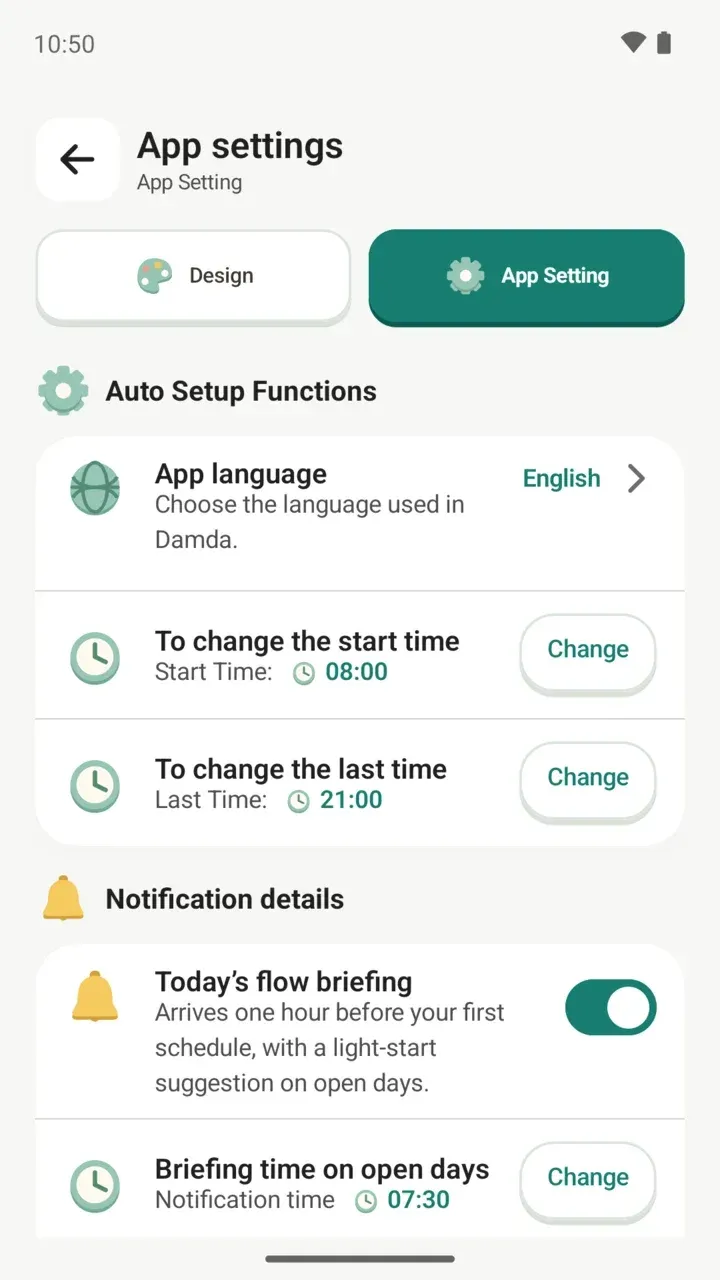
- In App settings, choose the App Setting tab.
- Under Auto Setup Functions, tap App language.
- Pick the language you want to use.
Timetable start and end times
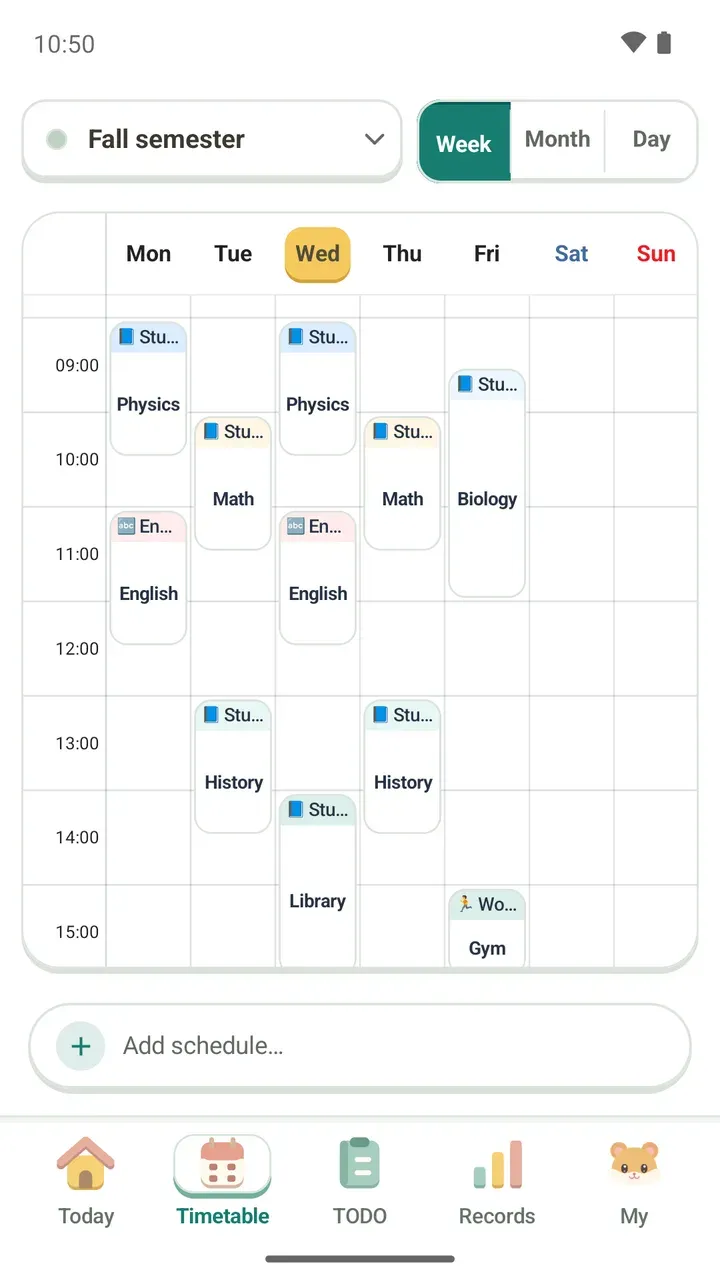
Under Auto Setup Functions in the App Setting tab, you'll see "To change the start time" and "To change the last time." These set the hours your timetable shows. If you have an early morning class or a late shift at work, this is where to look.
Anyone can see the current times, but changing them with the Change button needs Damda Plus.
Turn on the daily briefing
Today's flow briefing is a notification that arrives one hour before your first schedule of the day. Turn on its switch under Notification details in the App Setting tab.
On days with nothing scheduled, it comes at the time set in Briefing time on open days, which you can change with the Change button. To choose how early class alerts arrive, or to check why a reminder didn't come, see the class reminders post.
Hide Damda from phone search
Your schedule and task titles in Damda can be found in your phone's system search, such as Galaxy Finder. It's handy for checking a class time without opening the app, and it's on by default.
If you'd rather your titles didn't appear in search results, turn off Show in phone search in Settings.
Turn off usage analytics
To fix and improve the app, Damda collects usage analytics, such as which screens and features are used. Schedule and task titles, memos, subject names and images are not sent.
Analytics are on by default, and you can turn them off with Allow usage analytics in Settings. There's no setting in the app to turn off error reports.
Ad privacy options in Europe, the UK and Switzerland
Ad privacy options appear in Settings only if you use Damda in the European Economic Area, the UK or Switzerland. There you can review or change your ad consent choices. It won't open without an internet connection, so try again a little later if it doesn't.
Elsewhere, including the US, this item doesn't appear. You can delete or reset your advertising ID in the ad settings on your device.
Widgets and Quick Settings
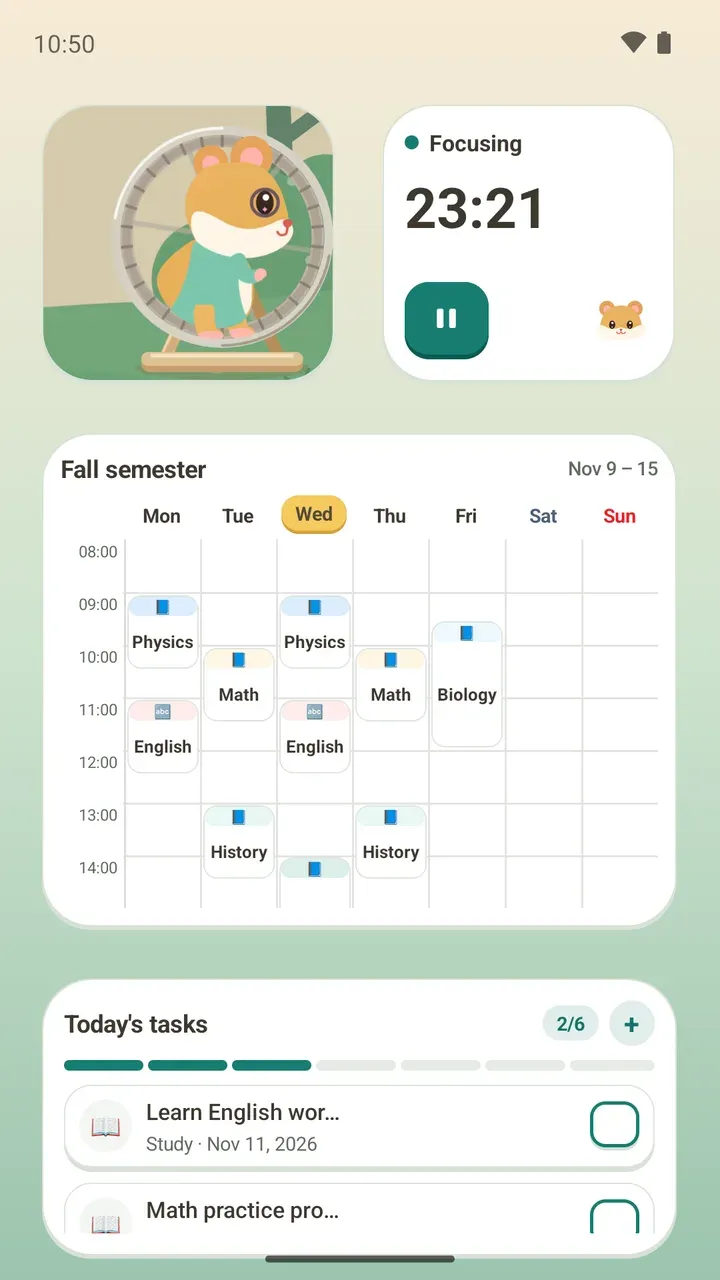
Go to My > Widgets to choose widgets for your home screen. If adding from the app doesn't work, long-press an empty spot on your home screen and pick a widget there. The timetable widget post covers each kind.
Tap Add to Quick Settings to start and stop the focus timer from Quick Settings in the status bar. If the request doesn't open, open Quick Settings, tap edit and add the focus timer yourself. The timer itself is covered in the study timer post.
Redo your personalized recommendations
If your life looks different from the answers you gave at the start, tap Personalized recommendations under Personalize. You can change your timetable, categories and routine pack matches.
Backups are under My data
Damda works without sign-up, and your timetable, to-dos and memos are stored only on this device. Before you change phones, make a backup file from My data in the My tab. The steps are in the backup and restore post.
Help and contact
In the Help & support section of the My tab, you can read answers to common questions right away, such as:
- Why am I not getting notifications?
- How do I add a home screen widget?
- How do I back up or restore my data?
For anything else, send an email. The app's contact button just opens your mail app, and you send the email yourself. Emails are deleted once the issue is resolved.