Getting Started: From Your First Schedule to Your First Focus Session
Just installed Damda? Answer a few quick questions, add your class schedule and a to-do, then start your first focus session from the Today tab.
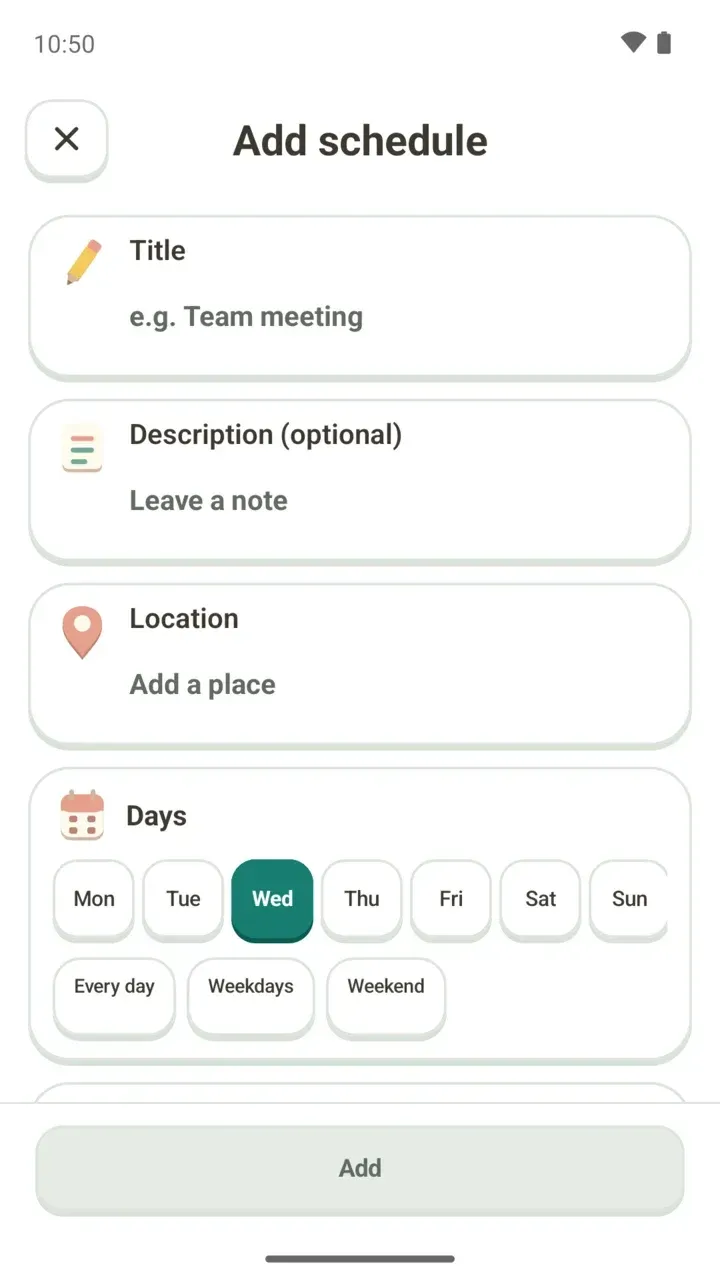
Just installed Damda and not sure where to begin? Follow this order: answer a few quick questions, put your class schedule into the timetable, add a to-do, then start focusing from the Today tab.
There's no sign-up. You don't enter a name, phone number or email. Just open the app and start.
1. Answer a few quick questions
The first time you open Damda, your hamster asks you a few things. It picks a routine based on your answers and shows how far along you are. Here's what it asks and sets up:
- What matters today?: Focus on one thing, Move a little more, Bring order to my day, Make room to rest, I’m not sure yet
- Anything you've been into lately?: Health, Saving money, Housework, Cooking and food costs, A day to copy, Hobbies, Pets, Nothing yet
- Time available today
- First mission name: write something that matters to you, for example: draft the opening of my report
- Day and timetable settings: choose your Day start time and Default timetable view
It's fine if you haven't decided anything yet. Pick I’m not sure yet or Nothing yet and you can browse a range of routines and choose one. When you're done, tap Save and start today.
A short tour and your first mission
After you save, you land on the Today tab and your hamster walks you through the screen once: why it picked this routine, where your first mission is, and that tapping the wheel lets you pick a time and focus alongside your hamster. Want to dive right in? Tap Skip.
Your first mission card shows the routine name, which day you're on and a start button. For a mission that fills time, start focusing, fill the set time, then tap Finish & complete. If you already did it without the timer, tap Already did it instead.
For a mission you simply check off, tap the button on the card once it's done. Routines with a set start time are added to your timetable too.
2. Add your first schedule
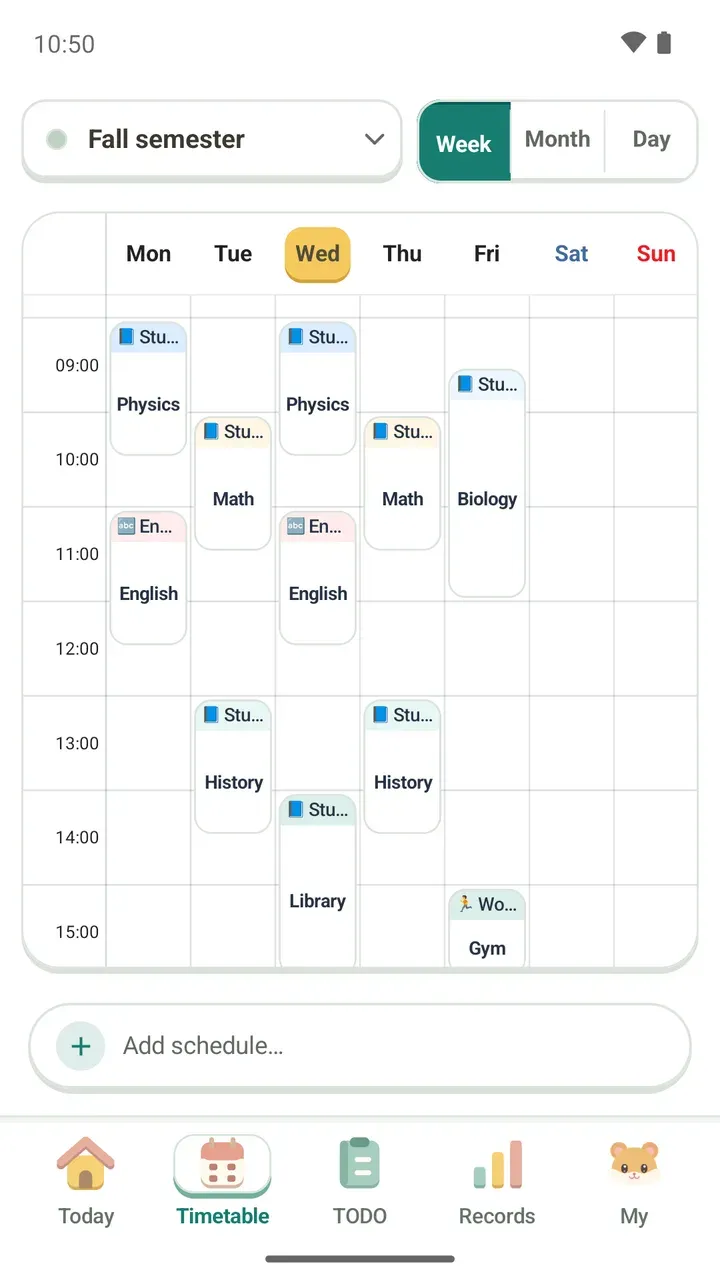
The timetable is the heart of Damda. Start with the things you can't move, like classes, practice or work shifts.
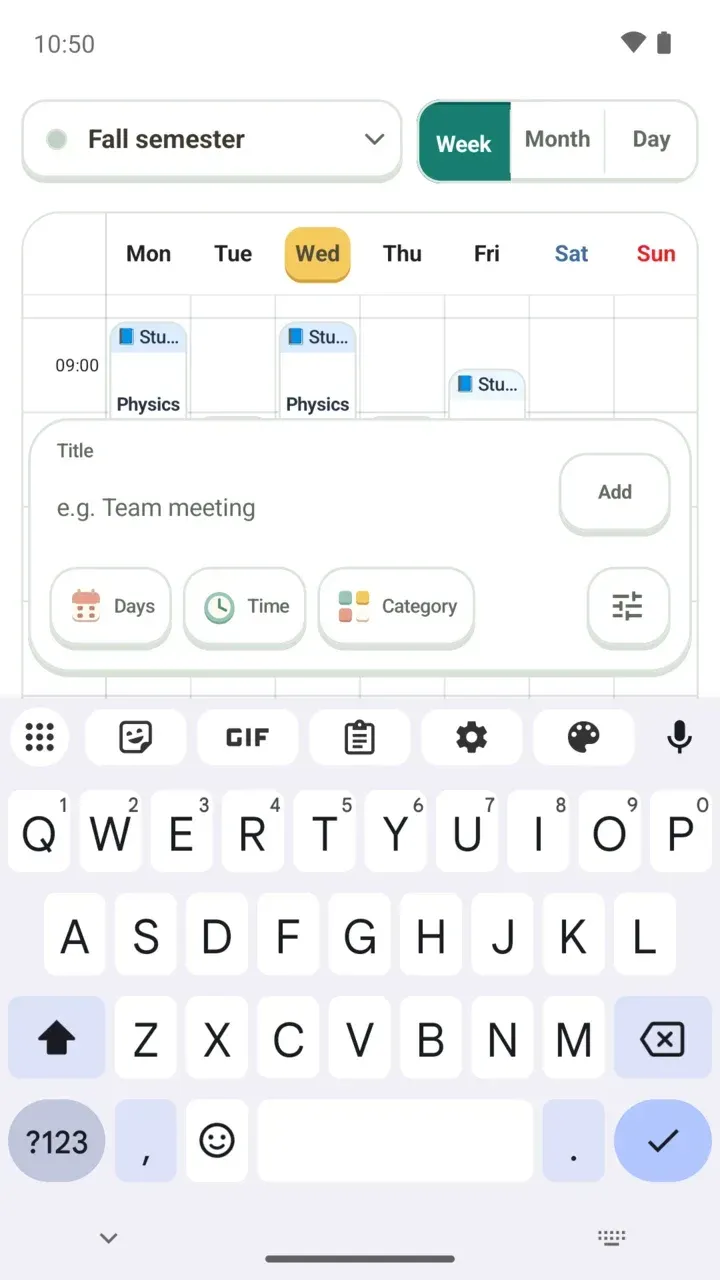
- Open the Timetable tab and tap Add first schedule, or Add schedule… at the bottom.
- Type a title, pick the Days, Time and Category, then tap Add.
- To add a description or location, open the full form with the button on the far right.
- If the time overlaps with something else, Damda tells you before you save. Check it, then save.
Weekly repeats or one-time plans, location, memos, photos and reminders are all covered in how to add a schedule.
3. Add your first to-do
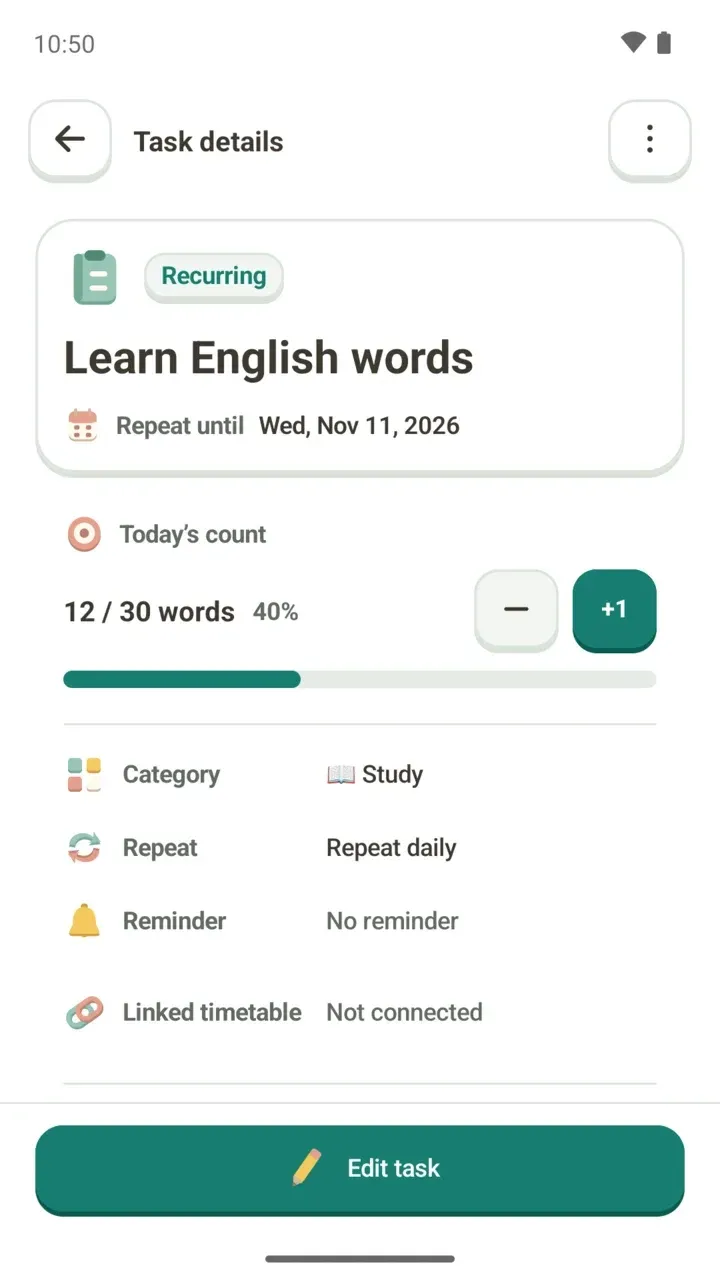
- Tap Add task… at the bottom of the TODO tab.
- Type a title. The description is optional.
- Under How will you complete it?, choose Checkbox or Count goal. Count goal fits tasks with a number, like 30 vocab words a day.
- Under When will you do it?, set the Frequency and Repeat until, then tap Add.
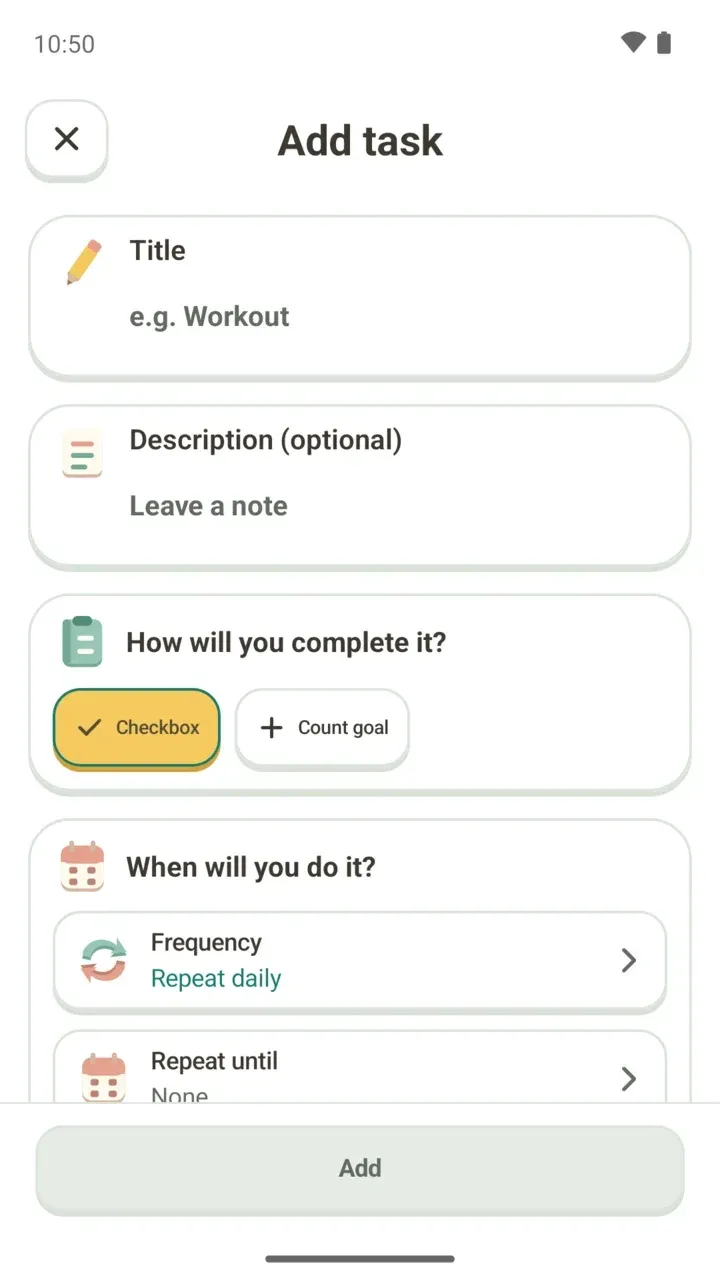
At first, keep each task small enough to actually finish today. Due dates with D-day, categories and linking to a plan on your timetable are in creating a to-do.
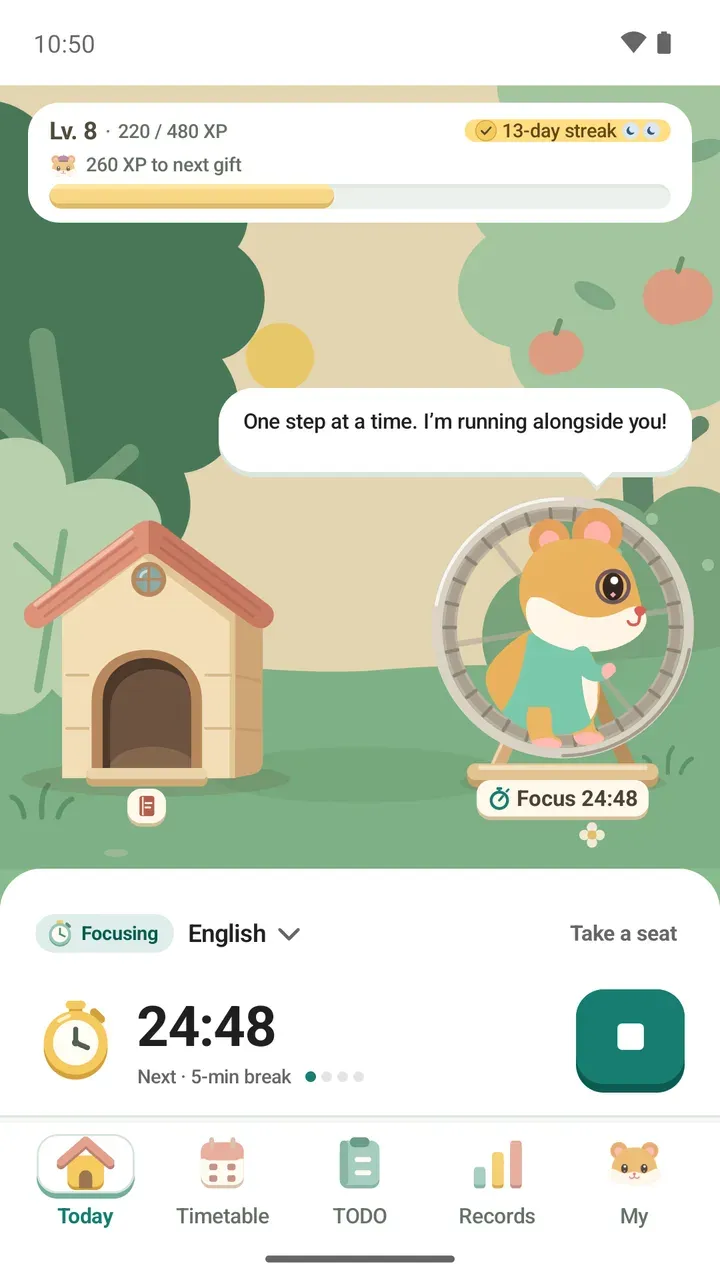
4. Start your first focus session from Today
- Check your next plan under Coming up on the Today tab.
- Pick a class or to-do under Focus on. Your focus time is counted there.
- Tap the start button, such as Start 25-minute focus. You can follow your progress on the lock screen too.
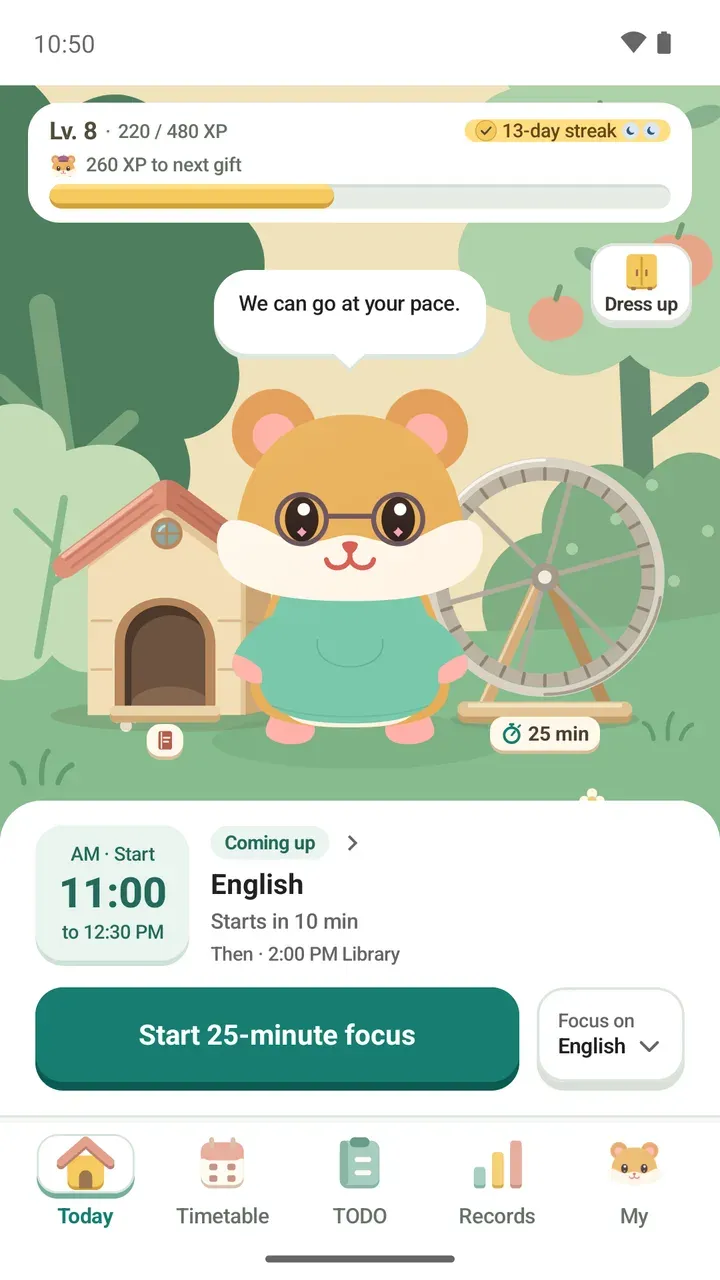
To change the timer length or time with no limit, see the focus timer guide.
You can adjust suggestions later
If your first answers stop fitting your life, no problem. Open Personalized recommendations in the My tab to change your timetable, category and routine pack matches.
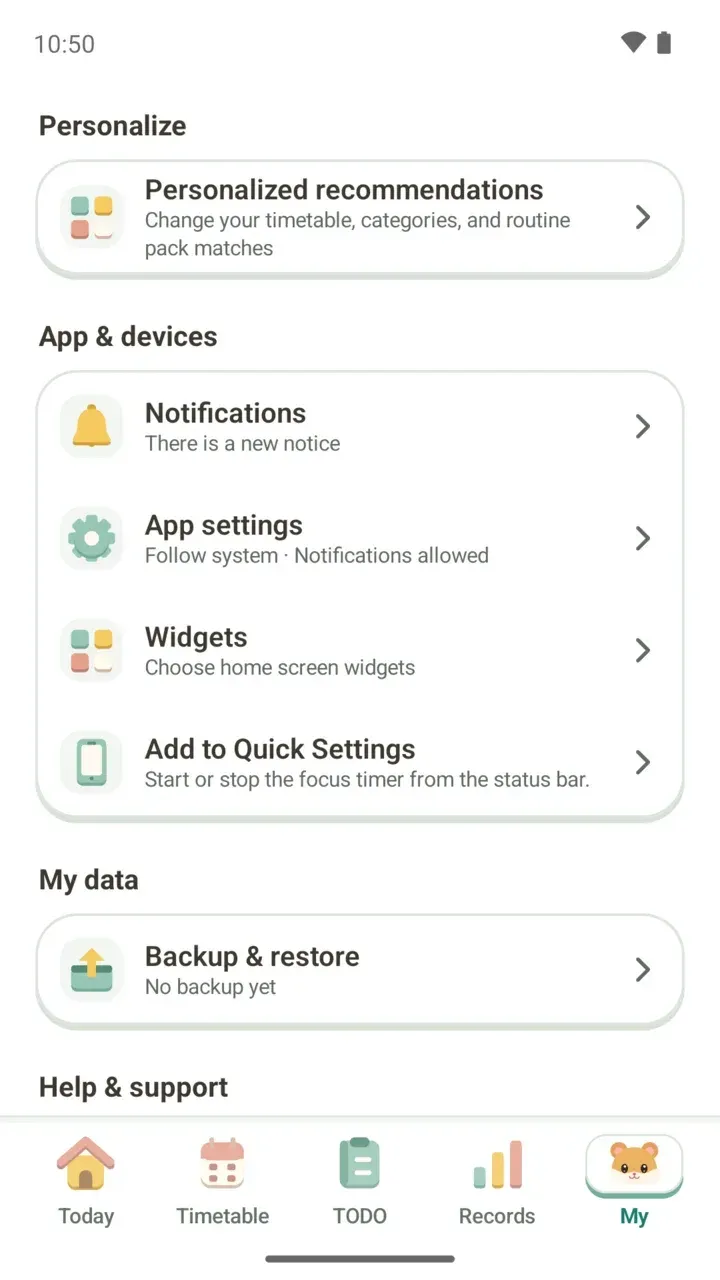
Make a backup file
Since there's no account, your timetable, to-dos and memos stay only on this device. Make a backup file in Backup & restore so you're ready when you switch phones or reinstall the app.
New backups are locked with a password you choose, and that password isn't stored anywhere. If you forget it, Damda can't open the file for you either, so keep it somewhere safe. The full steps are in backup and restore.