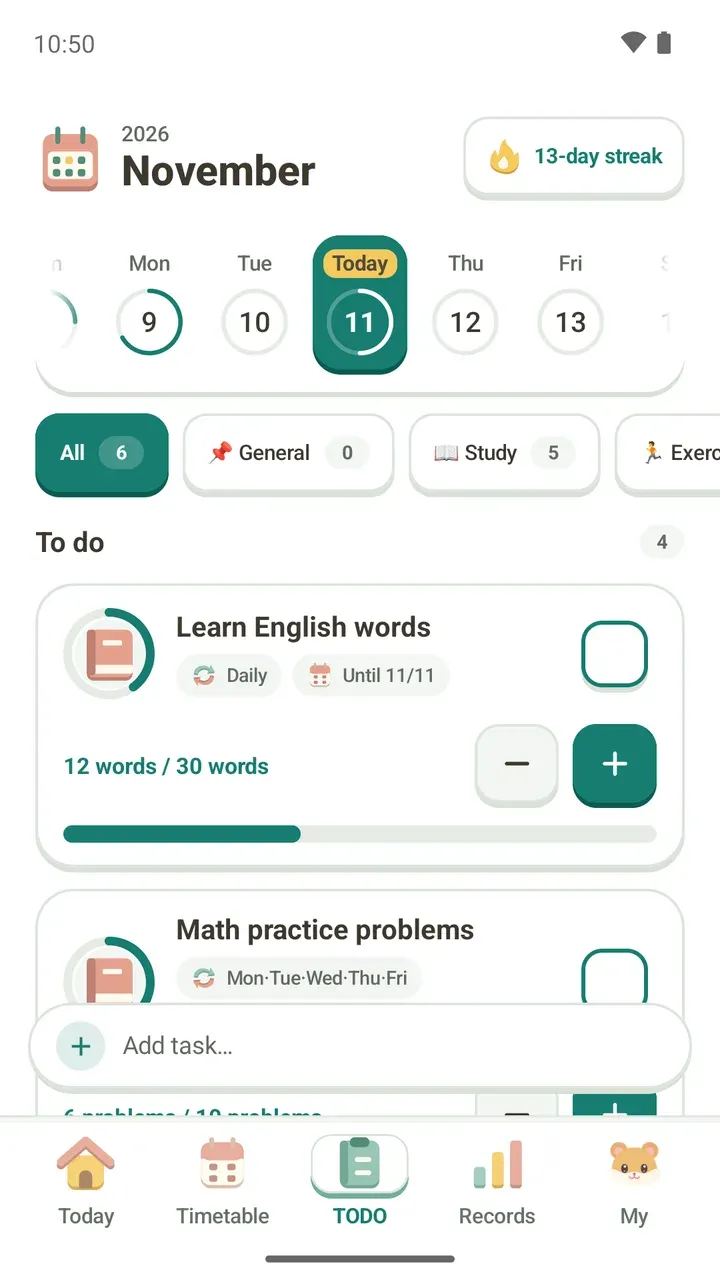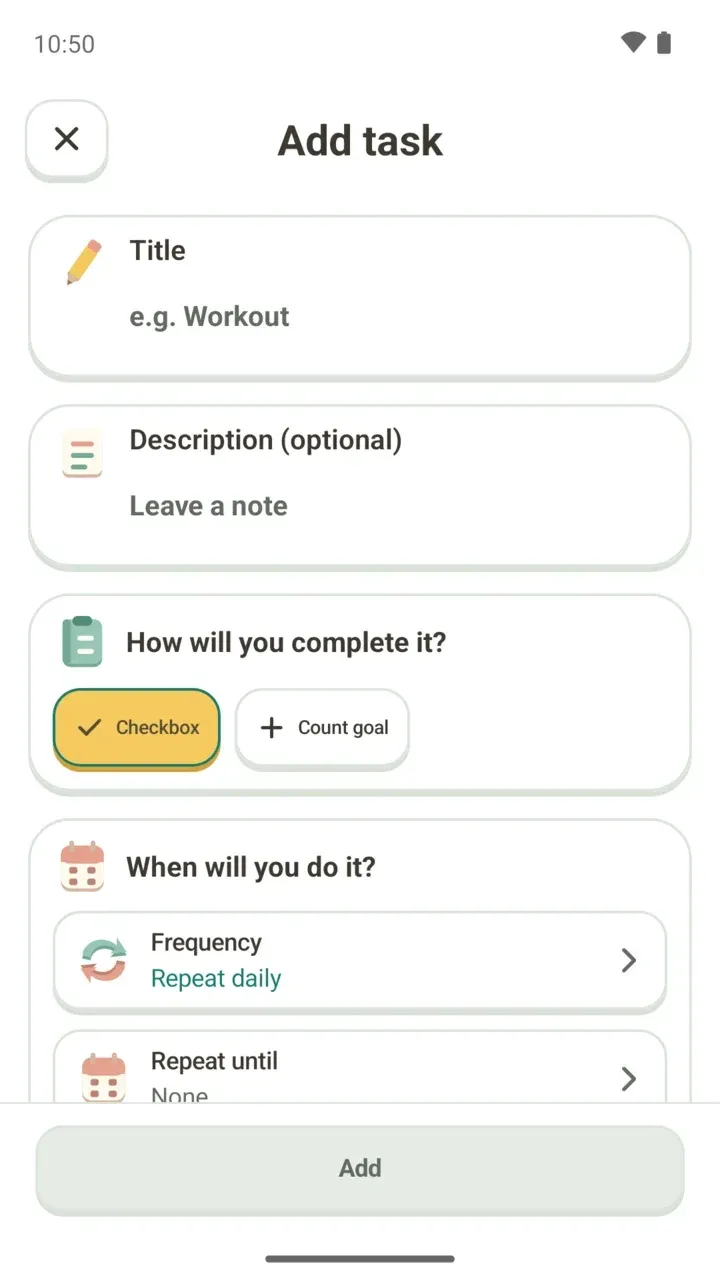
How to Add Classes to Your Timetable: Repeats and Overlaps
Add classes fast with the Add schedule… bar, then set days, repeats, a location and notes. Damda flags overlaps before you save.
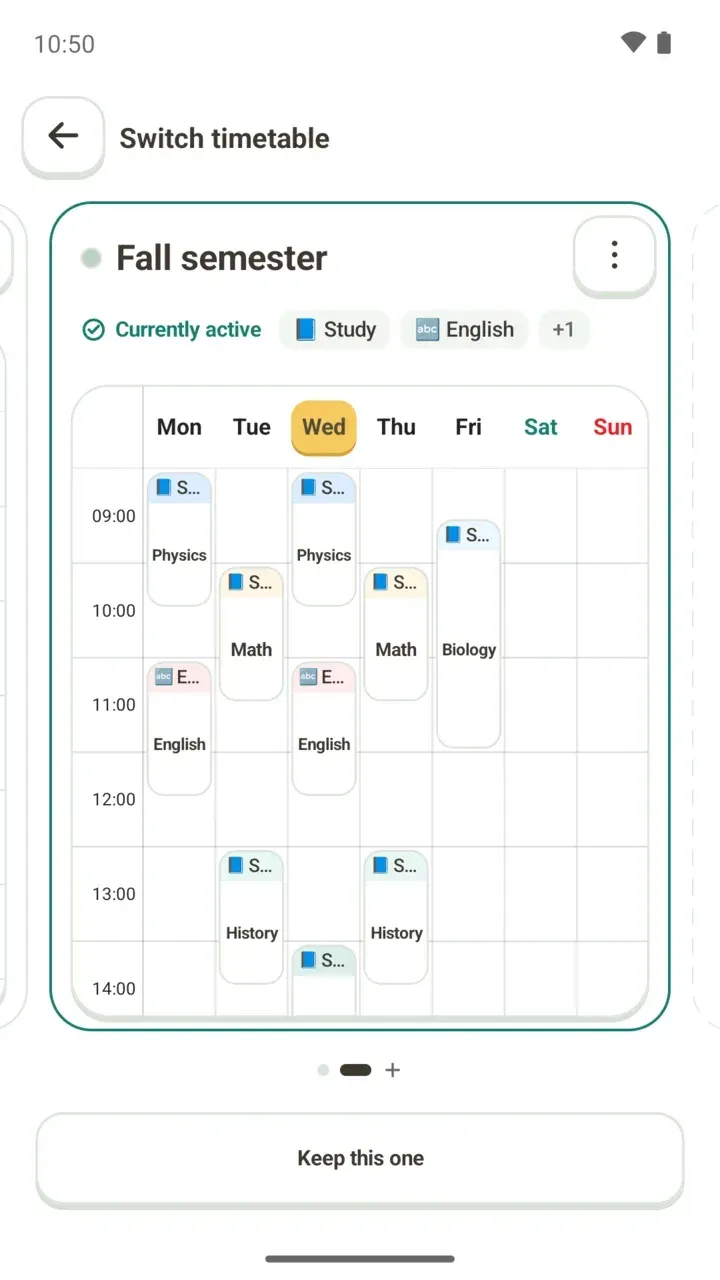
Classes, practice and part-time shifts come back every week. Put them on your timetable once, and from then on your class schedule shows the whole week for you.
This post walks through how to add a schedule in Damda and the options you can choose along the way.
There are two main ways. Quick add takes just a title, days and a time. The full Add schedule screen lets you set a description, a location and repeats too. In the month view, you can also add a schedule with the + button.
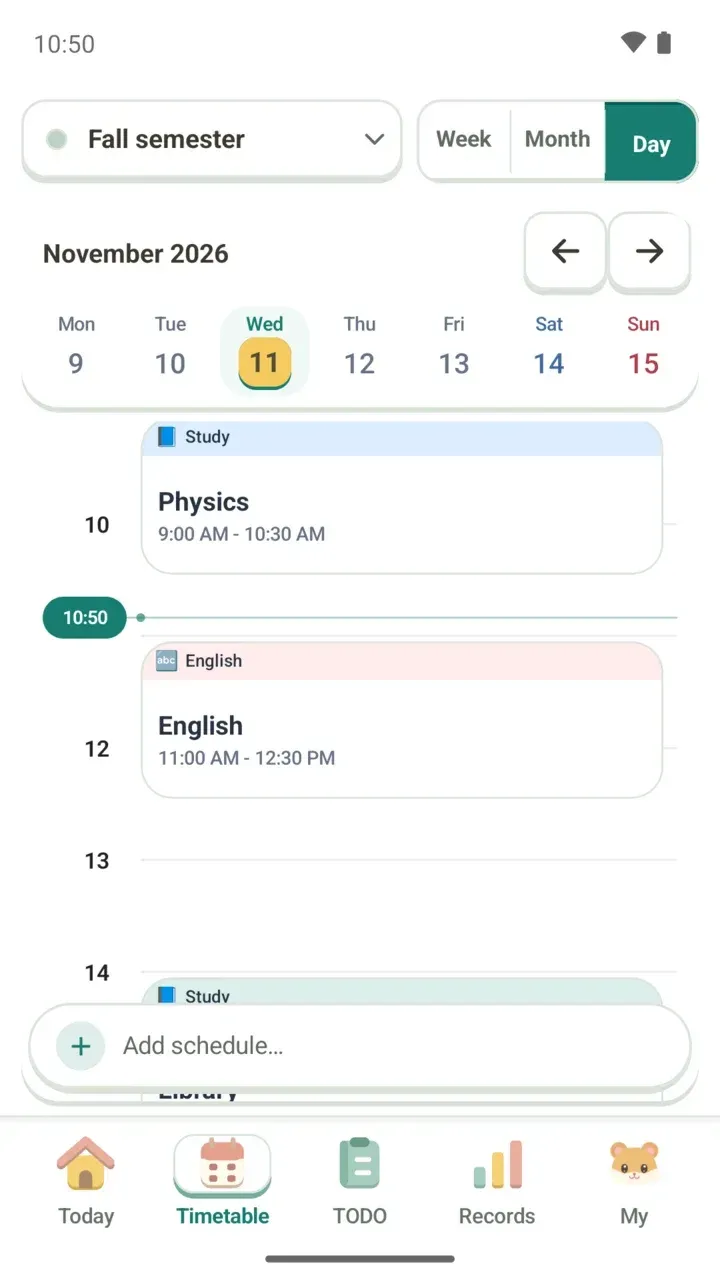
Add it fast: the Add schedule… bar
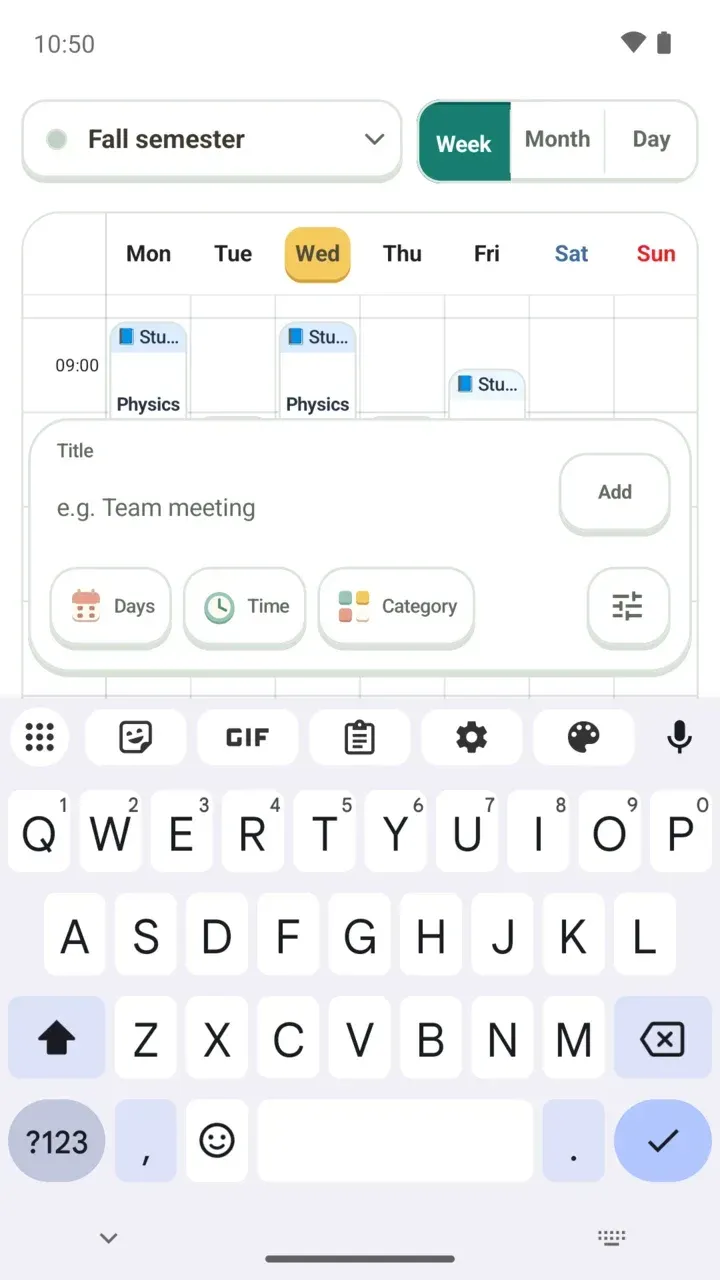
- Tap Add schedule… at the bottom of the Timetable tab. A quick add box opens over your timetable.
- Type the name of the class or plan in the Title field.
- Tap the Days, Time and Category chips to set when it happens and what kind of plan it is.
- Tap Add, and it goes straight onto your timetable.
The Days chip shows what your choice means before you save: whether it repeats weekly, say on Mon Wed Fri, or happens one time on a single date.
If you enter a date and time that have already passed, Damda doesn't save it. Instead it shows "That time has already passed. Check the date and time." and opens the full Add schedule screen.
It also won't save a schedule that overlaps another one. It tells you which schedule it runs into, like Chemistry, so tap Details to take a look.
Add the details: the Add schedule screen
Want to add a description or a place too? Tap the sliders button on the right of the quick add box (Details) to open the Add schedule screen.
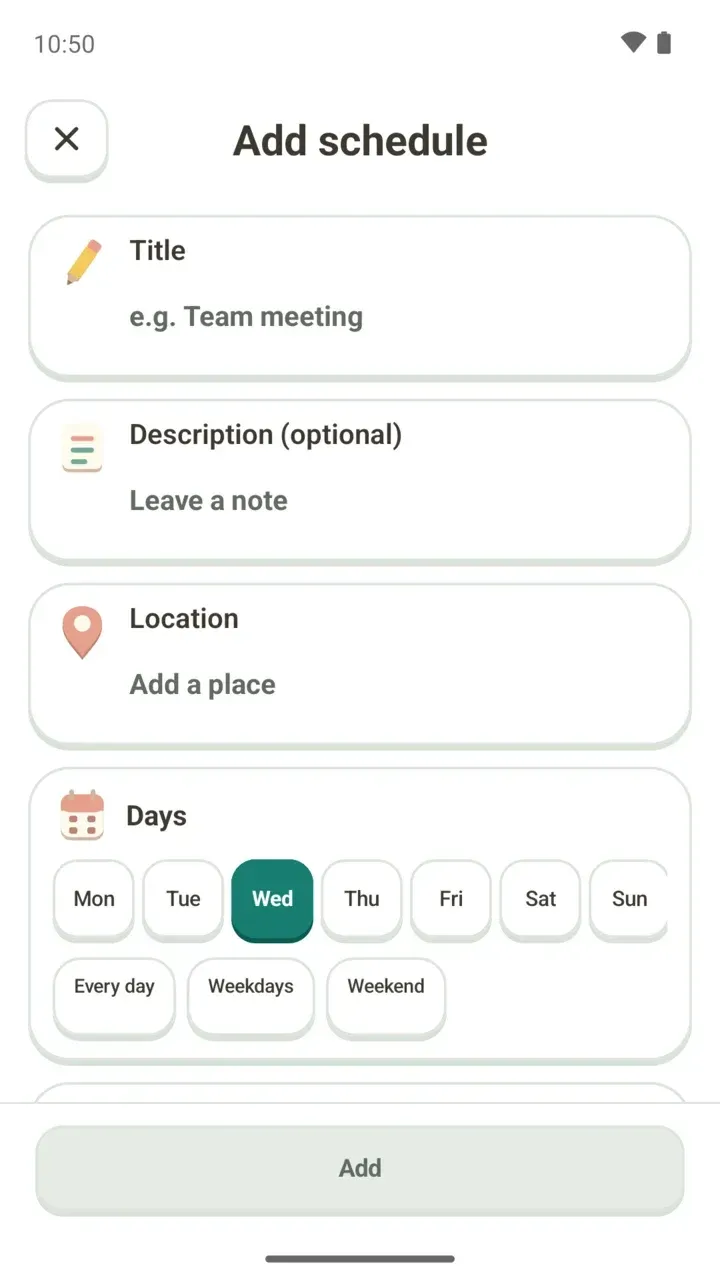
- Title: the name of the class or plan.
- Description (optional): a short note to keep with it.
- Location: a place like a classroom, a gym or your workplace.
- Days: pick any days from Mon to Sun, or choose Every day, Weekdays or Weekend in one tap.
- Time: set when it starts and ends.
- Repeat: choose Repeat weekly or One time. A one-time schedule gets a date, and a weekly one can get an end date if you need it.
- Reminder: choose when you'd like to be reminded. Setting class reminders covers this in detail.
With an end date, the schedule repeats weekly up to that day and no longer shows on your timetable from the next day. The last day of the semester or the end of a course is a good choice.
Overlaps are caught before you save
If a new schedule overlaps one you already have, Damda shows which one and when, like Chemistry on Tue from 1:00 to 2:30 PM. If it overlaps several, it shows how many others there are too.
Change the time to save it. Tap Change time to fix it right away.
Categories and colors you can read at a glance
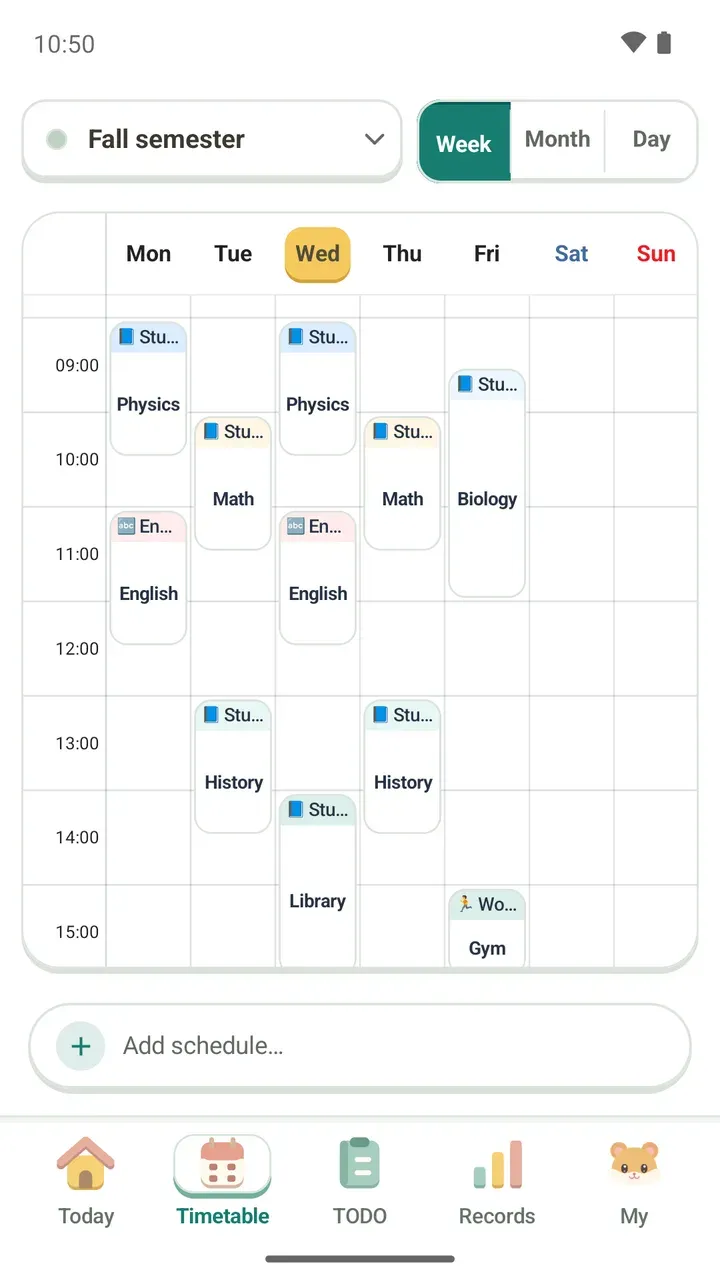
Set a category with the Category chip in quick add, and it's easy to tell study time, workouts and English class apart on your timetable.
For more on reading your week, see Weekly timetable. Changing timetable colors and background images is part of Damda Plus.
Keep a location, memos and photos
Tap a schedule to open Schedule details, where you can write memos for it. It's a handy place for what was covered in class, what to bring, or a photo of the whiteboard.
- A memo can hold a title, text and photos together.
- Use Take a photo to snap one right away, or Choose from album to pick several at once.
- Each memo can have its own Text size and Photo position (Above the text or Below the text).
- See all memos shows every memo grouped by schedule, and you can search them.
Schedule details also shows the to-dos linked to that schedule and the focus time you've spent on it. To link a to-do to a schedule, see Creating a to-do. To build up focus time on a class with Focus, see How to use the study timer.
Share a schedule as an image
When others need to know about a plan, like a study group session or a meetup, you can share it as a clean image card.
Memos can be shared too. Choose Share as image to turn the title, text and photos into an image that looks like a blog post. You can also send the text and photos as they are, or just the text.
Add from the month view with the + button
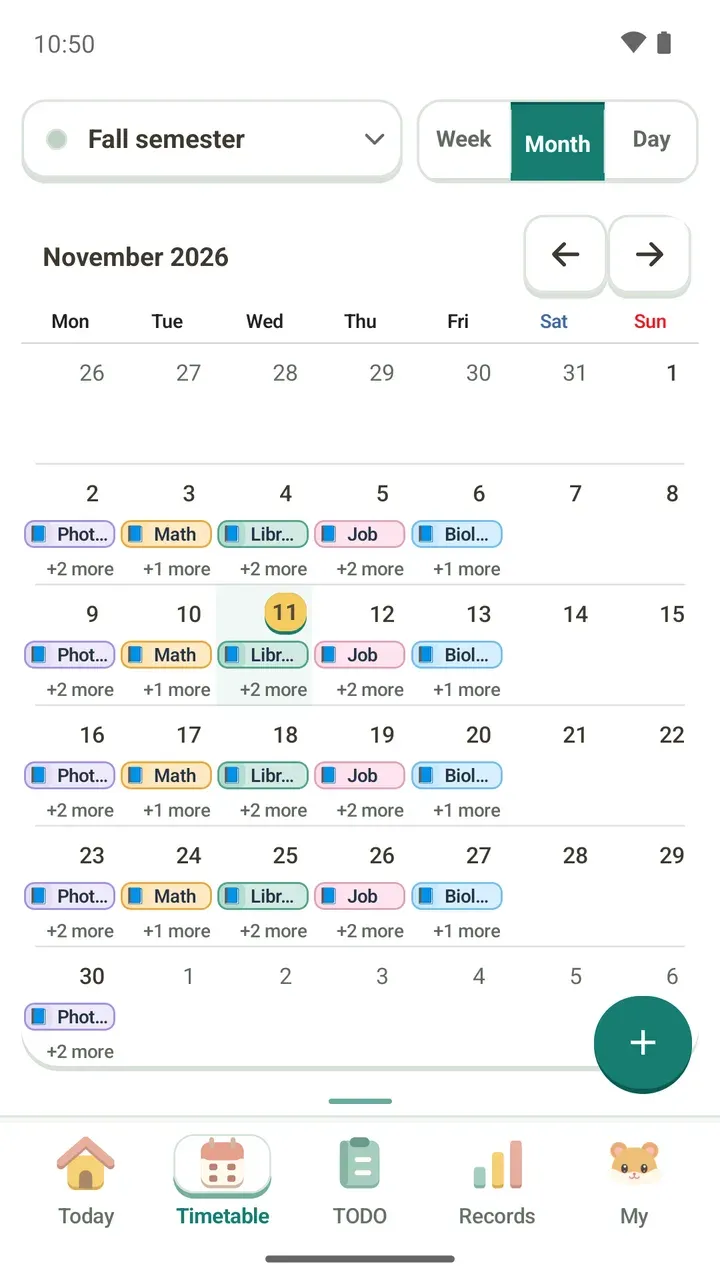
To learn how to read the month view and what "+2 more" means, see Monthly timetable.