To-Do List: Check Off Tasks and Fill Daily Counts
Use the date strip and categories to find today's tasks, then check them off or tap + and − to fill a count like 30 words a day.
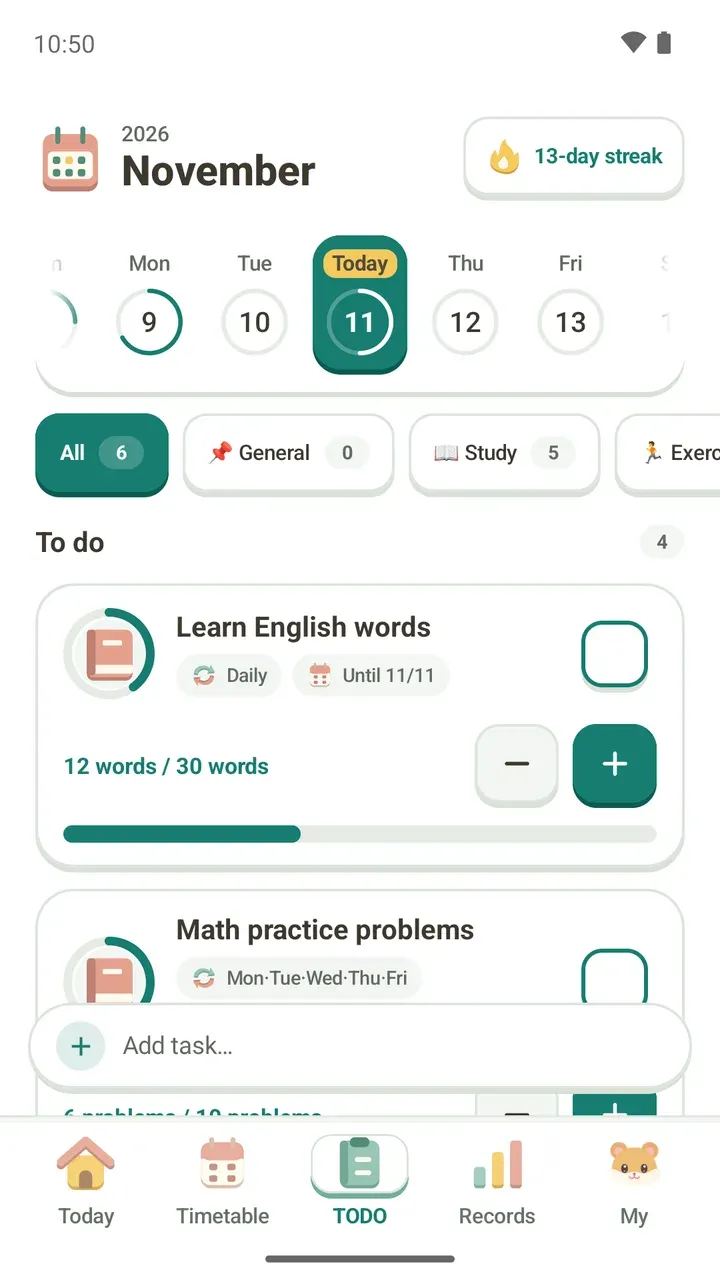
When you have a few things to do every day, like 30 vocab words and 10 math problems, it's easy to lose track of how far you got. The TODO tab in Damda keeps today's to-do list on one screen. You check off tasks when they're done, and fill counted tasks one step at a time.
This post walks through the TODO tab from top to bottom, the way you'd use it each day. The task names and numbers on screen are examples.
At the top: the date strip and your streak
The year and month sit at the top, with a strip of this week's dates below. Today is marked Today, and the ring around each date fills up with how much of that day's tasks you finished. A quick look at the past few days shows which ones were empty.
Tap another date to see its tasks. If nothing was planned that day, you'll see "No tasks were added for this day."
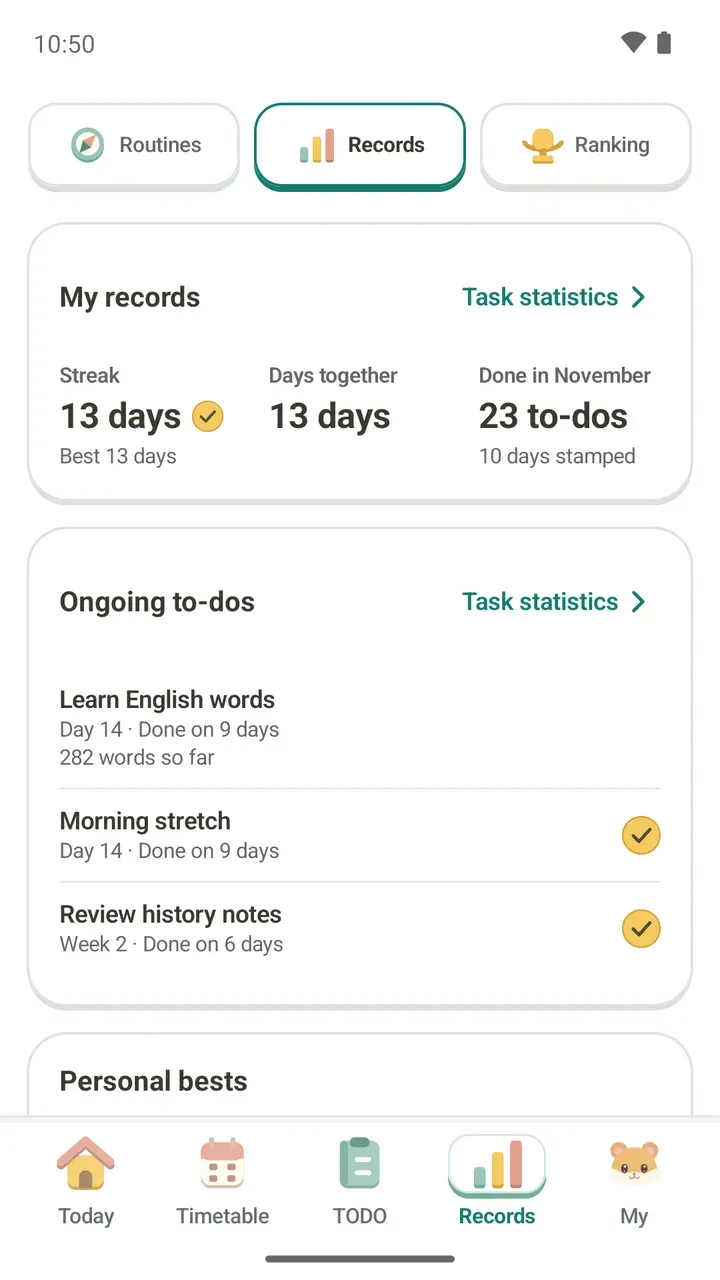
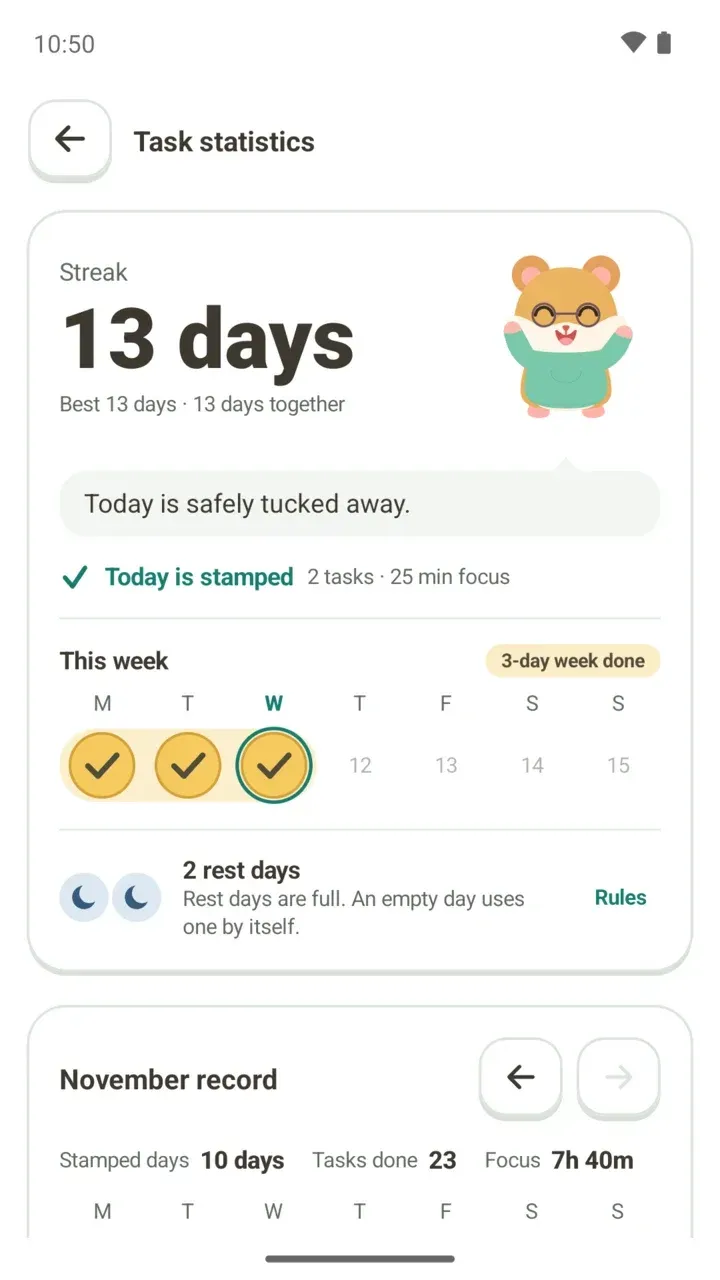
The chip in the top right, such as 13-day streak, shows how many days in a row you've kept going. What counts toward a streak and what happens when you miss a day is covered in Study Streaks and Rest Days.
Sort tasks with category chips
Below the date strip is a row of category chips: All, General, Study, Exercise and so on. Each chip shows how many tasks it holds, and you can swipe sideways to see the rest.
Pick Study during study time or Exercise in the evening, and you only see what matters right now. When you finish a whole category, you'll see "All tasks in this category complete."
Reading the To do list
The number next to To do is how many tasks are still left. Each task card can show:
- Daily: the task repeats every day
- Until 11/11: the day the repeat ends. It isn't a due date, just the last day it repeats
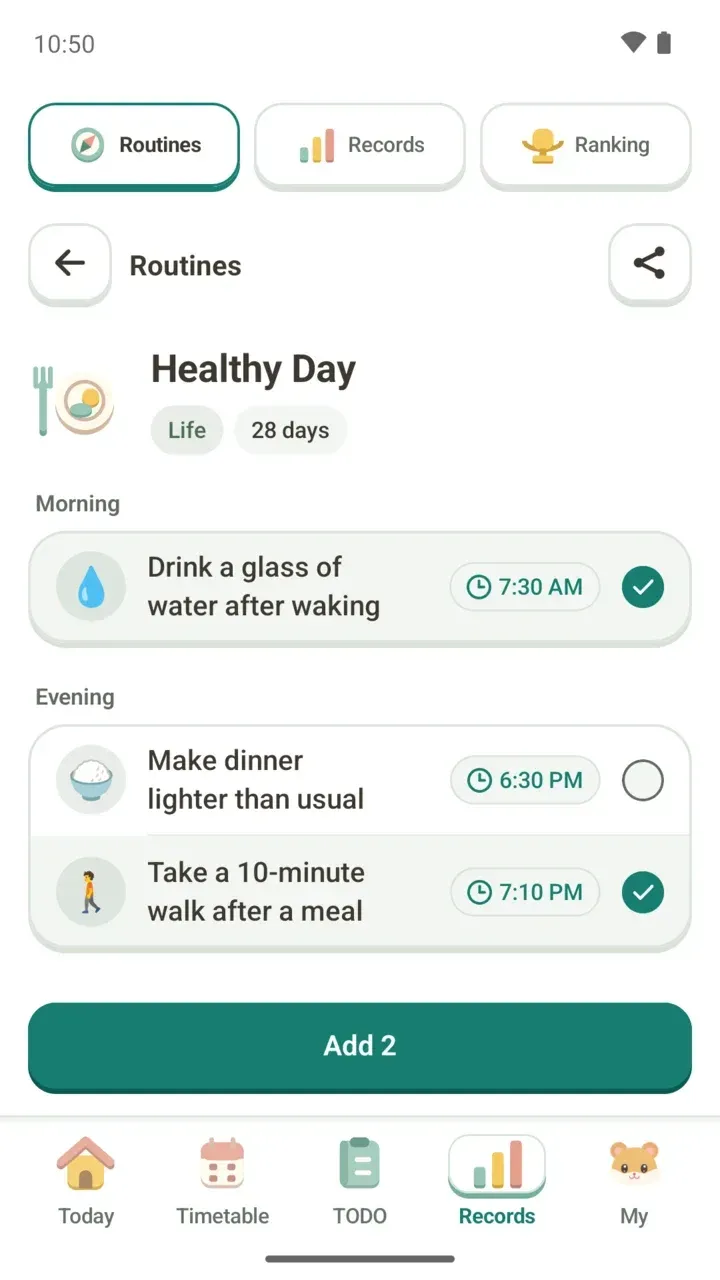
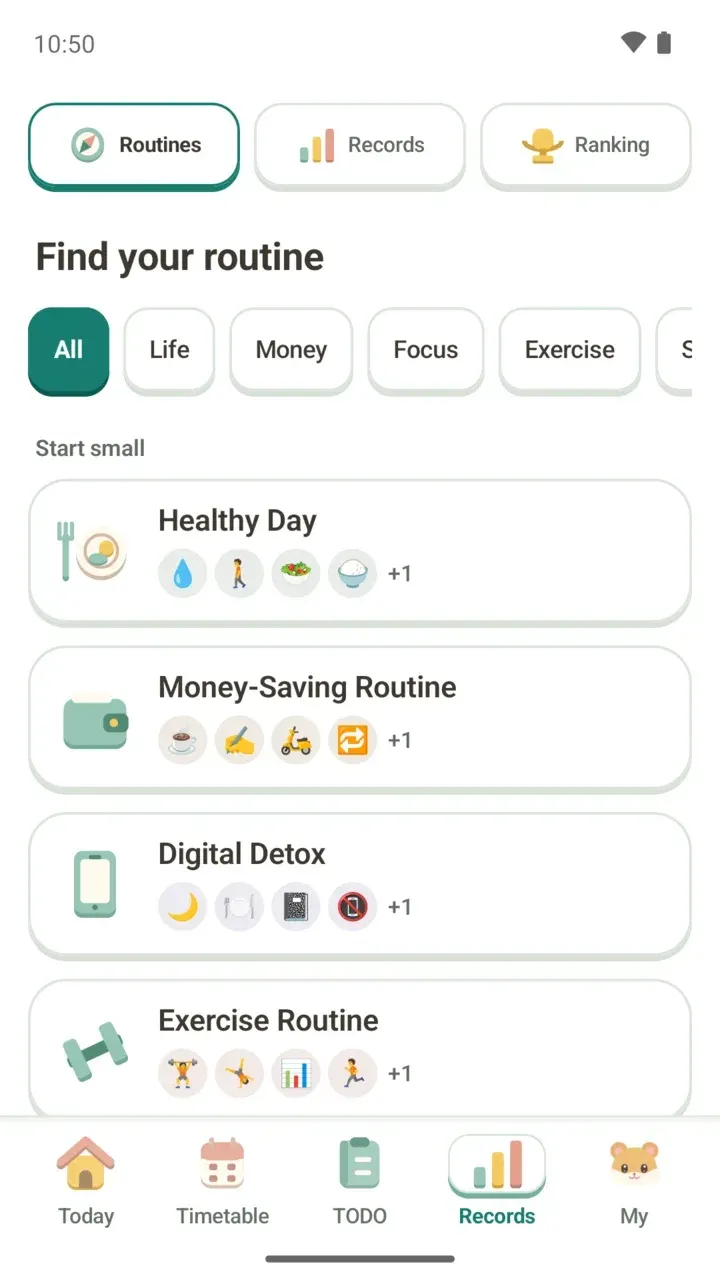
- Routine · pack name: the task came from a routine pack
- 12 words / 30 words: today's progress on a counted task. If you didn't set a unit, it shows a plain count
- The ring around the icon on the left and the bar below: how much you've filled today
Finishing tasks and filling counts
- Make sure today (or the day you want to log) is selected in the date strip.
- For a task you simply finish, tap the check box on the right when it's done.
- For a counted task, tap + each time you do one. Learned 5 words? Tap it five times.
- Tapped too many? Use − to step back one at a time.
- When everything is done, you'll see "All tasks complete. Nice work! Take a moment to recharge."
The Task details screen
Tap a task card to open Task details. It gathers that one task's settings and records in one place.
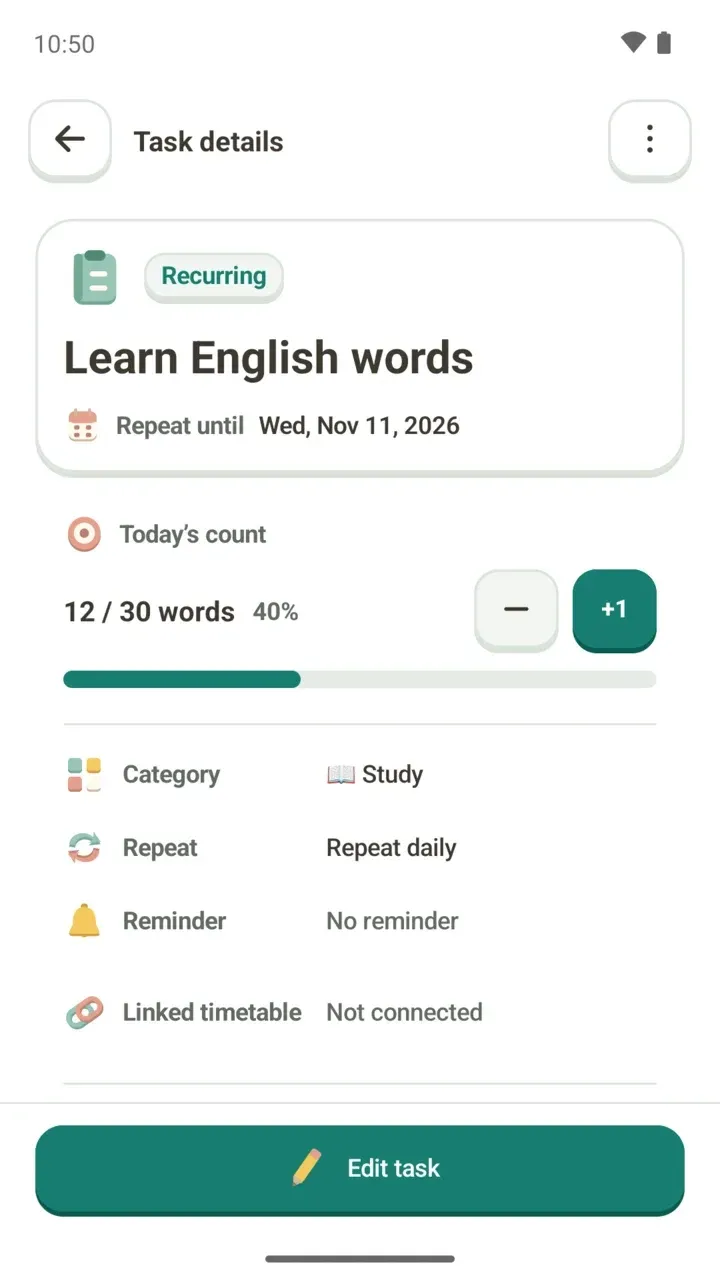
- Recurring / Repeat ended: whether the task is still repeating. Repeating tasks show their Repeat until date, and one-time tasks show their due date
- Today's count: your progress and percentage, with − and +1 buttons. If you opened it from another date, it shows the count for that date instead
- Category, Repeat, Reminder: the category, repeat and reminder you set
- Linked timetable: if the task is linked to a plan, tap it to open that plan
- Records: for repeating tasks, how many of the last 30 days you finished, plus the total focus time on this task and this week's focus time
- Edit task: the button at the bottom for changing the task
On some days the check is locked on this screen. When that happens, a line under it tells you why:
- This day is before the task starts, so it can’t be logged
- The repeat has ended, so this day can’t be logged
- This task doesn’t repeat on this day
- The due date has passed, so it can't be logged. You can change the date in Edit task
Tap Focus in the records section and the Today tab opens with this task already picked, ready to start a session. How the timer works is in the focus timer guide.
Ending a repeat or deleting a task
The ⋯ menu in the top right of Task details has Duplicate, End repeat and Delete. Duplicate opens the add screen already filled in with this task, which is handy for making a similar one.
If you're done with a task, think about End repeat before Delete. Ending the repeat keeps all your past completion records, and you can bring it back right away with Undo.
Deleting removes the completion records too. So when you delete, Damda tells you how many days of records will go with it and lets you choose End repeat only instead. On the other hand, for a task you made today that has no records yet, it suggests deleting is the cleaner choice.
Adding tasks and seeing them on your home screen
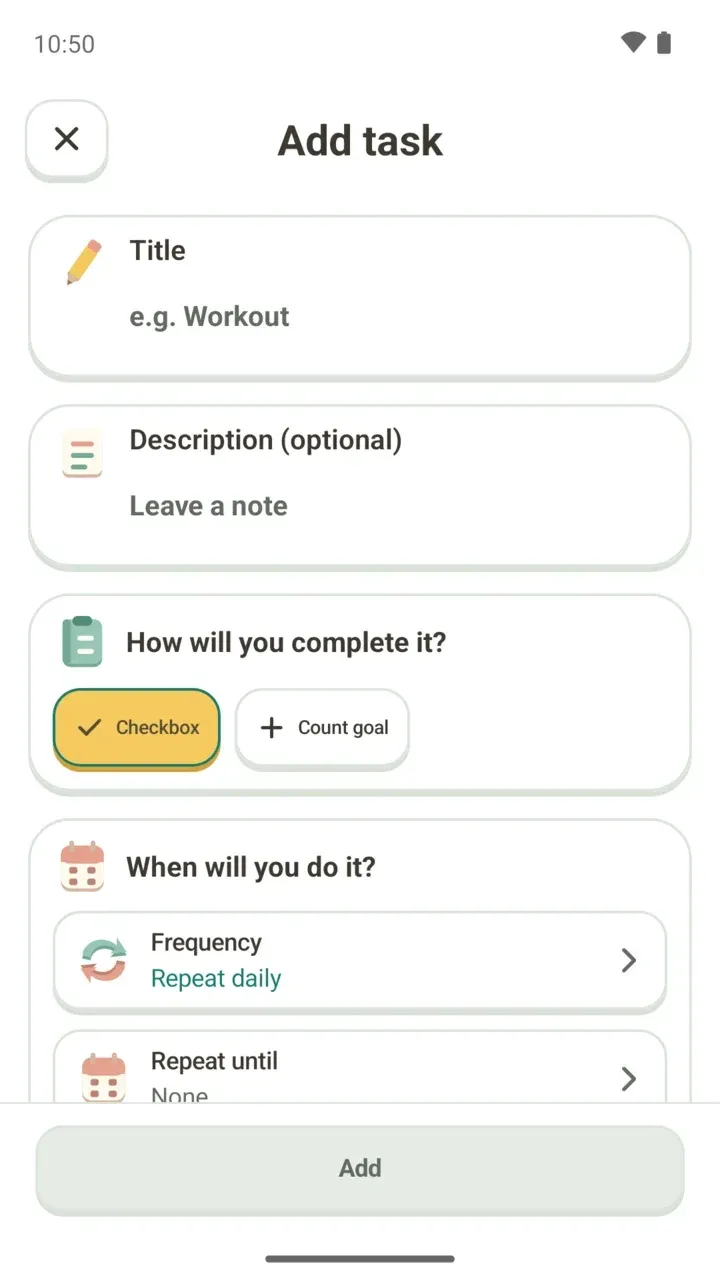
To add a new task, tap Add task… at the bottom of the TODO tab. Options like repeat days, an end date, due dates with D-day and linking to your timetable are explained step by step in how to create a to-do.
Want to see today's tasks without opening the app? Put the to-do widget on your home screen. The widget guide shows how.