Study Tracker: See Your Focus Time and Task Progress
Read streaks, ongoing to-dos, personal bests and weekly and monthly focus charts in the Records tab, and see where your focus time adds up.
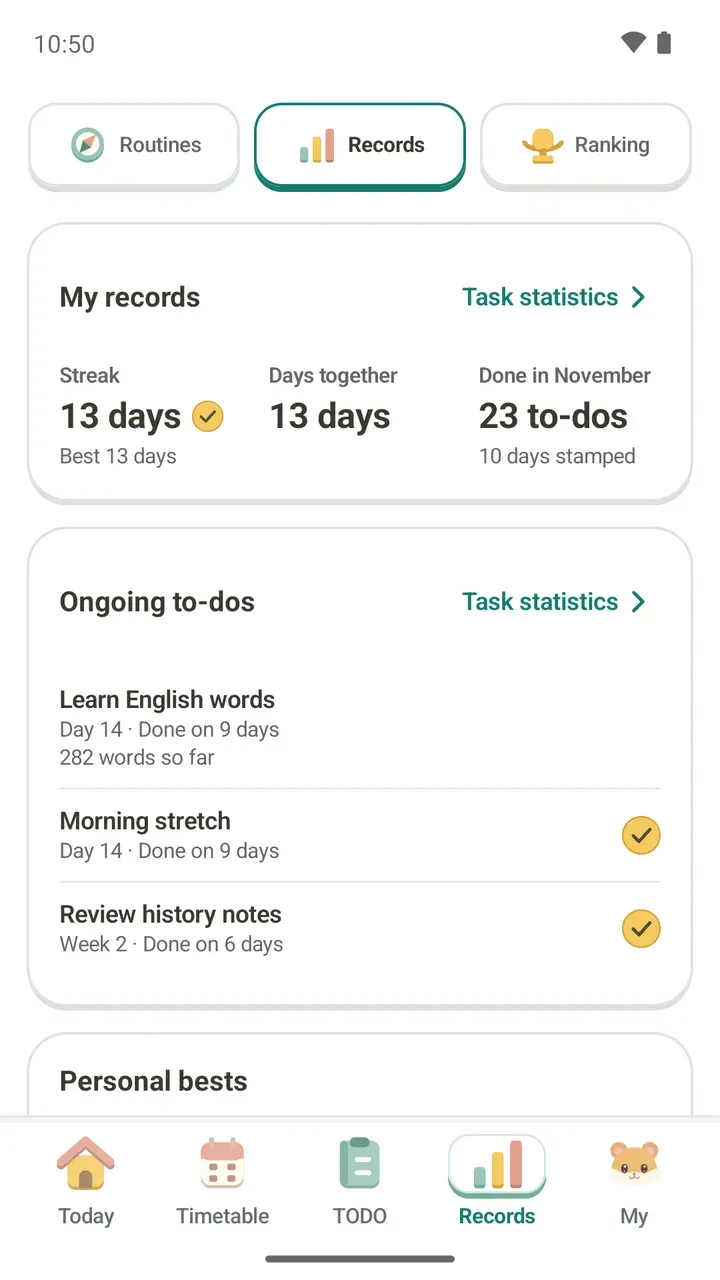
Some weeks feel like you studied the whole time. Then you try to remember how much you actually did, and it's a blur. Damda gathers the focus time from your study timer and the to-dos you checked off in the Records tab, so you can follow your study progress in one place.
These numbers work best as a check on your own routine, not as a contest with anyone else. Here's where to look and what each part means.
Open the Records tab
- Tap Records in the bar at the bottom of the screen.
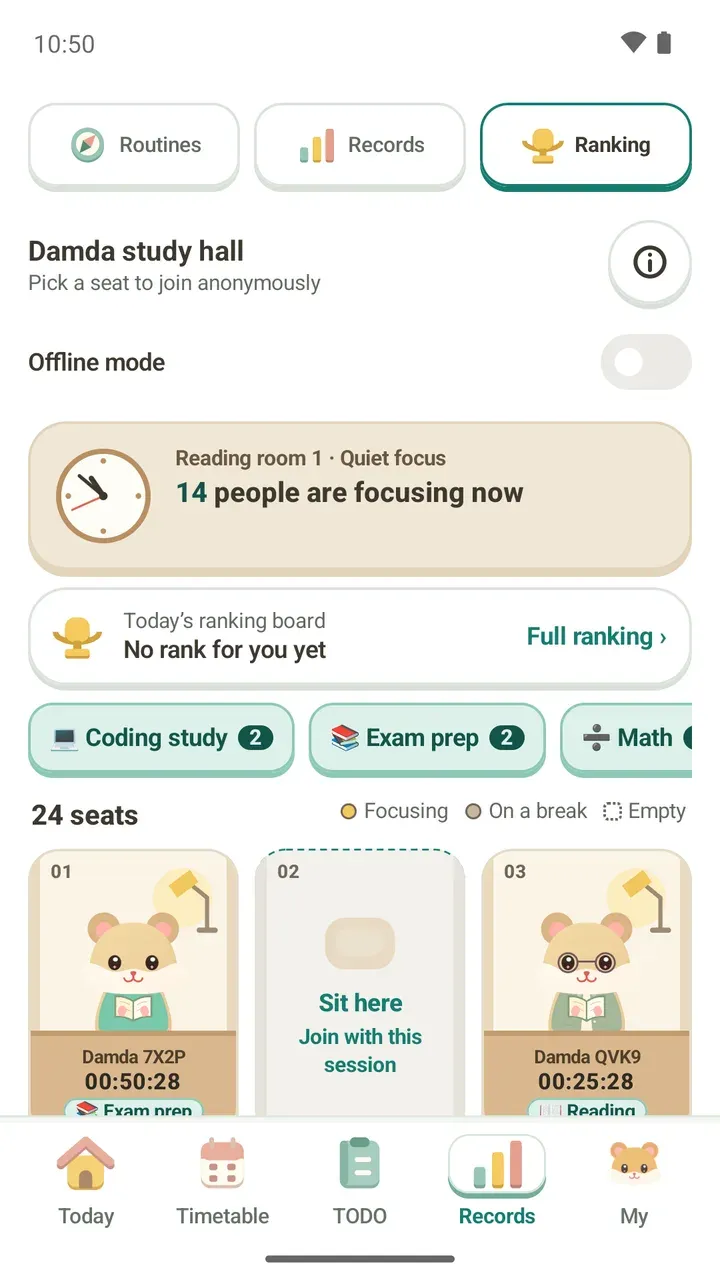
- At the top, pick Records from Routines, Records and Ranking.
- Scroll down. My records comes first, then Ongoing to-dos, with your personal bests and focus records further down.
My records: this month at a glance
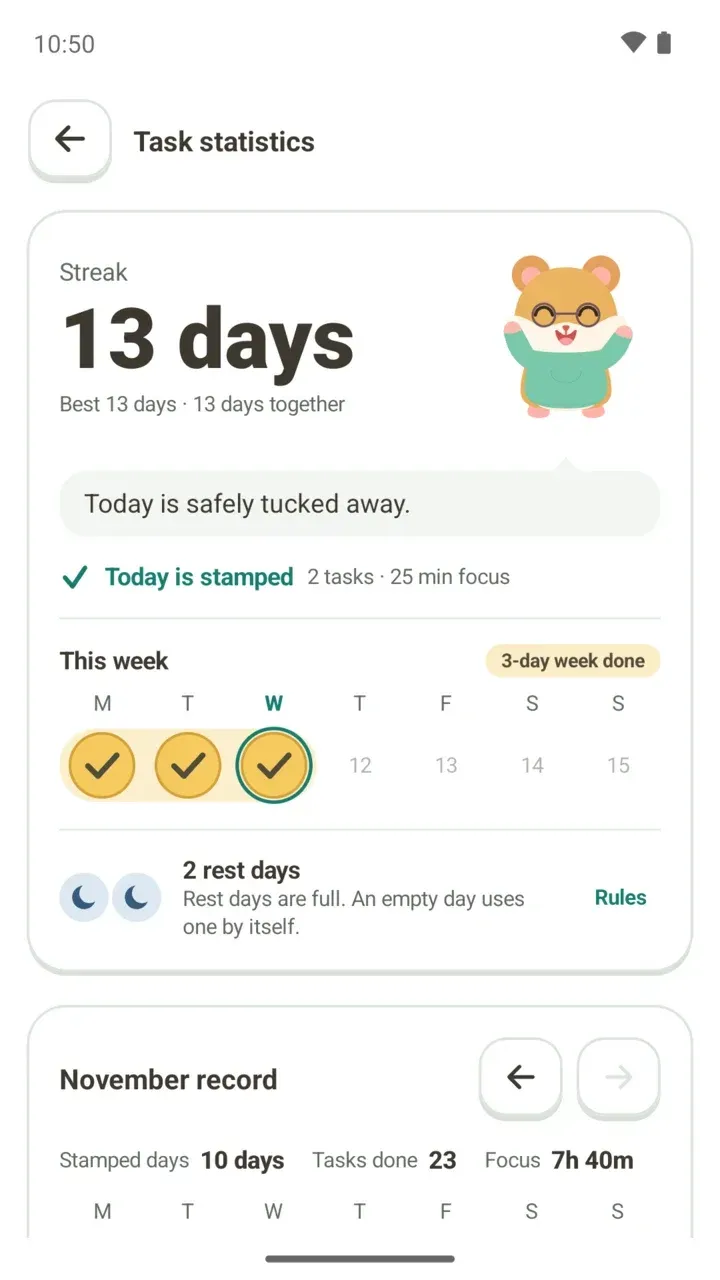
- Streak: how many days in a row you're on right now, with your best streak below it. If today is already stamped, a check mark sits next to the number.
- Days together: how many days you've stamped records in Damda.
- This month: the number of to-dos you finished this month, like "Done in November, 23 to-dos", and below it how many days you stamped this month.
Anything still at 0 isn't shown at all. If you see fewer boxes right after a new month starts, that's why.
How a streak keeps going, and how a rest day covers an empty day, is explained in streaks and rest day rules.
Ongoing to-dos: how far your repeating tasks have come
To-dos that repeat every day or on chosen weekdays, and are still going, gather here. Each one comes with a few numbers.
- How long since you started: shown like "Day 14". On the day you create it, it says Started today.
- To-dos that repeat only on some weekdays are counted in weeks, like "Week 2", so the days they don't repeat don't look like missed days.
- Days done: the days you actually finished it, like "Done on 9 days".
- To-dos with a count goal also show the total you've filled so far, like "282 words so far".
- A to-do you finished today gets a check mark on the right.
Days you skipped or days left aren't counted or shown. You only see how many days you got it done.
Personal bests: your longest runs
- Best streak: if it's still going, you see Still going instead of a date. If rest days helped keep it alive, that's noted too.
- The day you finished the most to-dos
- Longest focus
- Biggest focus day
- Biggest focus week
When you beat a record, it gets a New best tag, and View that day or View that week opens your records from that time.
Under the card there's a short note with a date. From that date on, break time is left out of your focus time.
Focus records and This week in one line
Focus records lets you look back on your focus time with weekly and monthly focus charts. Next to the chart, your hamster sums up that stretch in one line, like these:
- Your longest focus this week was 1 hr 10 min.
- You spent the most time on History this week.
- This week you focused most in the evening.
- You've had 2 more focus days than this time last week.
- You set a new longest focus!
Lines that compare your focus days only appear when you did more than, or the same as, last time. The label changes with what you're looking at: Last week in one line for last week, or something like "September in one line" for another month.
Focus time adds up on the class or to-do you link
The timer keeps a record even if you just start it. But linking what you're studying makes looking back much clearer.
- On the Today tab, pick a class or to-do under Focus on.
- Press Start focus.
- Your focus time is counted on the class or to-do you picked, and the one-line summary in the Records tab shows where most of your time went.
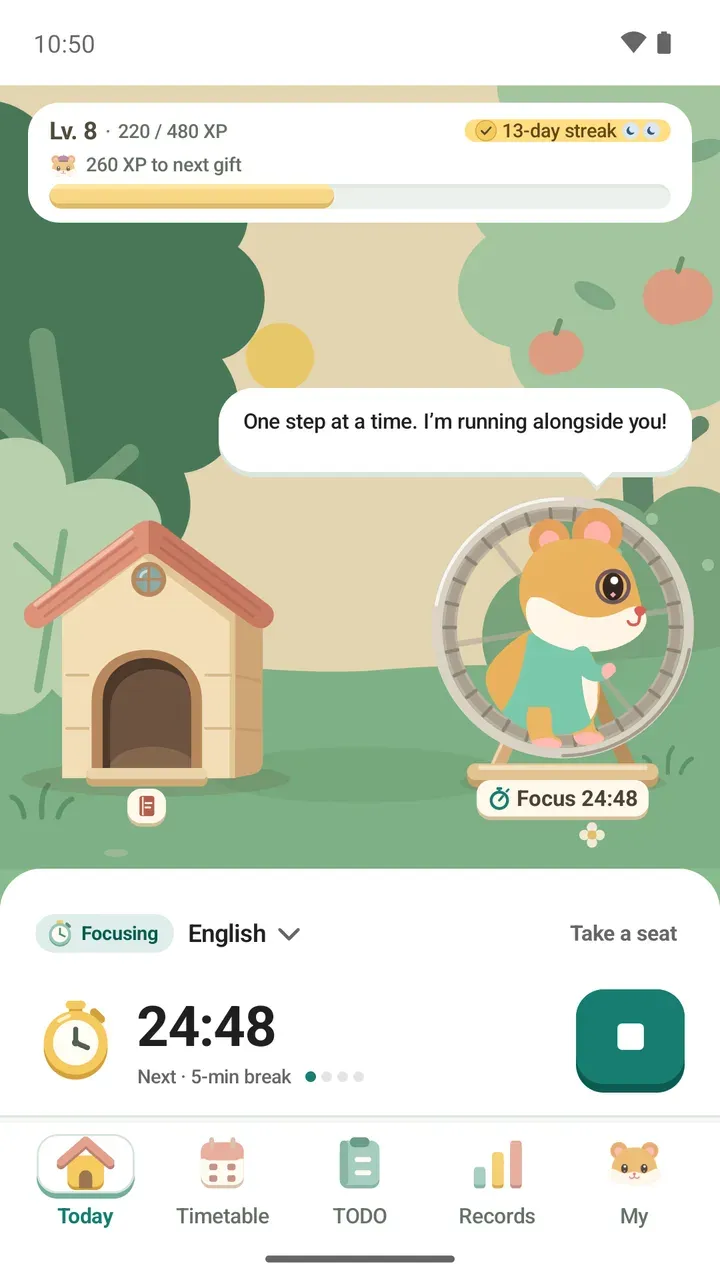
Timer presets and setting your own length are covered in how to use the focus timer.
Flip through your months
Tap Task statistics on the My records or Ongoing to-dos card to open the Task statistics screen. The month record at the bottom shows that month's stamped days, tasks done and focus time. Use the arrows to move between months, all the way back to your first record.
Each day is marked as done, in progress, not started or unscheduled, and days when you finished a one-time to-do are marked separately.
Use your records to tune your routine
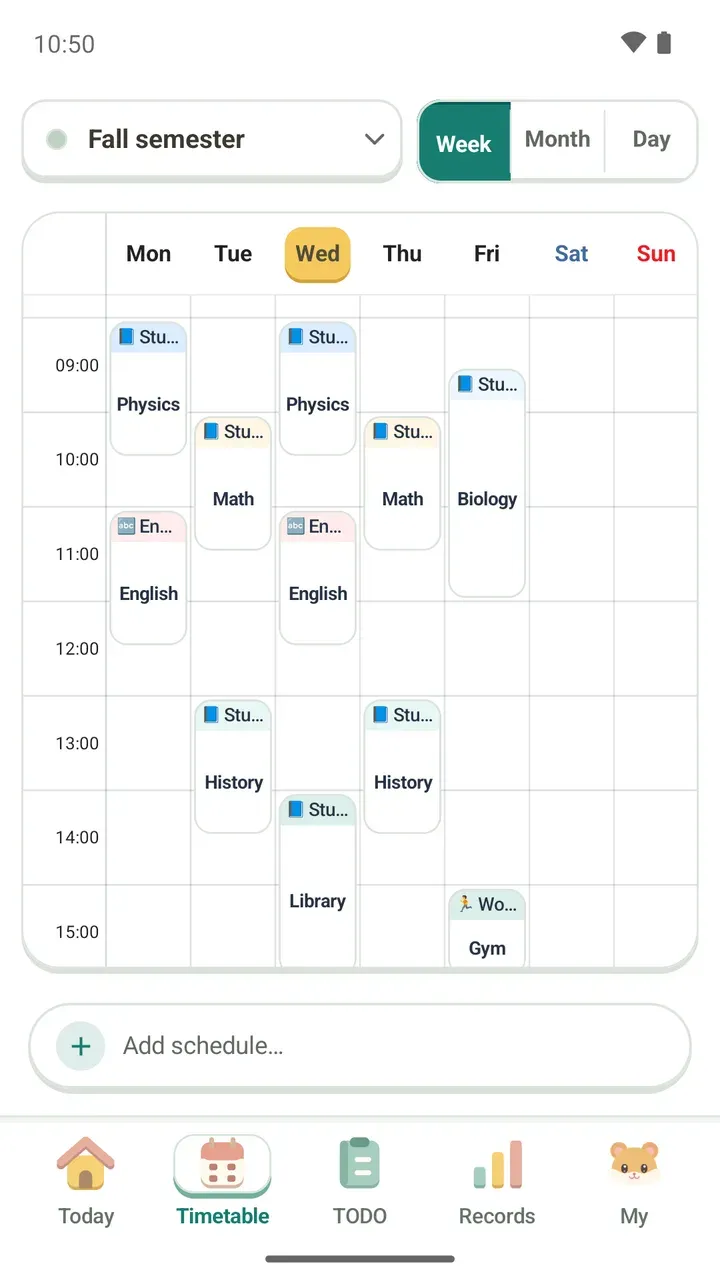
- On the weekend, check This week in one line and the weekly chart to find when you focused best, then put study time in that slot on next week's timetable.
- If an ongoing to-do has far fewer days done than days since it started, lower the count goal or the repeat days until it's something you can finish today.
- If the thing you spent the most time on isn't what you expected, pick the subject you want to give more time to under Focus on first next week.
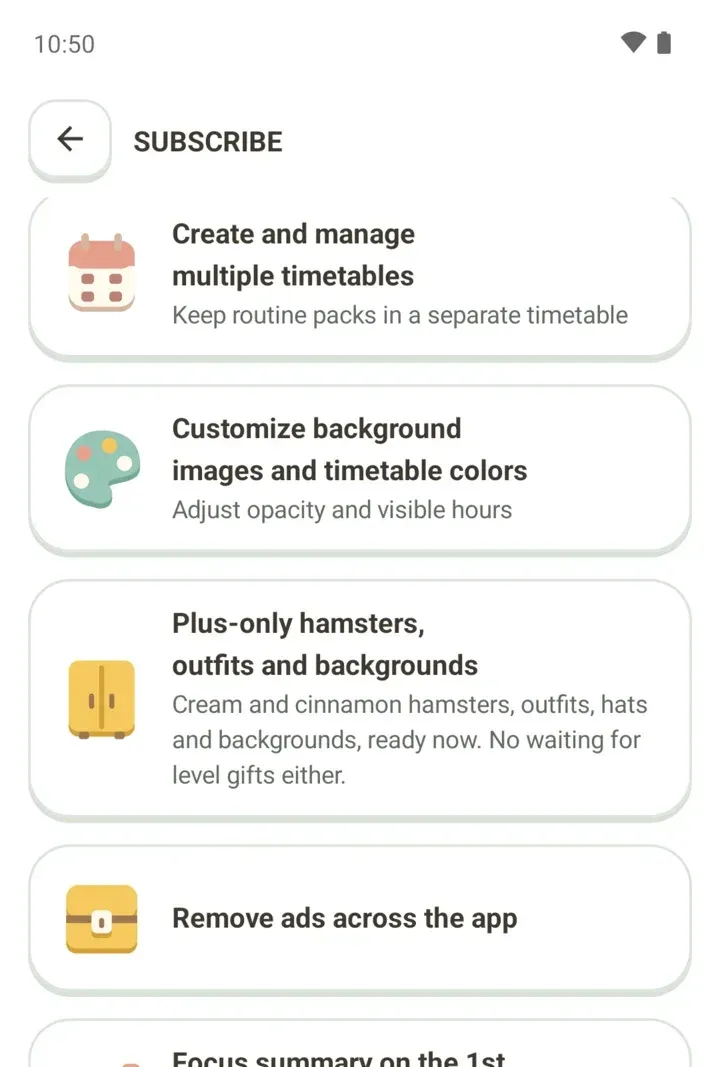
Want to focus alongside others and see today's ranking? Open the Damda study hall from Ranking in the Records tab. A focus summary on the 1st of each month is part of Damda Plus.
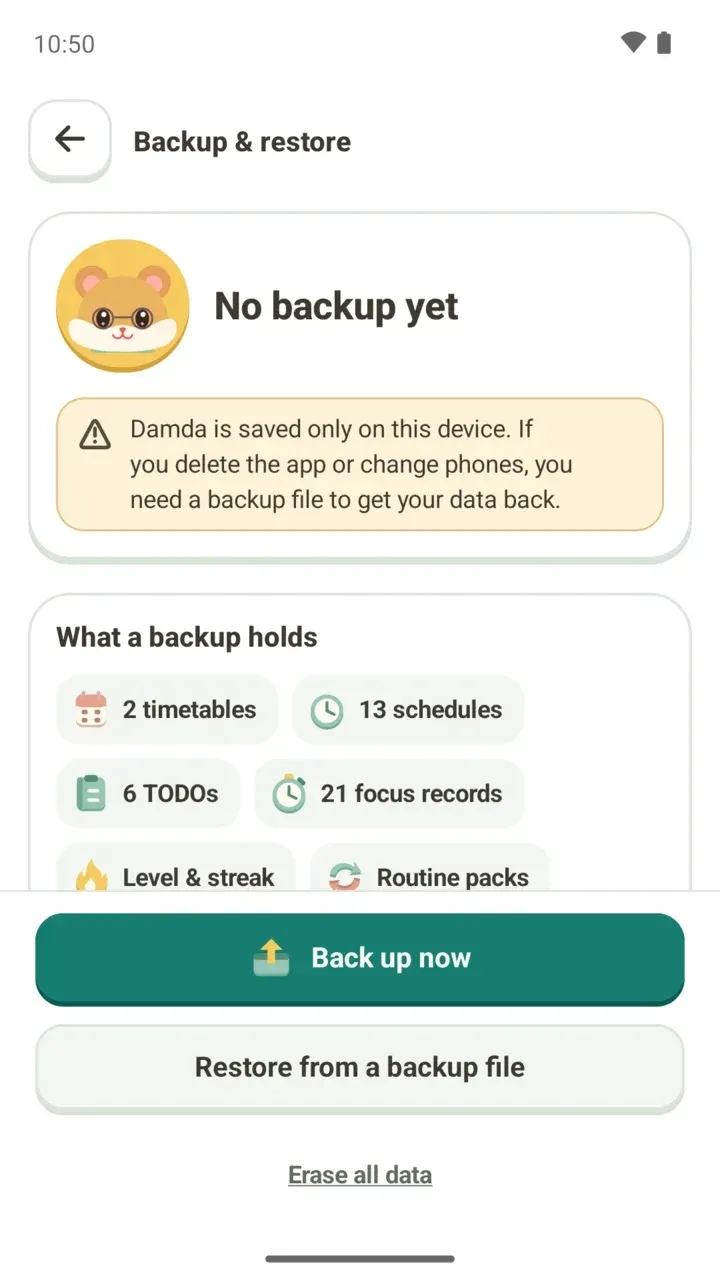
Your timetable, to-dos, memos and focus records are stored on this device and are deleted along with the app. Before you change phones, make a backup file.