Routine Planner: Add Ready-Made Routines to Your Timetable
Hard to build a morning routine from scratch? Pick a routine pack in Damda and add only the steps you want to your timetable and to-do list.
Search for a morning routine or a productive daily routine and you'll find plenty of good examples. But to fit one into your own day, you still have to work out what comes first and at what time.
Damda's routine packs are 26 ready-made routines. You look one over, pick just the steps you want, and add them straight to the timetable you already use. Steps with a time go onto your timetable as schedules, and steps without a set time become to-dos in TODO.
Where to find routine packs
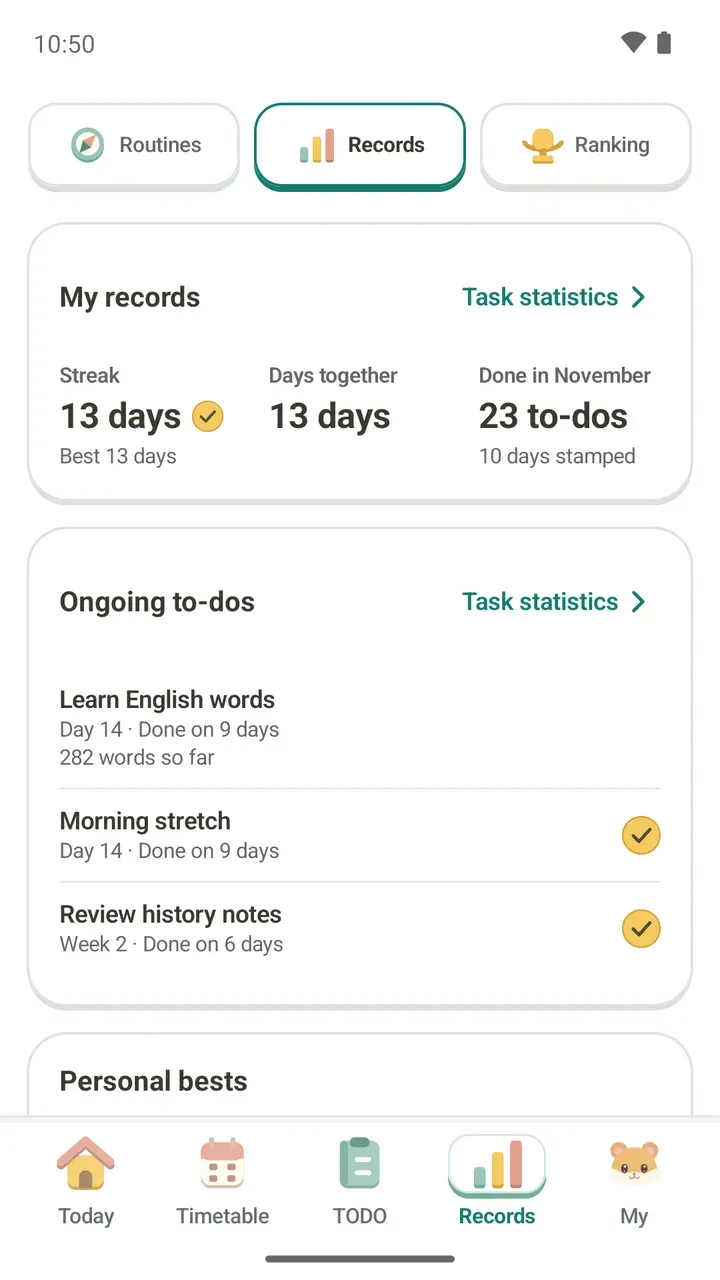
Open the Records tab at the bottom and tap Routines at the top. You'll see the "Find your routine" screen. Tap a category chip to see only the packs in that area.
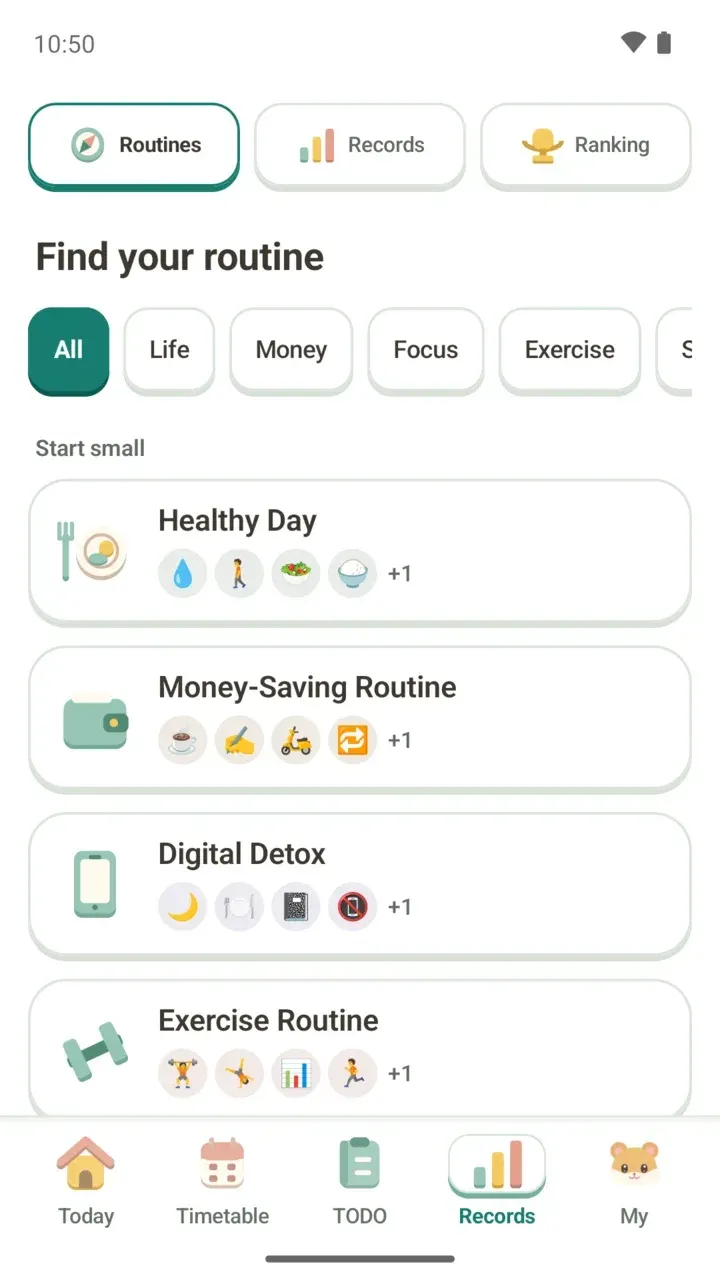
Routine packs come in six categories.
- Study
- Jobs
- Exercise
- Focus
- Money
- Life
Pick only the steps you want
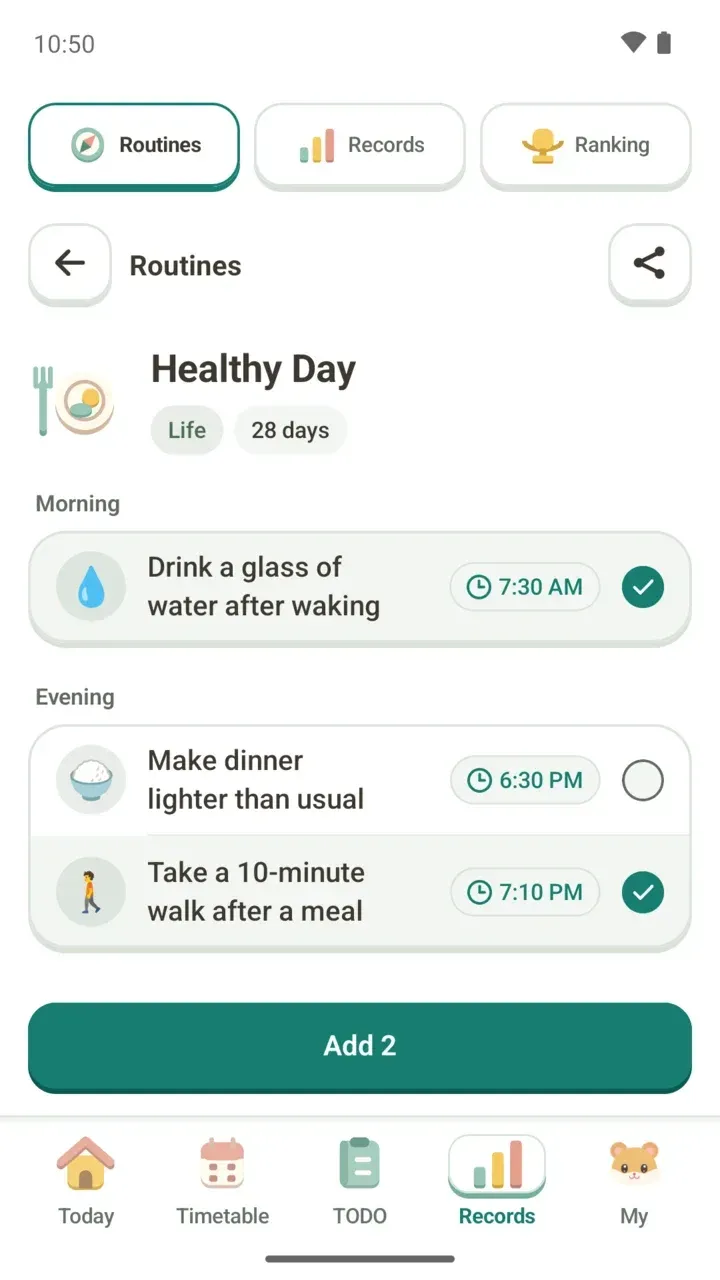
Tap a pack to open its details. The pack's name, category and length are at the top. Below, the steps are grouped by time of day, like Morning and Evening, each with a suggested time.
You don't have to start every step at once. Check only the ones that fit your day right now, and the button at the bottom changes to match, like "Add 2".
- In the Records tab, tap Routines at the top.
- Narrow things down with a category chip, then tap a pack you like.
- On the details screen, check the steps you want and tap the Add button at the bottom.
- If a suggested time under "Schedule to be added" doesn't suit your day, tap "Change time" to move it.
- At "Where would you like to start this routine?", tap "Add to current timetable".
- When you see "The routine was added to your timetable and TODOs.", you're done.
If a new schedule clashes with one already on your timetable, you'll see "Some times overlap your schedule". Just tap "Change the time" to move it.
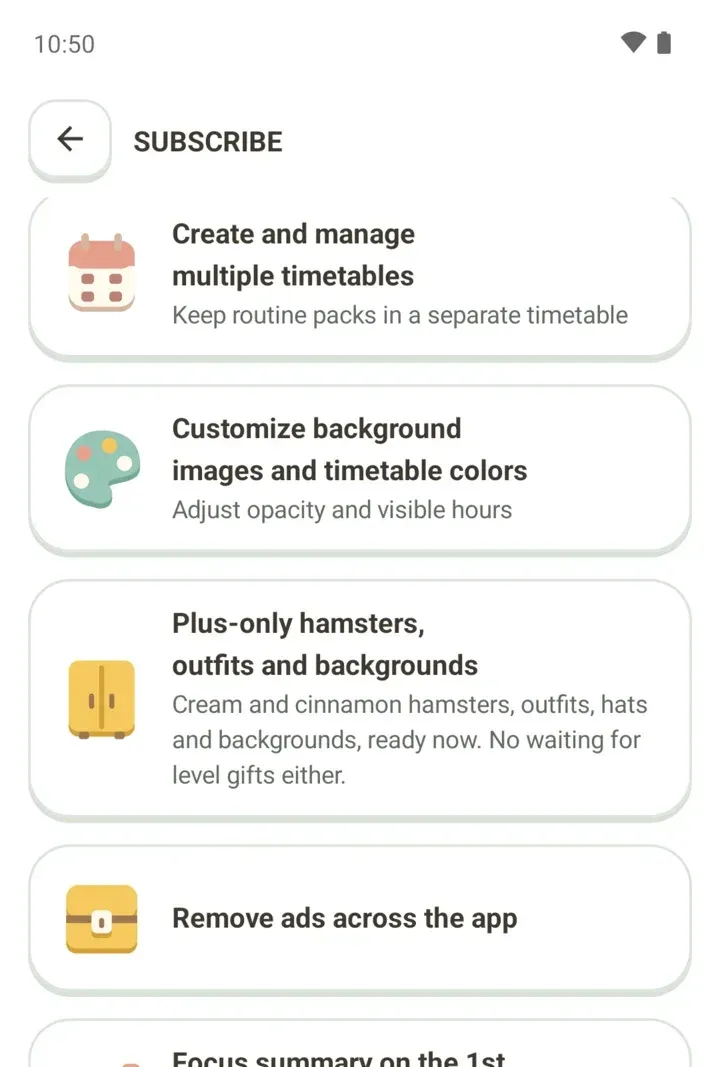
If you'd rather keep a routine apart from your regular timetable, "Start in a new timetable" gives it a dedicated timetable of its own. That's a Damda Plus feature, and you can read about everything else it includes in our Damda Plus guide.
A look at Life, Exercise and Money packs
Here are a few packs from each area. The category is in parentheses, followed by the steps in the pack.
- A Highly Productive Daily Routine (Life): stretch right after waking, wake up the mind with a light meditation, drink a glass of water on an empty stomach, plan today in Damda, Pomodoro after work (25 min focus, 5 min rest), light reading, and set out tomorrow's clothes before bed
- Healthy Day (Life): drink a glass of water after waking, start one meal with vegetables and protein, make dinner lighter than usual, take a 10-minute walk after a meal, and brush three times today
- A Celebrity's Daily Routine (Life): wake up at 6 AM, eat dinner at 6 PM, skip evening snacks, exercise, read the newspaper, and go to sleep at 10 PM
- A Wellness Daily Routine (Life): take supplements, light stretching, hydrate on an empty stomach, and eat one nourishing meal today
- Daily Tidy-up (Life): tidy my desk for 10 minutes, write down 3 things for tomorrow, pack tomorrow's bag before bed, and write down what I spent today
- Housework Routine (Life): buy groceries every week, do laundry every week, clean the bathroom every week, wash bedding every week, and organize the fridge every month
- Fridge Cleanout Day (Life): check remaining ingredients before grocery shopping, and make one meal with ingredients in the fridge
Life also has packs for things you want to make time for once a week or once a month, like Knitting Evening, Solo Movie Day and Camping Day. The Dog Care pack is set up for a walk every day and a bath once a month.
- Exercise Routine (Exercise): do strength training once a week, do cardio once a week, have recovery food after a workout, stretch after a workout, and check body composition every month
- Walk More (Exercise): take the stairs instead of the elevator, get off one stop early and walk, and walk for 30 minutes in the evening
- 5K Running (Exercise): run 5 km once a week. It doesn't create any separate to-dos.
- Early Morning Swimming (Exercise): swim twice a week
- Weekend Riding (Exercise): ride a bicycle once a week
- Neck and Shoulder Stretch (Exercise): stretch my neck and shoulders for 5 minutes once a day. It reminds you to stop right away if you feel pain.
- Money-Saving Routine (Money): No Coffee Day, No Delivery Day, review this week's spending, cancel one subscription I do not use, and move savings first on payday
Packs for Study, Focus and Jobs have their own post: study and focus routines.
Keep going on your routine journey
Routines you've added show up under In progress on the Routines screen. Tap Continue to open My routine journey, where you can see which day you're on, how many of today's tasks you've finished and how many days you've completed.
- Today's routine: the steps for today and how many you've done
- This week's 7-day board: which days this week you kept at it
- Growth roadmap: in packs that run for several weeks, the tasks that change from week to week
- Routine pack card on the Today tab: which day you're on and how many TODOs you've finished today
If you turn on Today's flow briefing, on days with nothing scheduled it may also nudge you to keep up the routine pack you're working on.
Share a pack or stop a routine
Use the share button at the top right of a pack's details screen to send a pack you like to a friend. It goes to whichever app you choose.
When you want to end a routine, tap "Stop routine". The schedules and TODOs the pack added are cleared along with it.
Good to know
- If you try to delete just one schedule or to-do that a routine in progress added, you'll be asked to stop the routine instead, so its record isn't left half deleted.
- A timetable with a routine in progress can only be deleted after you stop the routine.
- After adding a routine, you can still edit the times and details of its schedules and to-dos in Timetable and TODO.