How to Add a To-Do: Repeat Days, Due Dates and Count Goals
Repeat a task daily or on chosen days, set a due date with D-day, or set a count goal like 30 words a day. A walk through the Add task screen.
Vocabulary is 30 words a day, workouts are Monday, Wednesday and Friday, and the essay is due Friday. Every task on your to-do list has its own rhythm. In Damda's Add task screen, you can set that rhythm once and let your list follow it.
This post walks through the Add task screen from top to bottom. At the end, you'll also find how to turn text from another app into a task, and a few shortcuts.
Open the Add task screen
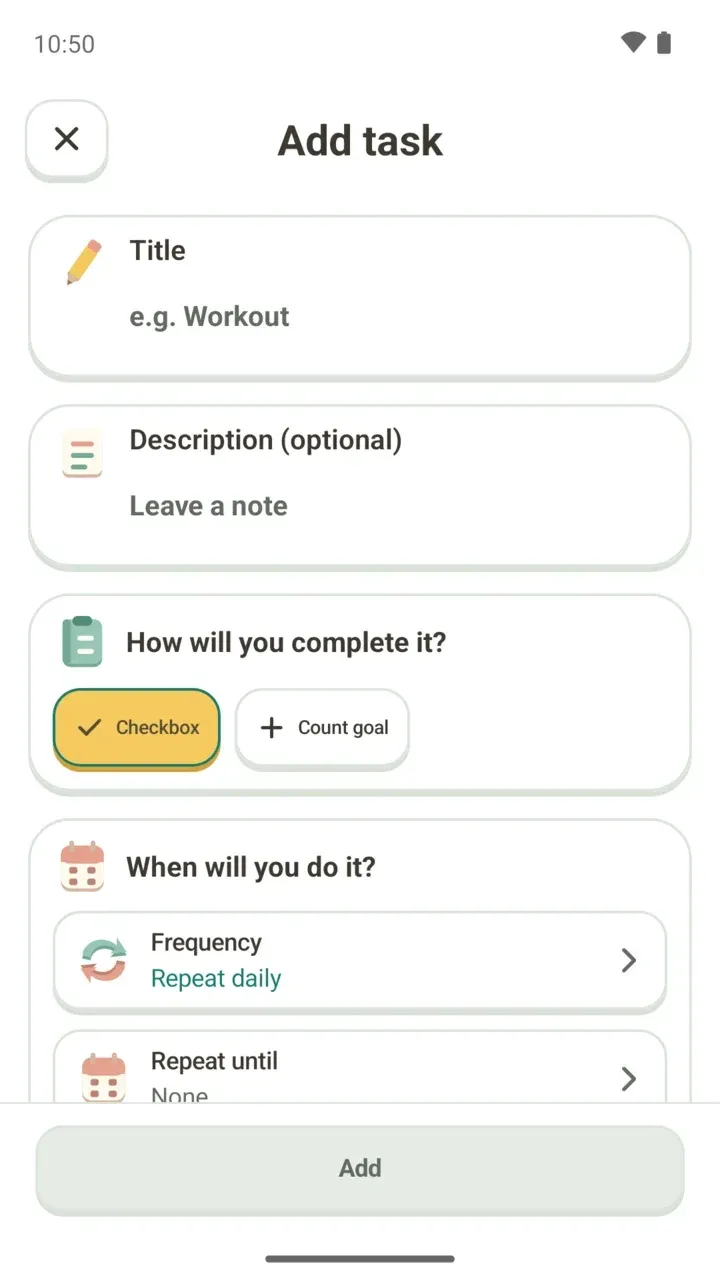
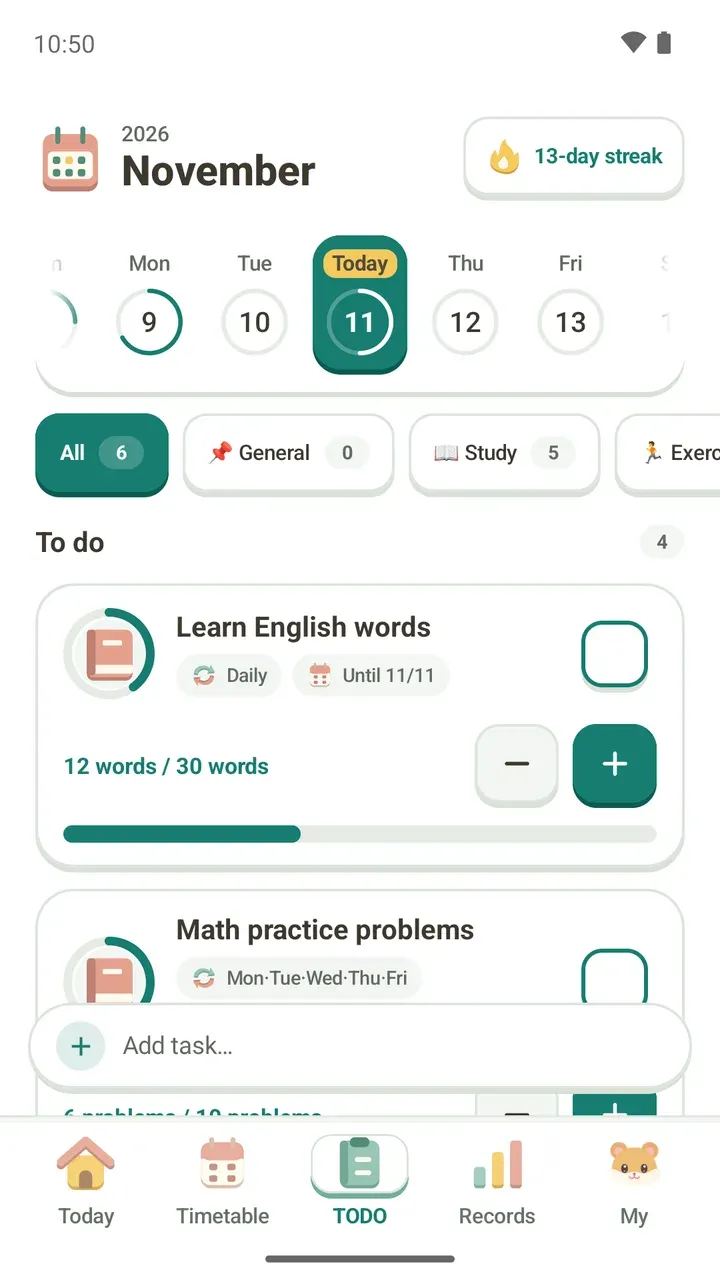
Tap “Add task…” at the bottom of the TODO tab to open the Add task screen. When you've filled it in, tap “Add” at the very bottom and the task goes on your list.
Title and description
In Title, write the task in a few words, like “Workout.” The description is optional, so leave it empty or add a note if it helps.
How will you complete it? Checkbox or Count goal
- Checkbox: for things you do once and they're done, like turning in an assignment or submitting a form.
- Count goal: for things with a set amount, like 30 words or 10 problems a day. Each tap of the + button on your list fills in one more.
When will you do it? Set how it repeats
Tap Frequency to choose between every day, specific days or one time.
- Every day: shows up on your list every day.
- Specific days: shows up only on the days you pick.
- One time: do it once, by the date you set.
- Tap Frequency and choose “Specific days.”
- Tap the days you want it to repeat. Pick at least one.
- Tap “Repeat on these days” to apply.
Repeat until
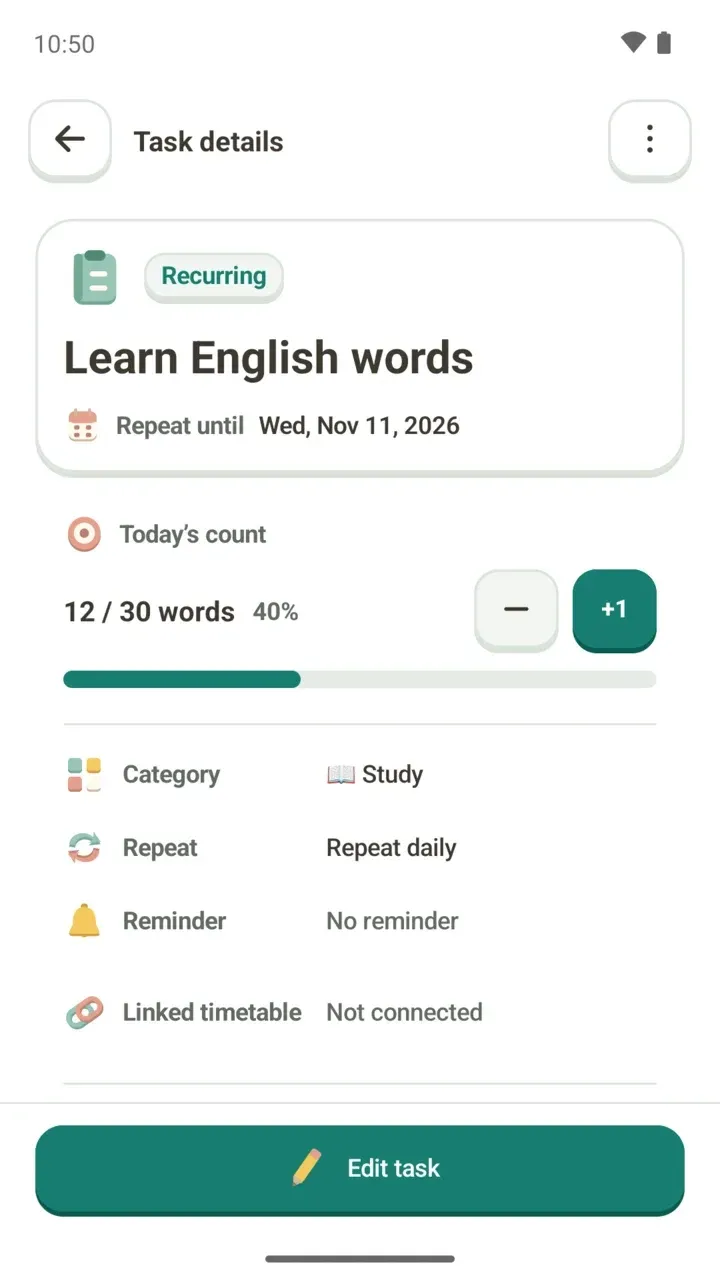
A repeating task can have a Repeat until date. It repeats through that day and stops showing up on your list the next day. That's handy for study with a set window, like the two weeks before finals.
If you leave Repeat until set to None, it keeps repeating.
Due date and D-day
For a one-time task, the date row becomes “Due date.” The task stays on your list until then, so just finish it by the date you pick. When choosing the date, the Today, Tomorrow and Next Mon buttons set it in one tap.
On the details screen, a task with a due date shows the days left after the date, like D-3. On the day itself it shows Today, and once the date has passed it shows D+1 and so on.
One thing to know: if you remove the due date from a one-time task, it switches to repeat daily.
Pick a category
Give each task a category such as Study or Exercise, and you can sort your list with the category chips at the top of the TODO tab. From 3.1.0, you can also manage categories on their own.
Link it to a class on your timetable
Tasks that belong to a class, like homework or review, can be linked to a time block on your timetable. If you don't need a link, choose “Don't link.” Removing the link keeps your progress.
To put the class itself on your timetable, see how to add classes to your timetable.
Reminder
When you set a reminder time, it's shown to match how the task repeats. A daily task shows “Daily” and the time, a task on specific days shows the days you picked, like Mon·Wed·Fri, and the time, and a task due on another day shows that date and time.
If you pick a time that has already passed, you'll see “This time has passed, so no reminder will ring.” When a reminder arrives, you can mark the task done or tap +1 right there. To allow notifications and see how reminders work, read class and task reminders.
Add text from another app as a task
An assignment posted in your class group chat or a supply list in your notes app doesn't need to be typed out again.
- In the other app, share the text you want as a task, or long-press to select it.
- In the list that opens, tap Damda's “Add as task.”
Open it faster with shortcuts
- App icon shortcuts: long-press the Damda icon on your home screen to see Add task, Add schedule, Focus timer and Timetable.
- Phone search: find “Add task” in system search such as Galaxy Finder and open it directly.
- Widgets: use the + button on a home screen widget to add a task or a schedule right away.
Once your tasks are in, here's how to check them off and fill your counts each day: using the TODO tab.